

Live Photos are delightful — a still image with a few seconds of motion and sound baked in. But try sharing one with someone on Android, or uploading it somewhere that doesn’t understand Apple’s format, and you’ll wish it were a plain video file. Good news: your iPhone can convert any Live Photo into a regular video using only the built-in Photos app. No Shortcuts, no third-party apps, and the original stays untouched.
The trick has been hiding in the Photos app since iOS 13, yet plenty of longtime iPhone owners have never noticed it. Here’s how it works.
Turn a Live Photo into a video step by step
- Find your Live Photo. Open the Photos app. The fastest route: tap Albums, scroll down to Media Types, and open Live Photos — every Live Photo on your phone is collected there.
- Open the photo you want to convert. Tap it to view it full screen.
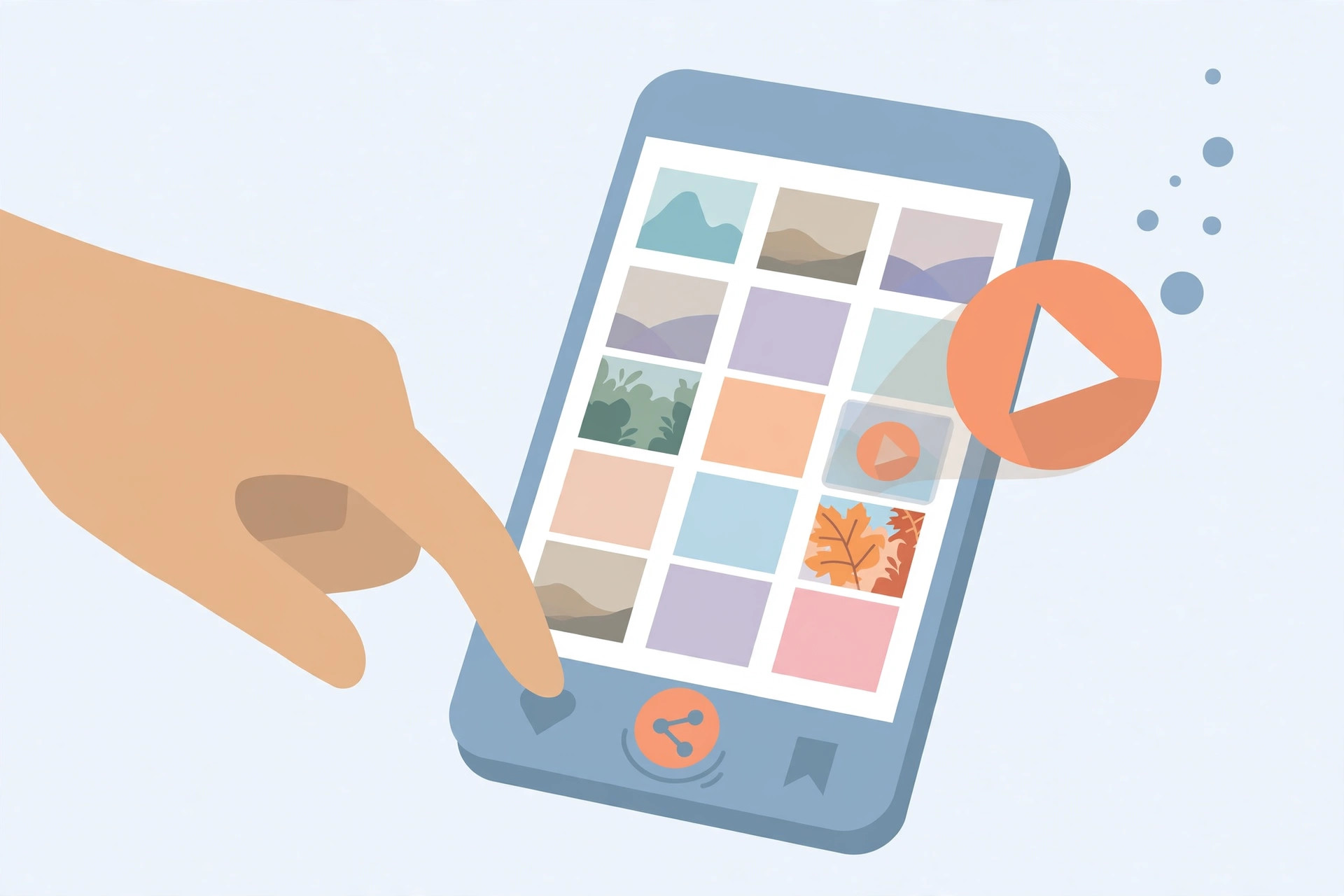
- Choose “Save as Video”. On iOS 16 and later, tap the ••• (More) button in the top-right corner, then tap Save as Video. On iOS 15, tap the Share button instead, then choose Save as Video from the share sheet.
- Find your new video. The converted video appears in your Recents album (and under Videos in Media Types). Your original Live Photo is still there, exactly as it was.
If “Save as Video” is missing
Can’t find the option? The Live Photo probably has an effect applied — Loop, Bounce, or Long Exposure. These effects change the underlying format, which hides the “Save as Video” command. The fix is quick: open the photo, tap Edit, set the effect back to Live at the top of the screen, tap Done — then open the ••• menu again and “Save as Video” will be there.
If it still doesn’t work
First, confirm the file is genuinely a Live Photo — look for the LIVE badge at the top when viewing it. If the photo was sent to you through an app that strips the video component (some messaging apps do), there’s nothing left to convert. Also make sure you have free storage: the new video file needs room to be created. For the official details, see Apple Support’s guide to Live Photos on iPhone; MacRumors and 9to5Mac have also documented this handy conversion.
Love iPhone photography tricks? Learn what to do when spatial photo mode isn’t working in iOS 26, how to take HDR screenshots on iPhone and iPad, and how to set up message sync between iPhone and Mac.
Frequently asked questions
Does converting delete the original Live Photo?
No. “Save as Video” creates a brand-new, separate video file. Your original Live Photo remains in the library, untouched — you can delete the video or the Live Photo independently afterward.
Can I convert several Live Photos at once?
The built-in method works one photo at a time. If you have a large batch to convert, repeat the steps for each — or use a Shortcut or third-party app, which is the one case where leaving the Photos app makes sense.
Conclusion
Turning a Live Photo into a video takes about ten seconds and nothing but the Photos app: find the shot, open the ••• menu, and tap “Save as Video”. And if the option ever goes missing, check for a Loop, Bounce, or Long Exposure effect first — switching back to Live brings it right back.





