
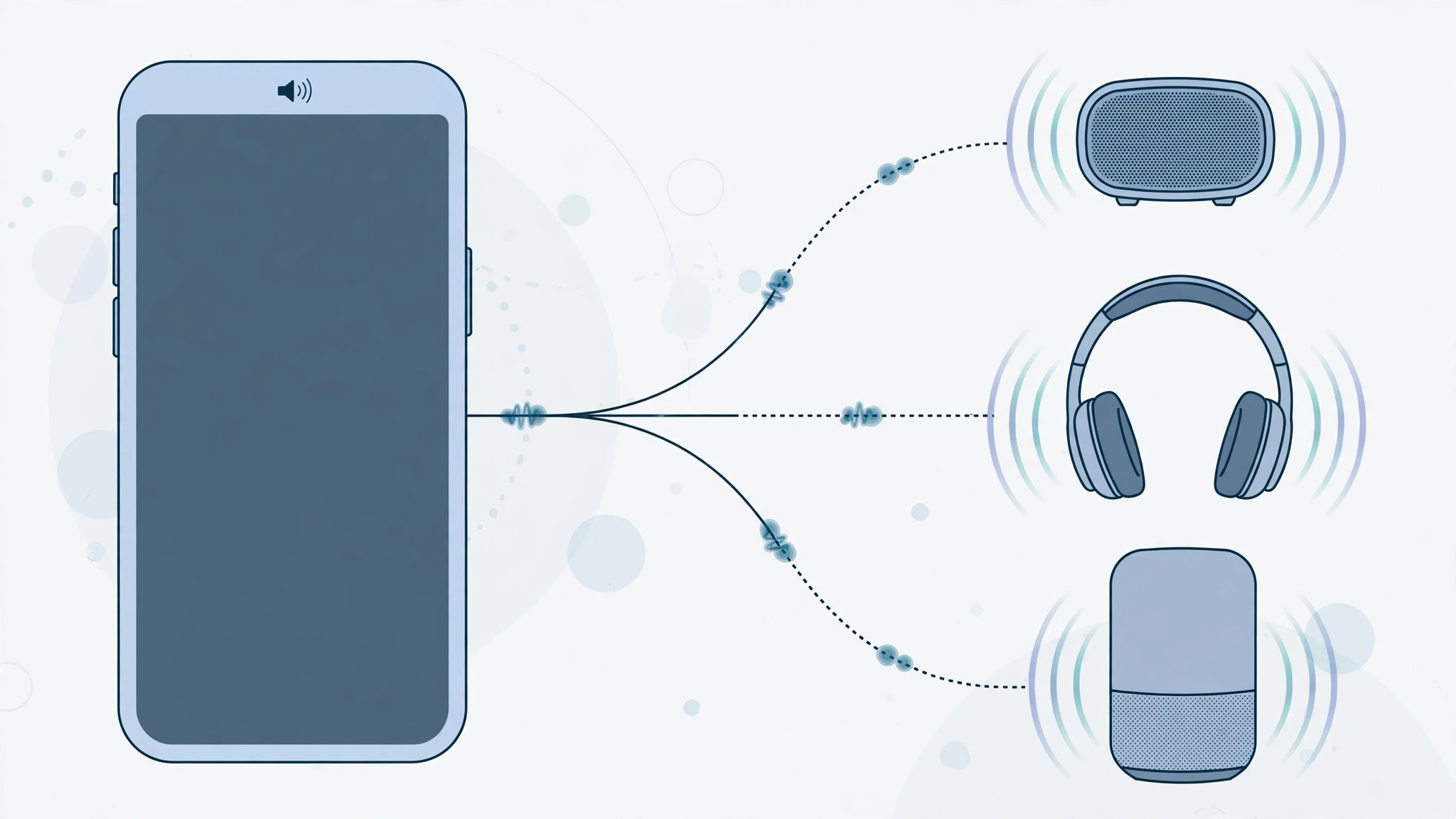
You’re listening to music on your iPhone and want to move the sound to your Bluetooth speaker — or your AirPods just connected and stole the audio from the phone speaker. Many people dig through Settings → Bluetooth to switch outputs. There’s a much faster way: the AirPlay audio picker, available right from Control Center and even from the Lock screen.
It takes about three taps and works for everything: the iPhone speaker, wired and Bluetooth headphones, AirPlay speakers, Apple TV, and HomePod.
Method 1: Switch audio output from Control Center
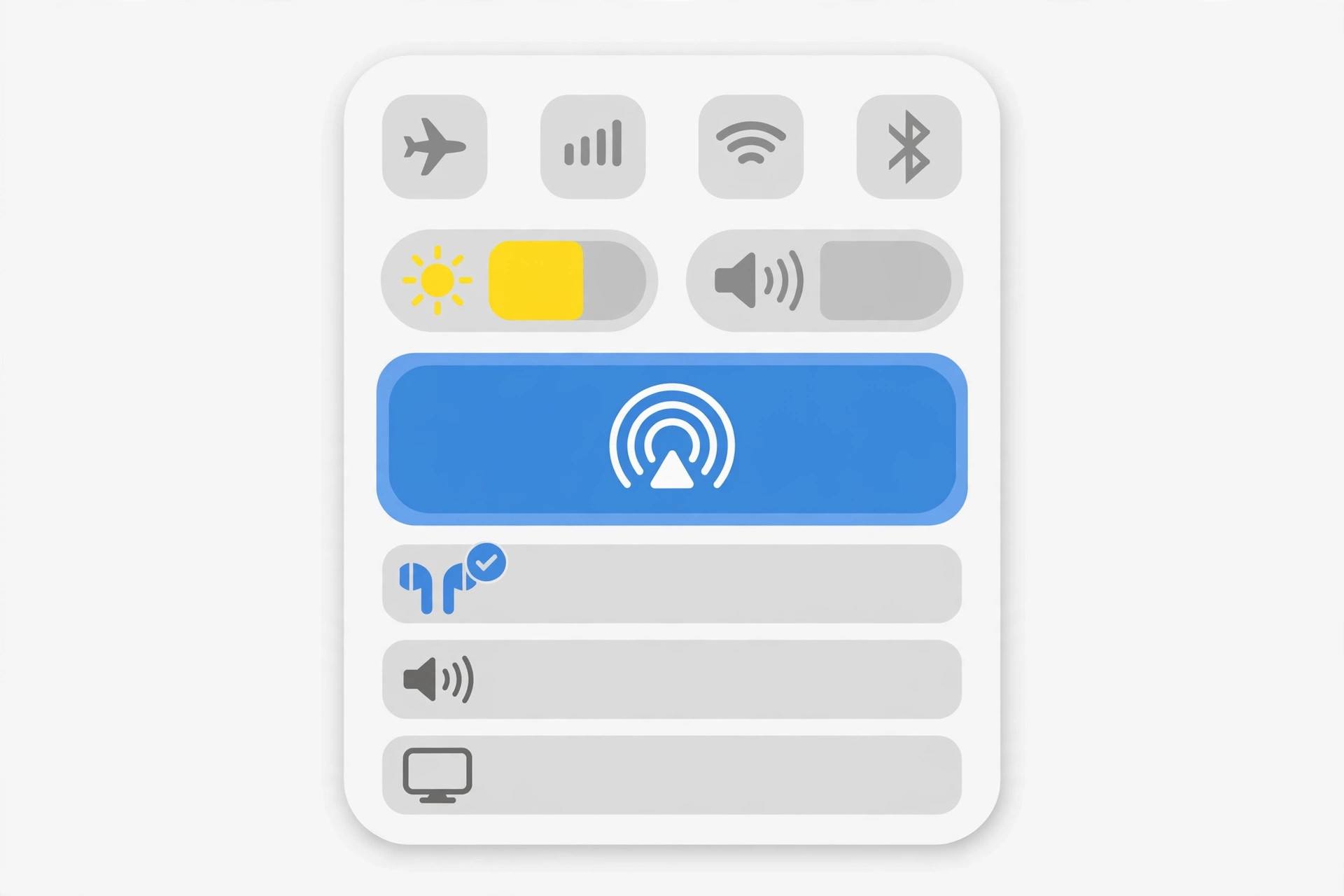
- Open Control Center. On iPhones with Face ID, swipe down from the top-right corner of the screen. On iPhones with a Home button, swipe up from the bottom edge.
- Tap the AirPlay icon. In the Now Playing audio card, tap the AirPlay icon in the top-right corner — the triangle with radiating rings.
- Choose your output. A list appears with every available destination: iPhone (the built-in speaker), your Bluetooth headphones, AirPlay speakers, Apple TV, and more. Tap the one you want — the audio switches instantly.
Method 2: Switch audio output from the Lock screen
- Wake your iPhone. You don’t even need to unlock it.
- Tap the AirPlay icon on the Lock screen’s audio widget.
- Pick the output source from the list. The same icon also appears inside supported apps like Music and Podcasts, so you can switch mid-stream without leaving the app.
If it still doesn’t work
If a device doesn’t show up in the list, make sure it’s powered on and ready: Bluetooth devices need to be in pairing range (toggle Bluetooth off and on if they don’t appear), and AirPlay speakers need to be on the same Wi-Fi network as your iPhone. If your audio keeps jumping to the wrong device on its own, learn how to stop your iPhone from auto-switching audio from headphones to a speaker. For the official details, see Apple Support’s guide to AirPlay on iPhone; MacRumors also covers audio routing quirks across iOS updates.
More iPhone audio tips: turn off the AirPods charging case sounds if the chime annoys you, and add and change the iPhone startup sound to personalize your device.
Frequently asked questions
Why does my iPhone keep switching to Bluetooth automatically?
iOS routes audio to the most recently connected output. If a Bluetooth device connects — say, your car’s stereo — the iPhone hands audio to it automatically. Use the AirPlay picker to switch back, or follow our guide to stop the automatic switching entirely.
Can I switch audio output during a phone call?
Yes. On the active call screen, tap Audio (the speaker icon) to choose between iPhone, speakerphone, and connected Bluetooth devices — the same idea, right where you need it.
Conclusion
Forget digging through Settings → Bluetooth. The AirPlay picker in Control Center — and on the Lock screen — switches your iPhone’s audio output in seconds, whether you’re moving music to a speaker, taking a call on your AirPods, or beaming video sound to the Apple TV.





