
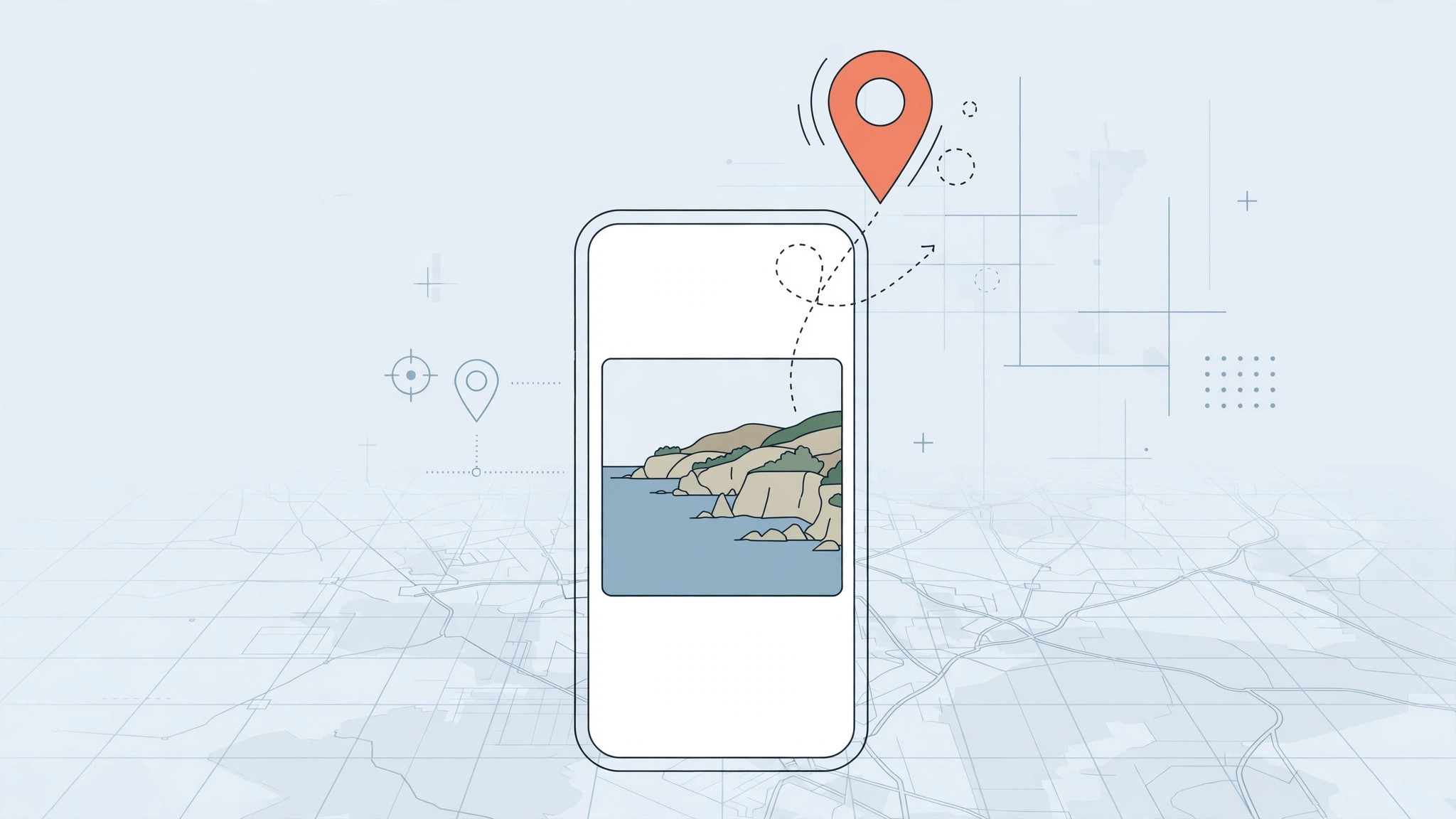
Every photo your iPhone takes can carry an invisible passenger: a geotag recording exactly where you stood when you pressed the shutter. That is handy for reliving vacations on the Photos map — and a privacy headache when you share pictures online, post to social media, or send photos to people you barely know. The good news: iOS 16 gives you complete control. You can stop the tagging entirely, downgrade it to an approximate location, strip the geotag when sharing, or rewrite the location on any existing photo — all without third-party apps.
How iPhone geotagging works
When the Camera app has location permission, iOS embeds GPS coordinates into each photo’s metadata. Apple documents this behavior in its guide to managing location metadata in Photos, and privacy-focused coverage from MacRumors and 9to5Mac regularly reminds readers that those coordinates travel with the file wherever it is shared. There is also a middle ground: the “Precise Location” toggle. With it switched off, the iPhone records only an approximate location — roughly the city — instead of exact coordinates.
How to remove or change photo location data in iOS 16
- Stop tagging new photos entirely. Go to Settings → Privacy & Security → Location Services, find Camera in the list, and set its permission to Never. From now on, new photos carry no location data at all.
- Or keep tagging, but only approximately. In the same Camera location settings, turn off the “Precise Location” toggle. New photos will be tagged with a rough area — the city rather than the exact spot — which keeps location-based memories working without pinpointing your address.
- Strip the geotag when sharing. Open the photo, tap Share, then tap Options at the top of the share sheet and switch the Location toggle off. The shared copy goes out with the geotag stripped, while your original keeps it. Important: this toggle defaults to on — check Options every time you send sensitive photos.
- Change or remove the location on an existing photo. Open the photo in the Photos app and swipe up to reveal its details. Tap Edit next to the location field, then type a different place or clear the location entirely. The change applies to the photo in your library.
Privacy pairing: location metadata is just one trail your iPhone leaves — pairing this cleanup with how to stop Safari from suggesting passwords for websites on iPhone tightens up another everyday privacy leak. And if you would rather stay on your current iOS version than upgrade, see how to completely block iOS 26 updates on iPhone.
If it still doesn’t work
Remember that changing the Camera permission only affects photos taken after the change — older photos keep whatever geotag they were born with, so edit those individually. If a shared photo still shows a location, you likely forgot the Options toggle on that particular share; the original is untouched, so just re-share it correctly. Also check other camera apps: third-party apps have their own location permissions under Location Services and may tag photos independently of the system Camera.
Frequently asked questions
Does the share-sheet Location toggle stay off once I disable it?
No — it defaults to on for every share. Apple designed it as a per-share decision, so get into the habit of tapping Options and checking the toggle each time you send a photo you don’t want geotagged.
Will removing location data mess up my Photos library?
Not at all. Memories, albums, and search keep working; you simply lose the map pin and place-based grouping for the photos you strip. The image itself is never affected.
Conclusion
Geotags are useful until the moment they aren’t — a photo posted publicly can reveal your home address to anyone who looks. iOS 16 puts all four controls in your hands: block tagging, blur it to city level, strip it per share, or rewrite it after the fact. Pick the level of privacy you are comfortable with, and make the share-sheet Options check a habit.





