
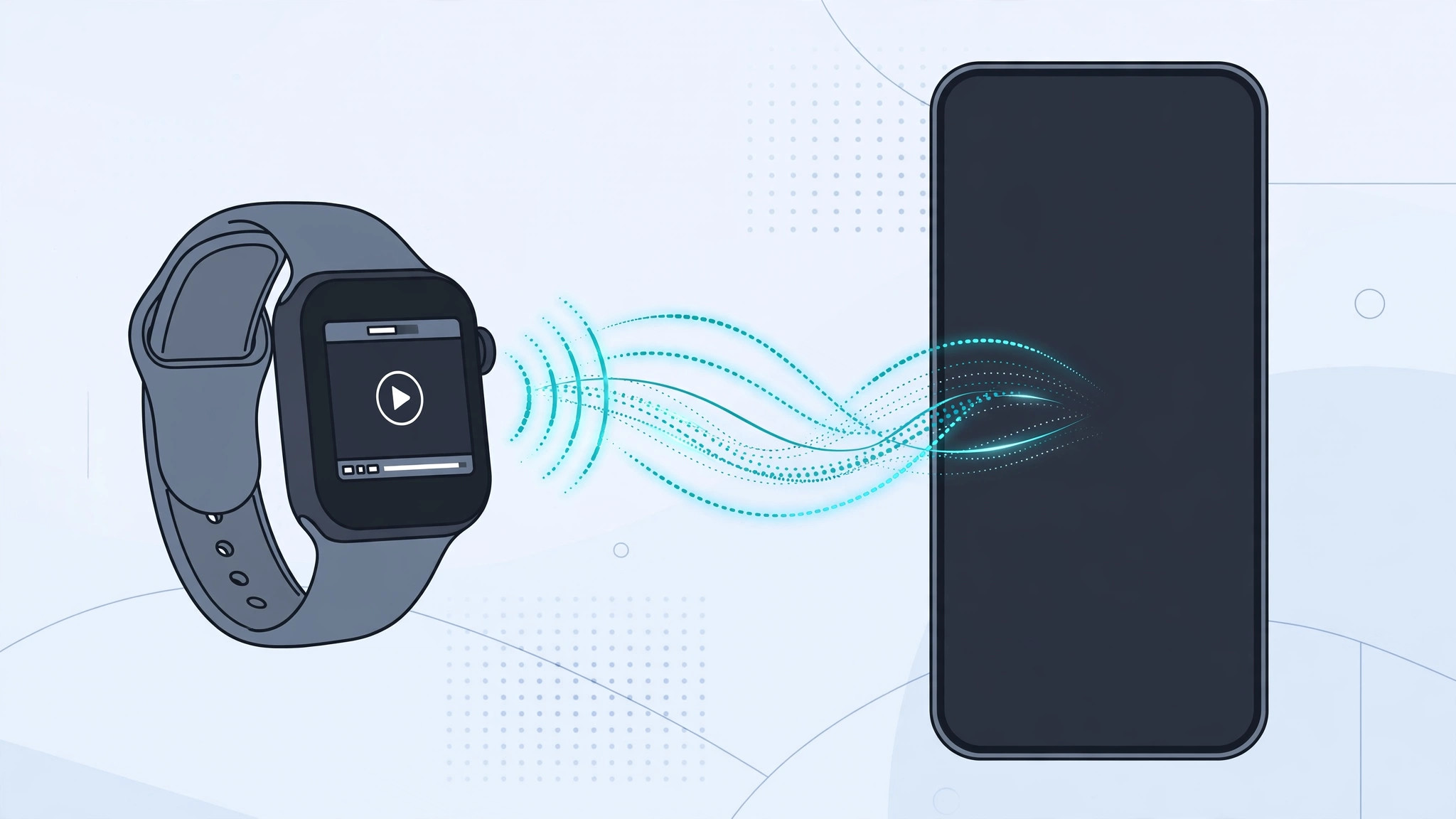
Your Apple Watch can take calls, stream music, track workouts, and pay for groceries — but ask it to open YouTube and you’ll hit a wall. Google never released an official YouTube app for watchOS, and YouTube links tapped on the watch usually go nowhere. The good news: you don’t need a native app to watch clips on your wrist. A simple iMessage trick plays videos right on the watch, and a third-party app covers everyday browsing.
Why there’s no YouTube app for Apple Watch
Unlike iPhone and iPad, the Apple Watch never got an official YouTube client, and watchOS doesn’t include a full web browser. Tapping a YouTube link in an email or message typically opens a stripped-down viewer — or nothing at all. That’s why the workarounds below matter: they use tools the watch already has. Apple Support’s watchOS guides confirm which built-in apps can handle media, and here the Messages app does the heavy lifting.
Method 1: Watch YouTube videos through iMessage
This is the fastest method — no extra apps and no setup. You simply send the video to yourself and let the watch’s Messages app play it.
- On your iPhone, open the YouTube app and find the video you want.
- Tap Share under the video, then tap Copy link.
- Open Messages and start a conversation with yourself — address it to your own number or Apple ID.
- Paste the copied link into the message field and send it.
- When the message arrives on your Apple Watch, open Messages, tap the conversation, then tap the video thumbnail. The clip plays on the watch — turn the Digital Crown to adjust volume.
For private listening, pair Bluetooth headphones or AirPods with the watch first. And if the charging chime on your AirPods case drives you up the wall, here’s how to turn off AirPods charging case sounds.
Method 2: Use a third-party YouTube app for watchOS
If you watch videos on your wrist regularly, a dedicated app beats messaging yourself links. WatchTube is the best-known option: a free watchOS app built specifically for browsing and playing YouTube on the Apple Watch.
- On your Apple Watch, open the App Store.
- Search for WatchTube and install it (it’s free).
- Open WatchTube, browse trending videos or use search.
- Tap a video to play it on the watch, with on-screen playback controls.
Apps like this have been covered by 9to5Mac and MacRumors as the practical answer to YouTube’s absence from watchOS. They rely on YouTube’s public feeds, so the experience differs from the official app — but for quick viewing it works well.

Tips for a better viewing experience
- Stick to short clips. The display is tiny and video drains the battery fast — this trick shines for clips under a few minutes.
- Use Wi-Fi when you can. Playback is smoother on Wi-Fi than over cellular.
- Adjust volume with the Digital Crown during playback instead of hunting for on-screen controls.
- Keep your iPhone nearby for the iMessage method — the watch needs its paired phone or its own connection to fetch the video.
If it still doesn’t work
If the video thumbnail doesn’t appear in Messages on your watch, update both devices to the latest watchOS and iOS, then restart them. Make sure the watch is connected to the phone or Wi-Fi. If WatchTube won’t load videos, reinstall it from the App Store — third-party clients occasionally break when YouTube changes something on its end. As a last resort, unpair and re-pair the watch, which fixes most stubborn media issues.
Your iPhone has its own clever audio tricks, too — for example, you can automatically identify songs playing nearby on iPhone without opening any app.
FAQ
Can I install the official YouTube app on Apple Watch?
No. Google has never published an official YouTube app for watchOS, and the iPhone version can’t be sideloaded onto the watch. The iMessage workaround and third-party apps like WatchTube are the only practical options.
Does watching YouTube on Apple Watch drain the battery fast?
Yes — video playback is one of the most power-hungry things a watch can do. Treat wrist viewing as a quick-check feature for short clips, not a way to binge full episodes.
Conclusion
The missing YouTube app is annoying, but it doesn’t lock video off your wrist. Send yourself links through iMessage for one-off viewing, or install WatchTube for regular browsing — either way, your Apple Watch doubles as a tiny video player whenever you need one.





