
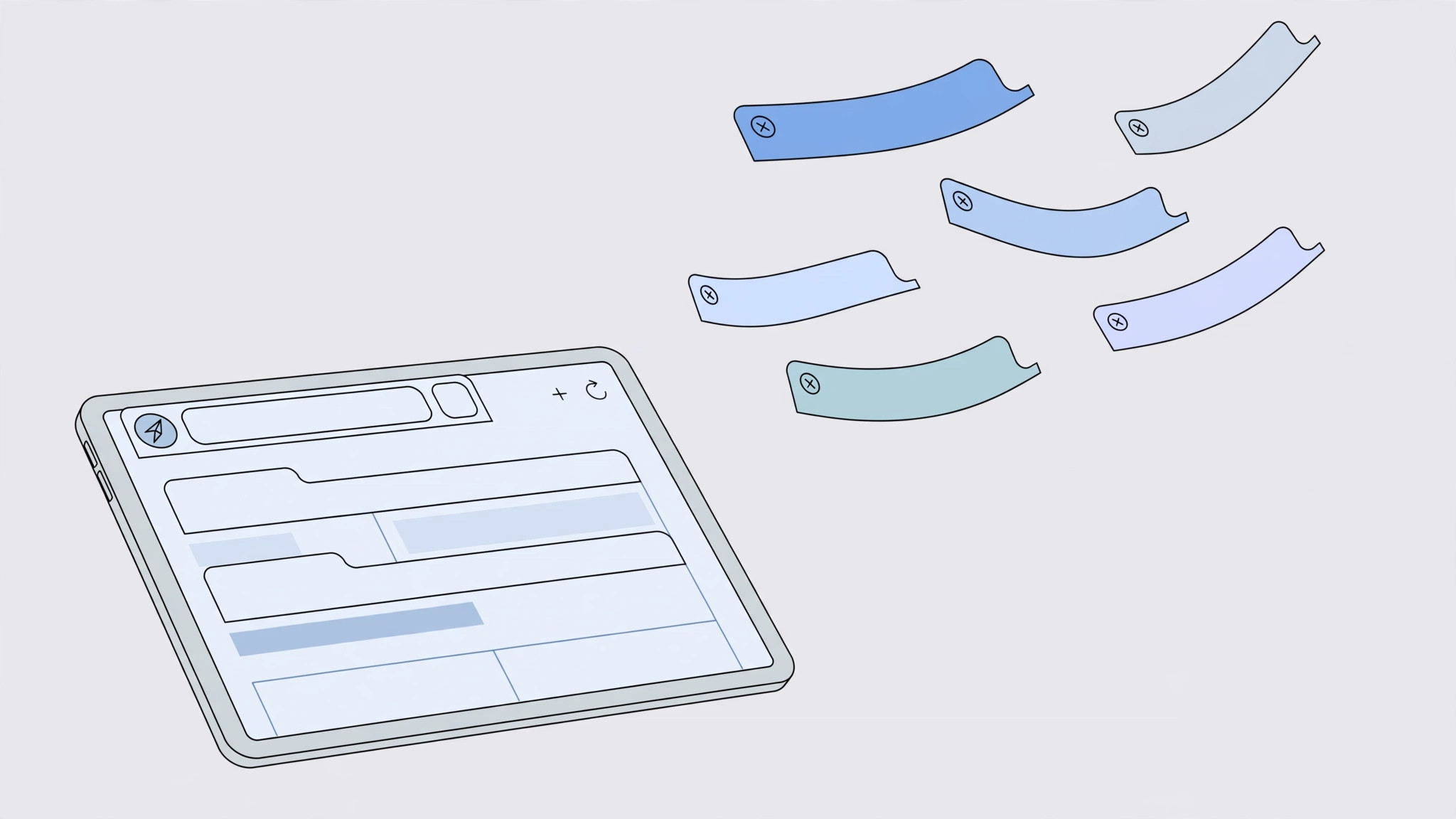
You open Safari on your iPad and the tabs you were using yesterday are gone. Before you panic, know this: your tabs are almost never actually deleted — they’re usually hiding. Safari has several features that make tabs look “disappeared”: automatic tab closing, multiple windows, Split View, and Private Browsing. Here are four fixes that recover lost tabs, in the order you should try them.
Fix 1: Check automatic tab closing
Safari can close tabs on its own after a set time — and many people turn this on accidentally.
- Open Settings > Safari.
- Find “Close Tabs” and check the setting. If it’s set to “After One Day” or “After One Week”, Safari is auto-closing your older tabs.
- Change it to “Manually” (or lengthen the interval) so tabs stay until you close them yourself. Apple Support documents Safari’s tab management settings.
Fix 2: Look in other Safari windows
Your “missing” tabs may be sitting in a different Safari window.
- Long-press the Safari icon (on the Home Screen or Dock).
- Choose “Show All Windows”. You’ll see every open Safari window — your tabs may be living in one you forgot about. MacRumors has covered how iPadOS window management confuses even longtime users.
Fix 3: Merge all windows
If your tabs are scattered across Split View, Slide Over, and extra windows, pull them together:
- In Safari, long-press the tab-overview button (the overlapping-squares icon).
- Choose “Merge All Windows”. This pulls tabs from Split View, Slide Over, and every extra window into a single window. One place, all your tabs.
Fix 4: Check Private Browsing
Safari keeps separate tab sets for normal and Private browsing:
- Open the tab overview (tap the overlapping-squares icon).
- Tap the tab-count indicator and switch to “Private”. Your missing tabs may be in the private session — switch back and forth to check both. AppleInsider has explained how iPadOS separates these browsing modes.
More Safari tips
While you’re in Safari’s settings, you might also like our guide on how to change the Safari design on iPhone, and if you share the iPad, read how to stop Safari from suggesting passwords for websites on iPhone.
If it still doesn’t work
If none of the four fixes brings your tabs back, they were likely closed a while ago — check your History (the book icon in Safari) to reopen recently visited pages. Going forward, bookmark important pages or add them to your Reading List so a closed tab is never a lost page. And consider whether iCloud Tabs (same Apple ID on iPhone and iPad) might show the pages on your other device.
Frequently asked questions
Does “Merge All Windows” delete any tabs?
No — it only consolidates. Every tab from every window is preserved; they’re just gathered into one window.
Why do my tabs keep disappearing every week?
That’s the “Close Tabs: After One Week” setting doing its job. Switch it to “Manually” in Settings > Safari > Close Tabs and tabs will only close when you close them.
Conclusion
Disappearing Safari tabs on iPad are almost always a case of hidden, not lost: auto-close settings, extra windows, Split View, or Private mode. Work through the four fixes in order and your tabs will reappear. And with auto-close set to Manual, they’ll stay put from now on.





