
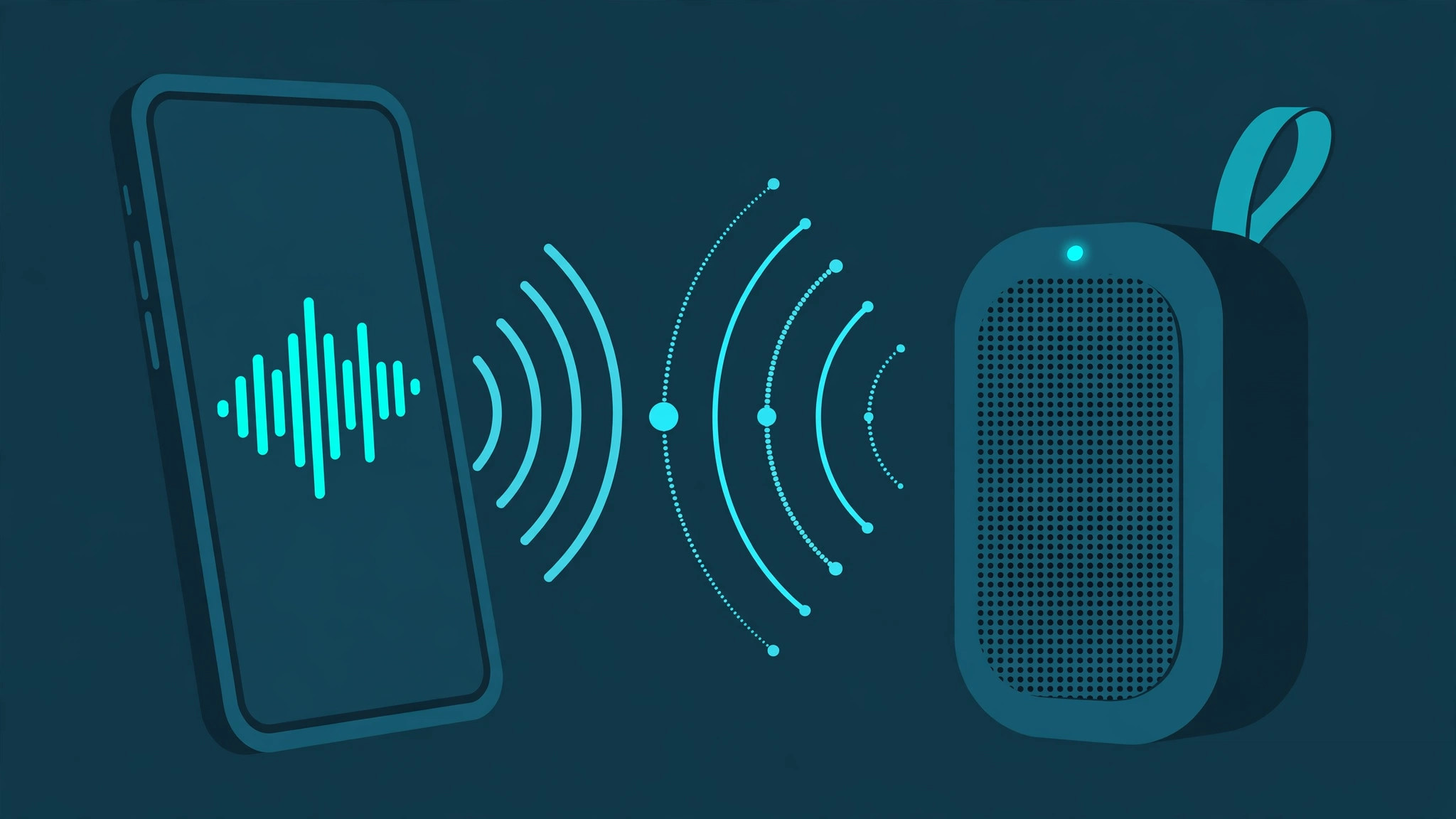
Apple’s Intercom feature is brilliant for broadcasting a voice message to every HomePod in the house — a quick "dinner’s ready!" from your iPhone to the kitchen. But it only works with HomePods. If your speaker is a regular Bluetooth box, you’re not out of luck: the free Microphone Live app turns your iPhone into a live microphone, streaming your voice straight to any paired wireless speaker. Here’s how to set it up.
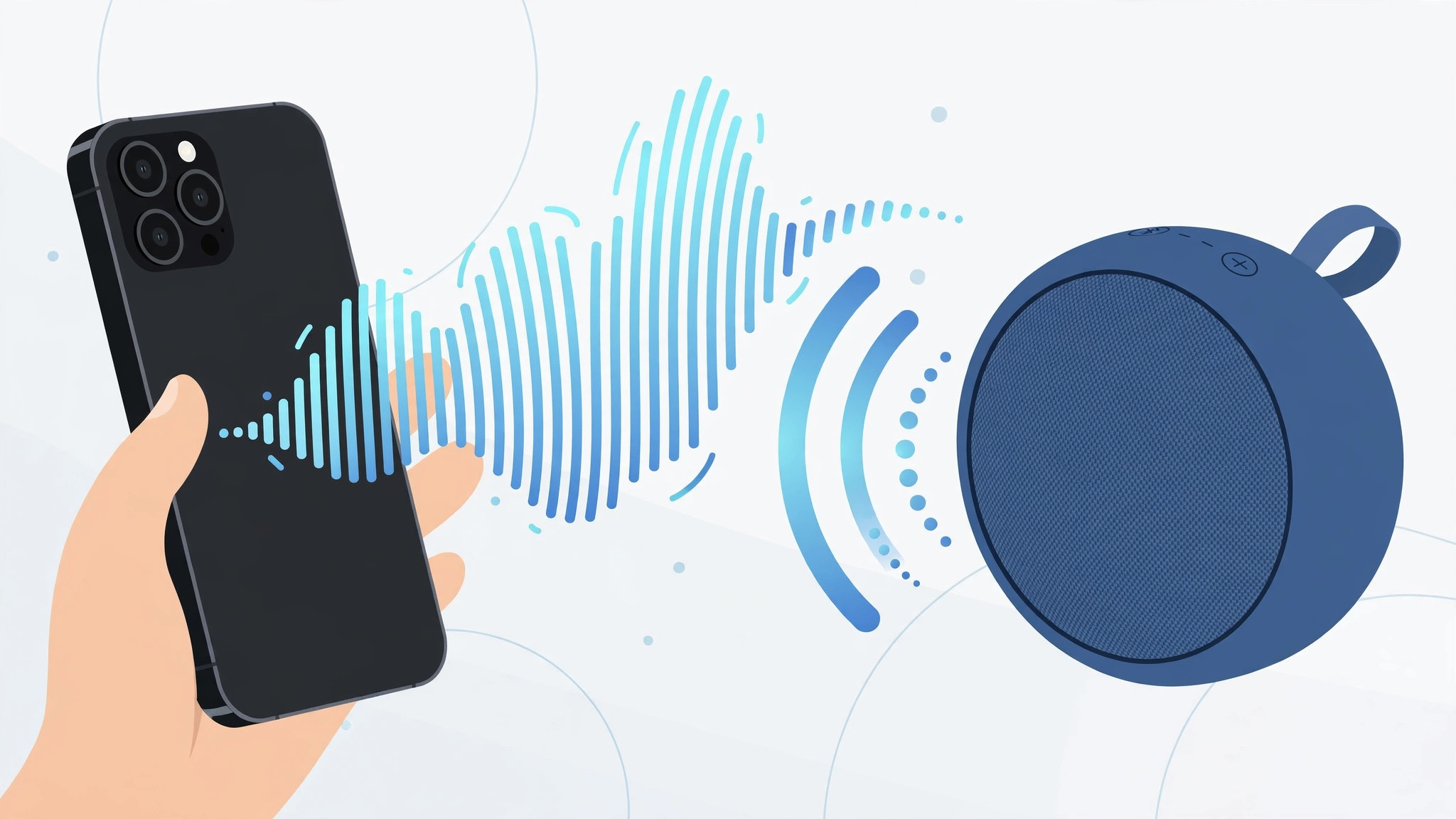
How to broadcast your voice from iPhone to any wireless speaker
The whole setup takes about two minutes:
- Install Microphone Live. Open the App Store, search for Microphone Live, and install the free app. It turns your iPhone’s microphone into a live input — no account or configuration needed.
- Pair your Bluetooth speaker. On your iPhone, go to Settings, tap Bluetooth, make sure it’s switched on, and connect your wireless speaker. Apple’s iPhone User Guide covers pairing if your speaker doesn’t appear. Keep the speaker nearby — Bluetooth range is the real limiting factor here. And if your audio has a habit of jumping to the wrong device, see how to stop your iPhone from auto-switching audio.
- Open Microphone Live and flip the main toggle. Launch the app, enable the big main toggle, and start talking — your voice broadcasts live through the speaker with minimal delay. The app exposes a few adjustable parameters (gain and processing options); start with the defaults and nudge the gain up only if you’re too quiet. Flip the toggle off when you’re done.
- Mind the placement. Keep the iPhone’s microphone reasonably close to your mouth and the speaker across the room. If the phone sits right next to the speaker, you’ll get a loud feedback howl — distance is the fix.
If it still doesn’t work
If there’s no sound at all, first confirm the speaker is actually connected: in Settings, then Bluetooth, it should say Connected, not just Paired. Then check the volume on both ends — the iPhone’s volume buttons and the speaker’s own controls. If the audio stutters or cuts out, you’re probably at the edge of Bluetooth range, so move closer. And if you hear that piercing howl, it’s feedback — move the iPhone farther from the speaker. For reference, Apple’s own whole-home version is Intercom on HomePod — MacRumors has a guide to using Intercom if you own Apple’s speakers.
FAQ
Is there a delay when broadcasting this way?
A tiny one — Bluetooth audio has inherent latency, so expect a fraction of a second between speaking and hearing. That’s perfectly fine for announcements, just don’t expect a real-time conversation.
Can I use this with AirPods or a HomePod instead?
Technically the app will send audio to any Bluetooth output, but AirPods are headphones, not a room speaker, so there’s little point. For HomePods specifically, Apple’s built-in Intercom is the smoother choice since it’s integrated with the Home app.
The bottom line
Intercom is great if you live in the HomePod ecosystem, but Microphone Live gives the same announcement superpower to any Bluetooth speaker you already own. Install the app, pair the speaker, flip the toggle — that’s the whole trick. And if you use AirPods around the house too, you might also want to turn off the AirPods charging case sounds for a quieter home.





