
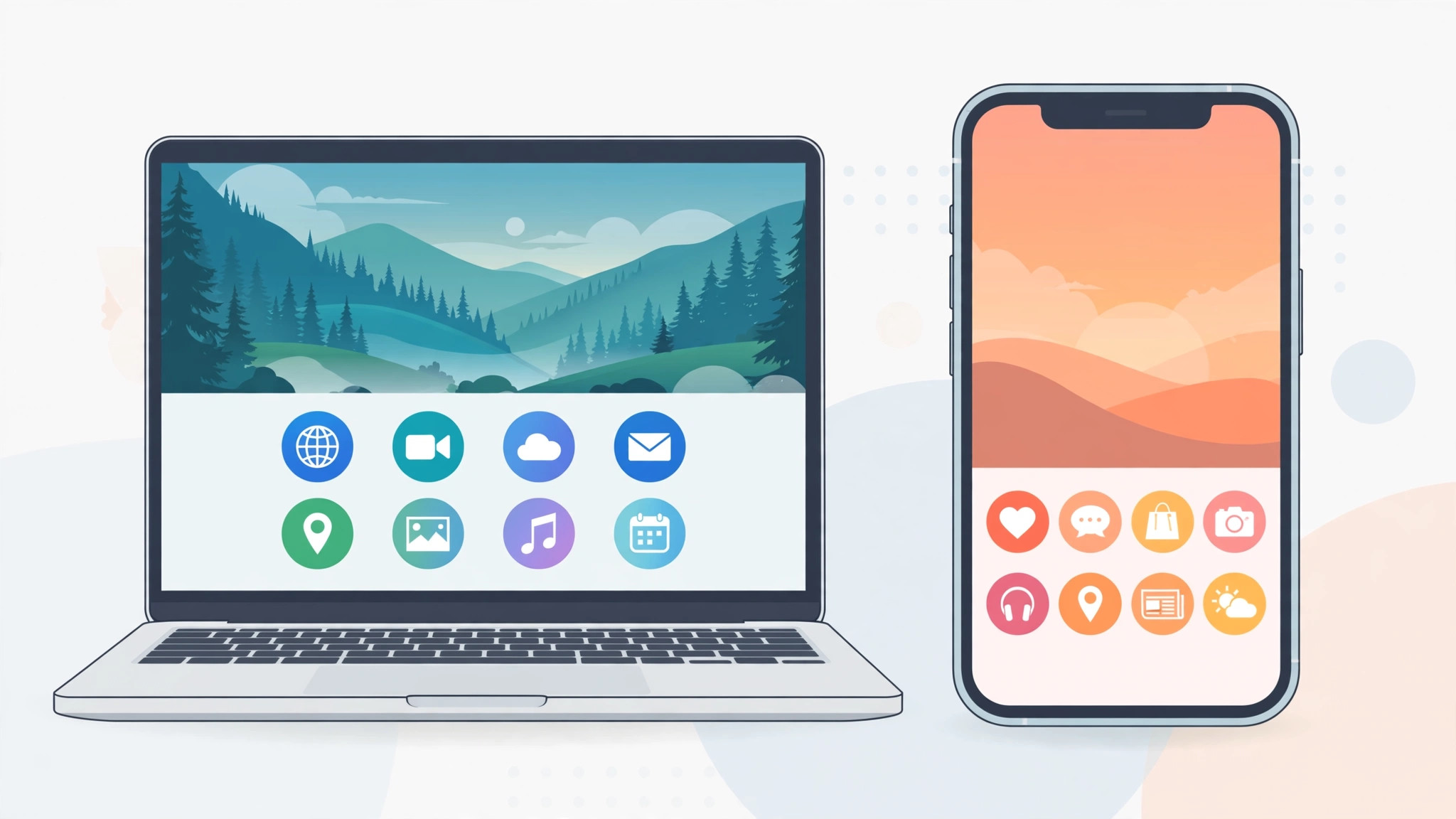
Open a new tab in Safari on your iPhone and then on your Mac, and you will likely see the very same Start Page: identical favorites, the same reading list, the same background. That is iCloud doing its job — Safari synchronizes your Start Page across every device signed in to the same Apple Account.
Sometimes that mirroring is exactly what you don’t want. Maybe your iPhone should open to personal favorites while your Mac greets you with work bookmarks and tab groups. There is no single “use a different start page” switch in Safari, but Safari Profiles give you precisely that control. Here is how to set a different Start Page on each device.
Why Safari shows the same Start Page everywhere
Your Start Page — the screen with Favorites, Frequently Visited, Reading List, iCloud Tabs and Tab Groups — belongs to your Safari profile, and profiles sync through iCloud. Every device using the same profile renders the same Start Page. The trick, then, is to give each device its own profile and customize each profile’s Start Page independently. Profiles arrived with iOS 17 and macOS Sonoma, so first make sure both devices are up to date (Settings > General > Software Update on iPhone; System Settings > General > Software Update on Mac).
Step 1: Create a dedicated profile on your Mac
- On your Mac, open Safari and go to Safari > Settings > Profiles.
- Click Start Using Profiles (or the + button) and create a profile named, for example, “Mac”. Pick an icon and color so you can recognize it in the toolbar.
- Use the profile button in the Safari toolbar to switch to the new profile. From now on, everything you do in this profile — history, extensions, tab groups and the Start Page — stays separate from your other profiles.
Step 2: Customize the Mac profile’s Start Page
- With the Mac profile active, open a new tab to see its Start Page.
- Click Edit in the bottom-right corner of the page.
- Toggle the sections you want (Favorites, Reading List, iCloud Tabs, Privacy Report), choose a background image or color, and arrange the favorites this device should show.
If you would rather have Safari open a specific website instead of the Start Page, see our guide on setting a custom start page in Safari on iPhone — the same idea works on the Mac via Safari > Settings > General > “New windows open with: Homepage”.
Step 3: Give your iPhone its own profile and Start Page
- On your iPhone, go to Settings > Safari and confirm you are signed in to the same Apple Account.
- Tap Profiles and create a profile for your iPhone if you haven’t already, then go back and tap New Tab > Profile to choose which profile new tabs should use.
- Open Safari, tap the tabs button, tap the profile name at the bottom of the screen, and switch to your iPhone profile.
- Open a new tab, scroll to the bottom and tap Edit. Now customize this Start Page completely differently: different favorites, a different background, different sections.
Step 4 (optional): Stop Start Page syncing entirely
If you would rather keep a single profile but stop the Start Page from syncing, go to Settings > [your name] > iCloud > Show All and turn off Safari. Note the trade-off: this also stops syncing open tabs, tab groups and your reading list, so most people are happier keeping sync on and using separate profiles. Apple’s Safari support pages document exactly what iCloud synchronizes, and 9to5Mac has covered several handy profile workflows worth browsing.
If it still doesn’t work
- Confirm both devices run iOS 17 / macOS Sonoma or later — profiles don’t exist on older versions.
- Check that both devices use the same Apple Account and that Safari is enabled under iCloud settings.
- Fully quit Safari on both devices (swipe it away on iPhone; Command+Q on Mac) and reopen it.
- If a profile’s Start Page looks wrong, open a new tab in that profile, tap Edit, and toggle a section off and on again to force a refresh.
Readers who juggle dozens of tabs may also like our guide to organizing and finding tabs in Safari on iPhone, and if tabs from your other devices go missing, see why Safari tabs from other devices don’t show up on iPhone.
FAQ
Can I set a custom website as the Start Page on iPhone?
Not directly — iPhone Safari always opens new tabs to the Start Page. The closest workaround is to pin your favorite site at the top of your Favorites so it appears first, or to create a Home Screen shortcut to the site. Threads on MacRumors and X confirm this limitation persists in current iOS versions.
Do Safari Profiles also separate passwords and history?
History, extensions, cookies and tab groups are separated per profile, which is great for keeping work and personal browsing apart. Saved passwords and AutoFill data are still shared across profiles. Walkthrough videos on YouTube show the whole setup in under two minutes if you prefer watching.
Conclusion
Safari won’t let you flip a single switch for per-device Start Pages, but profiles are the next best thing — arguably better, since each device also gets its own favorites, tab groups and extensions. Set up one profile per device, customize each Start Page, and your iPhone and Mac will finally greet you with exactly the right page.






[…] rather than just closing windows. And while you’re fine-tuning Safari, you might also like setting different Safari start pages on iPhone and Mac, or tidying up your desktop with our guide to hiding desktop icons on […]