
There are few things more annoying than trying to describe your location with words. “I’m near the big intersection, next to the coffee shop” rarely lands the way a map pin does. On the iPhone, you don’t need to jump into Maps and copy a link — iMessage can drop your current location straight into any conversation. The catch is that iOS guards location data closely, so several switches must be on before the option appears. Set them once, and sharing your whereabouts takes seconds from then on.
Step 1: Enable location sharing in Settings
First, make sure your iPhone is allowed to share its position. Apple lists the required toggles on its iPhone support page, and every one of them needs to be on:
- Open Settings, then tap Privacy & Security (on older iOS versions it is simply called Privacy).
- Tap Location Services and confirm the main switch at the top is turned on.
- Tap Share My Location and turn it on. Switch on Precise Location as well, so the pin lands exactly where you are standing instead of somewhere in the neighborhood.
- Go back to the Location Services list, find Messages, tap it, and choose “While Using the App.”
- Still in Location Services, scroll all the way to the bottom, open System Services, and make sure Share My Location is enabled there too.
That last toggle trips up a lot of people. iOS treats system-level location sharing separately from app permissions, and if it is off, the send-location button in Messages stays hidden. The same family of switches controls other location features too — if you have ever wondered why a Do Not Disturb schedule that should trigger by location never fires, the culprit is usually one of these very toggles.
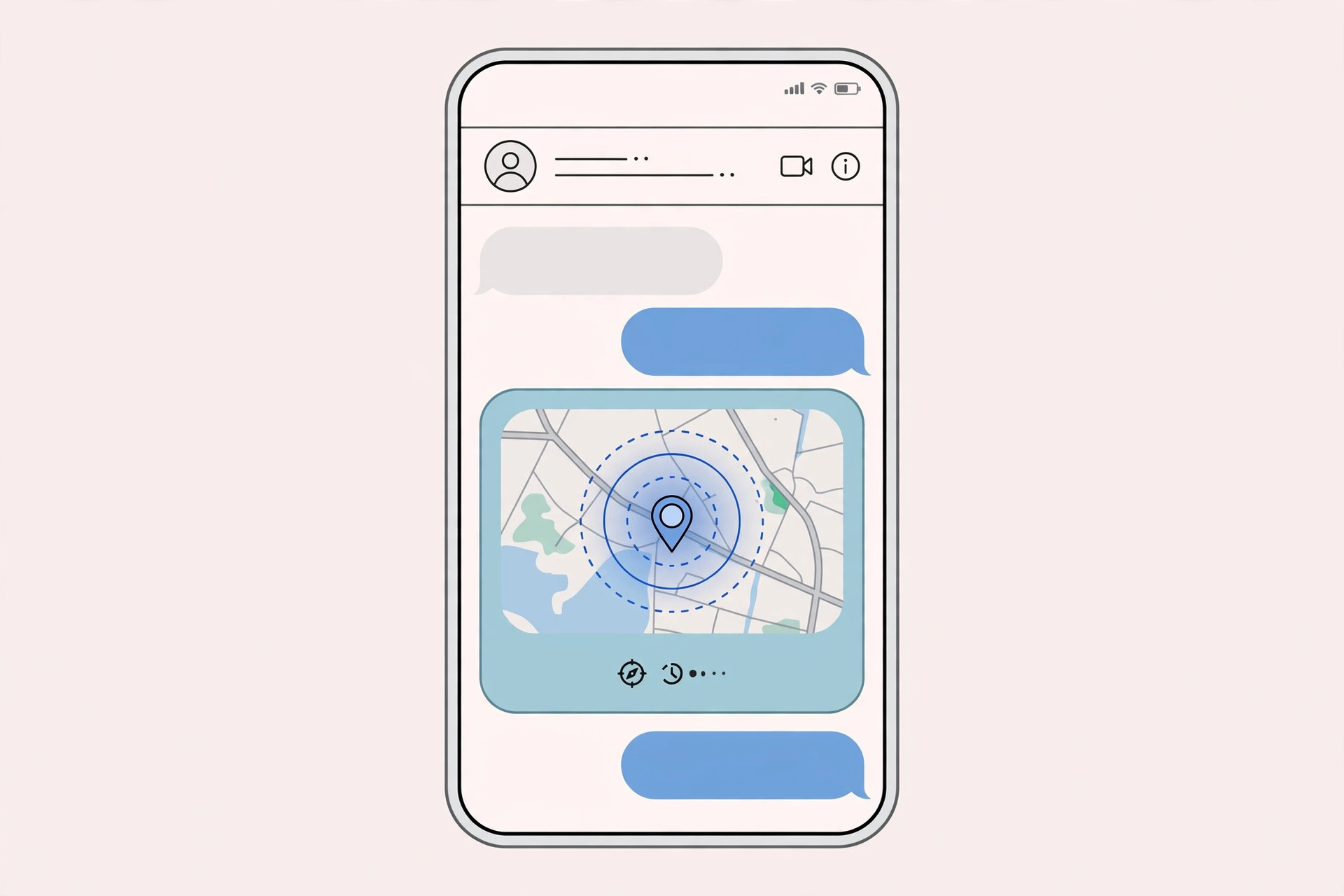
Step 2: Send your location from any iMessage conversation
With the settings in place, sharing is the easy part:
- Open the Messages app and tap the conversation with the person you want to share with.
- Tap the contact’s name or photo at the top of the screen, then tap Info.
- Tap Send My Current Location.
A small map card with your pin lands in the chat, and your friend can tap it to open directions. Shortcut: start typing “I’m at” in the message field, and iMessage will offer to insert your current location as a suggestion above the keyboard. Outlets like MacRumors regularly cover these quiet iMessage conveniences that Apple adds without much fanfare.
If it still doesn’t work
Double-check that Messages is set to “While Using the App” and not “Never” — iOS sometimes resets permissions after a major update. Confirm that Share My Location is on in both the main Location Services screen and under System Services. If the button appears but the location never sends, check your data connection: the pin can’t be delivered over a dead network, and SMS messages that refuse to send are often a symptom of the same connectivity problem. Restarting your iPhone clears the location cache and fixes most stubborn cases.
Frequently asked questions
Does sharing my location drain the battery?
Barely. Sending your current location is a one-time fix, not continuous tracking, so it uses no more power than loading a map for a few seconds. Continuous sharing through Find My is a different story, but a single iMessage pin barely moves the needle.
Can I share my location with someone who doesn’t use an iPhone?
Not through iMessage — the location card only renders on Apple devices. For Android friends, open Apple Maps or Google Maps, drop a pin on your position, and share the link from there instead.
Location sharing in iMessage is one of those features that feels invisible until you need it — and then it saves the day. Set the toggles once, and the next time someone asks “where are you?”, you can answer with a pin instead of a paragraph.





