
Back in 2021, Apple shipped one of the most talked-about iPhone features of the pandemic era: the ability to unlock your iPhone with Face ID while wearing a mask, using your Apple Watch as the trusted key. It arrived with iOS 14.5 and watchOS 7.4, and at the time both were available first as public betas. This guide walks you through the exact retro process — installing the iOS 14.5 beta, adding the watchOS 7.4 beta, and switching on Unlock with Apple Watch.
A quick note before we time-travel: today, beta enrollment works differently. On modern iOS you simply go to Settings > General > Software Update > Beta Updates and choose your beta channel — no profiles to install. The steps below describe how it worked in 2021, when configuration profiles from beta.apple.com were the way in.
Before you start: back up your iPhone
Beta software can be buggy, and downgrading is painful. Apple recommends backing up before installing any beta — ideally a full backup to a Mac via Finder. If the beta misbehaves, that backup is your way back. For extra safety, archive the backup so a later sync doesn’t overwrite it. Our guide on blocking unwanted iOS updates is also worth a look if you want full control over when new software lands on your device.
Step 1: Enroll your iPhone in the Apple Beta Software Program
- On your iPhone, open Safari and go to beta.apple.com.
- Sign up for the Apple Beta Software Program with your Apple ID, or sign in if you already joined.
- Choose the iOS tab and tap Enroll your iOS device.
- Tap Download profile, then tap Allow when prompted, and tap Close.
- Open Settings — you’ll see a new Profile Downloaded option near the top. Tap it, then tap Install (you’ll confirm three times) and enter your passcode.
- Restart your iPhone when asked to finish installing the profile.
- Go to Settings > General > Software Update. The iOS 14.5 beta should now appear — tap Download and Install.
Step 2: Install the watchOS 7.4 beta on your Apple Watch
Unlock with Apple Watch needs watchOS 7.4 or later on the watch, so the watch needs its beta too:
- On the paired iPhone, return to beta.apple.com and enroll your watchOS device the same way, installing the watchOS beta profile.
- Put your Apple Watch on its charger and make sure it has at least 50% battery.
- On the iPhone, open the Watch app, go to General > Software Update, and install the watchOS 7.4 beta. Keep the watch on the charger until it finishes.
Step 3: Turn on Unlock with Apple Watch
- On the iPhone, go to Settings > Face ID & Passcode and switch on Unlock with Apple Watch.
- In the Watch app on iPhone, go to Passcode and make sure Unlock with iPhone is enabled too, so the two devices trust each other.
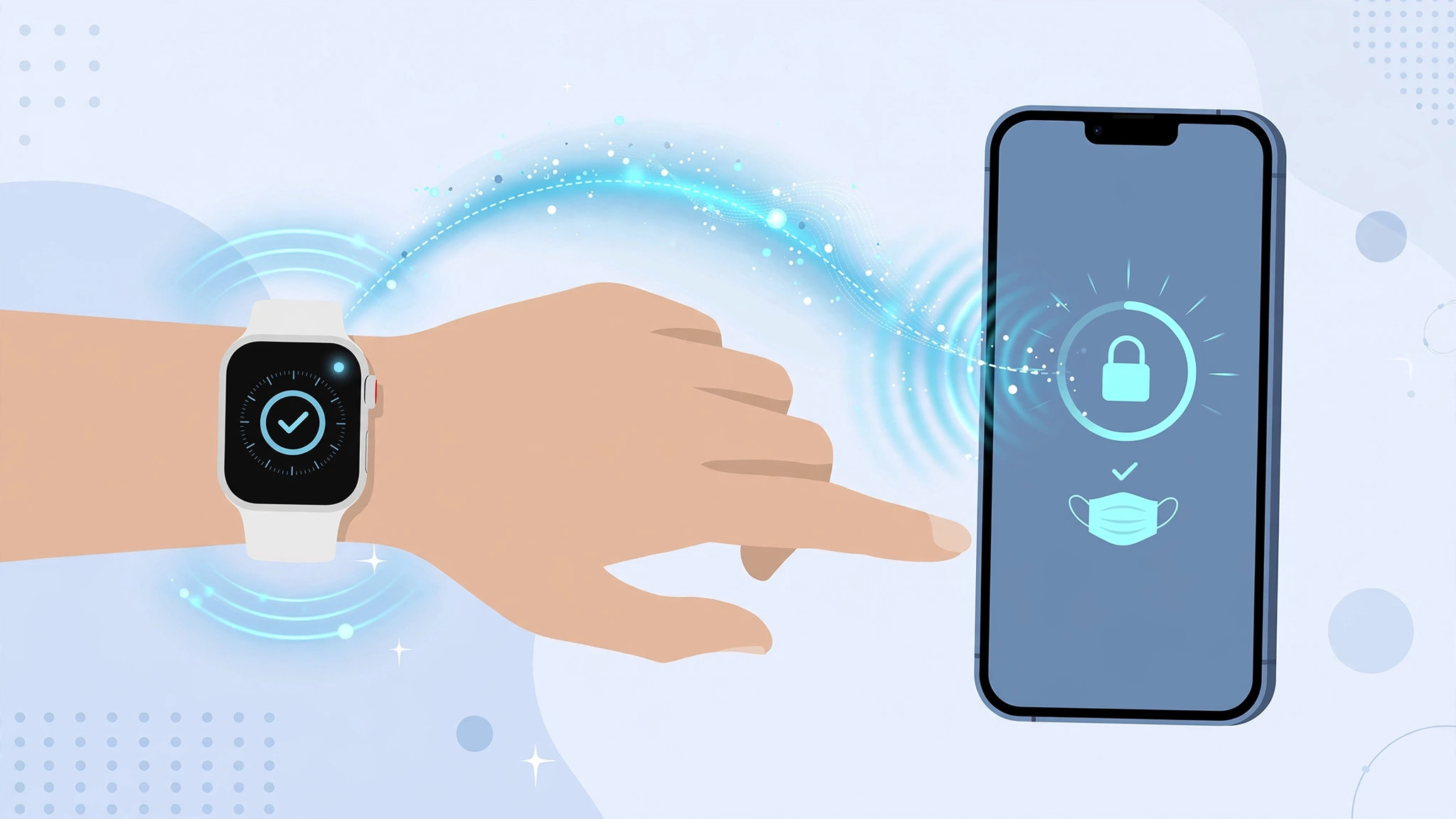
- Wear your Apple Watch unlocked on your wrist. Now, when Face ID sees a mask, your iPhone unlocks anyway — you’ll feel a haptic tap on your wrist and see a notification on the watch confirming the unlock.
What the watch can and can’t do
The feature is deliberately limited for security. Your Apple Watch can unlock the phone, but it can’t approve Apple Pay purchases, App Store downloads, or sign you into apps that demand a full Face ID scan. Those still need your uncovered face or passcode. MacRumors‘ hands-on coverage at the time showed the wrist tap arrives almost instantly, and 9to5Mac‘s beta install walkthrough remains a good reference for the profile-based method.
If it still doesn’t work
Make sure the watch is on your wrist, unlocked, and within Bluetooth range; wrist detection must be on and the watch needs its passcode set. If the toggle is greyed out, both devices may not be on the required betas yet — double-check versions in Settings. A restart of both devices fixes most pairing hiccups. Also note the iPhone must have Face ID (iPhone X and later); Touch ID models never got this feature.
FAQ
Can someone else unlock my phone with my watch nearby?
No — the watch must be on your wrist, unlocked, and authenticated. If you take it off, it locks, and the unlock shortcut stops working.
Does this still work on current iOS?
Yes, the feature survived the beta and is still in Settings > Face ID & Passcode on modern iOS — and if you’re customizing your lock screen these days, see our guide on moving lock screen widgets in iOS 26.
Conclusion
Installing the iOS 14.5 beta back in 2021 was a small adventure in profiles and restarts, but the reward — glancing at your iPhone with a mask on and having it just open — felt like magic. Even now, Unlock with Apple Watch remains one of the most practical Apple Watch tricks ever shipped.





