
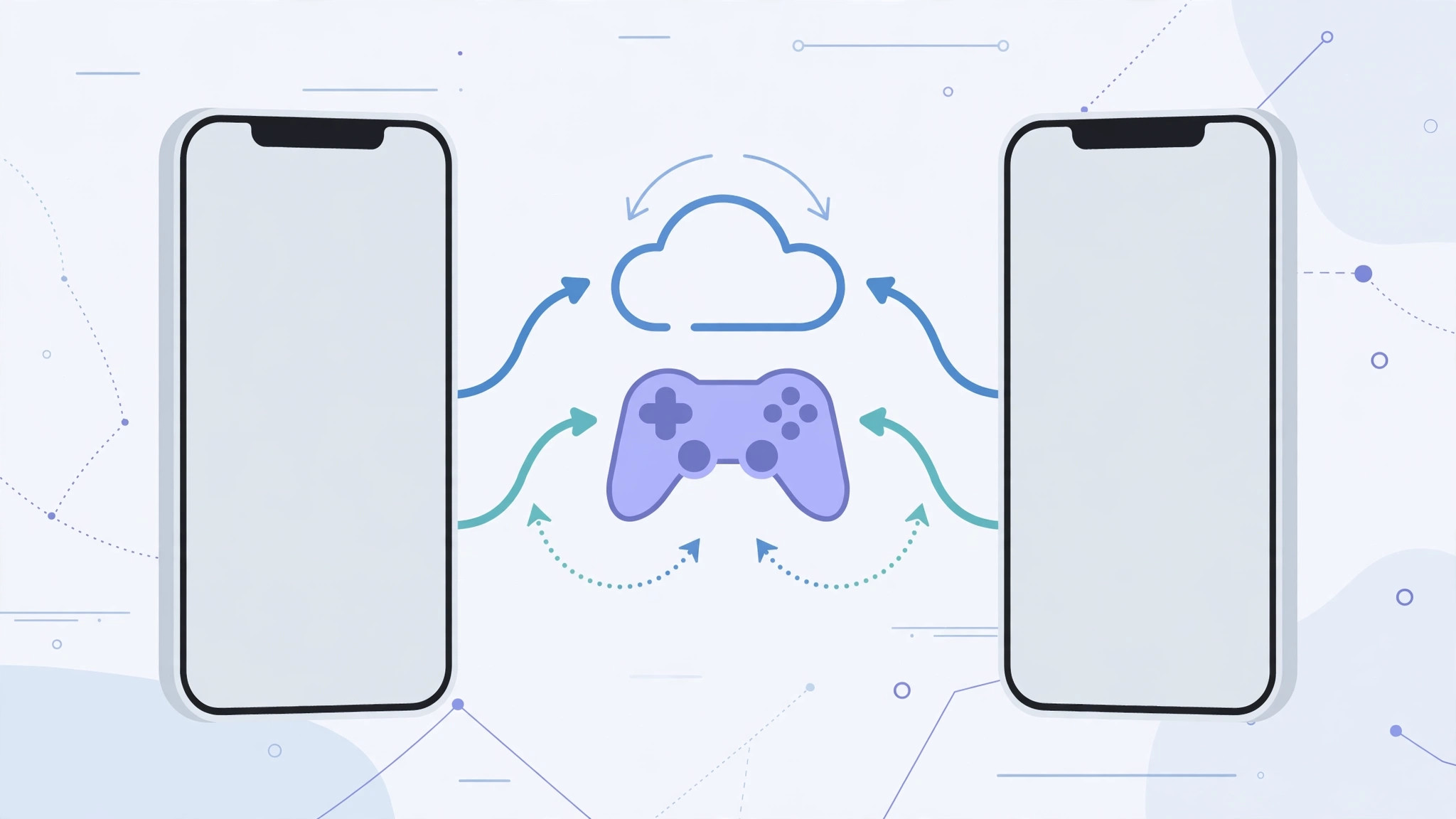
Nothing stings like opening your favorite game on a shiny new iPhone and finding your 200-hour save file missing. Fortunately, most iPhone games keep your progress somewhere you can reach — you just have to know where to look. There are four reliable ways to transfer game saves from one iPhone to another, and the right one depends on how the game stores its data. Let’s walk through them from easiest to most thorough.
Method 1: Use the game’s own cloud sync
Before touching any backup settings, check whether the game syncs progress on its own. Many games store saves in iCloud, Game Center, or a developer account (Facebook, Google, or an in-game login).
1. Open the game on your old iPhone
Look in the game’s settings for anything labeled Cloud Save, Sync, Link Account, or Sign In. If you see an option to connect to iCloud, Game Center, or a social account, make sure it’s signed in.
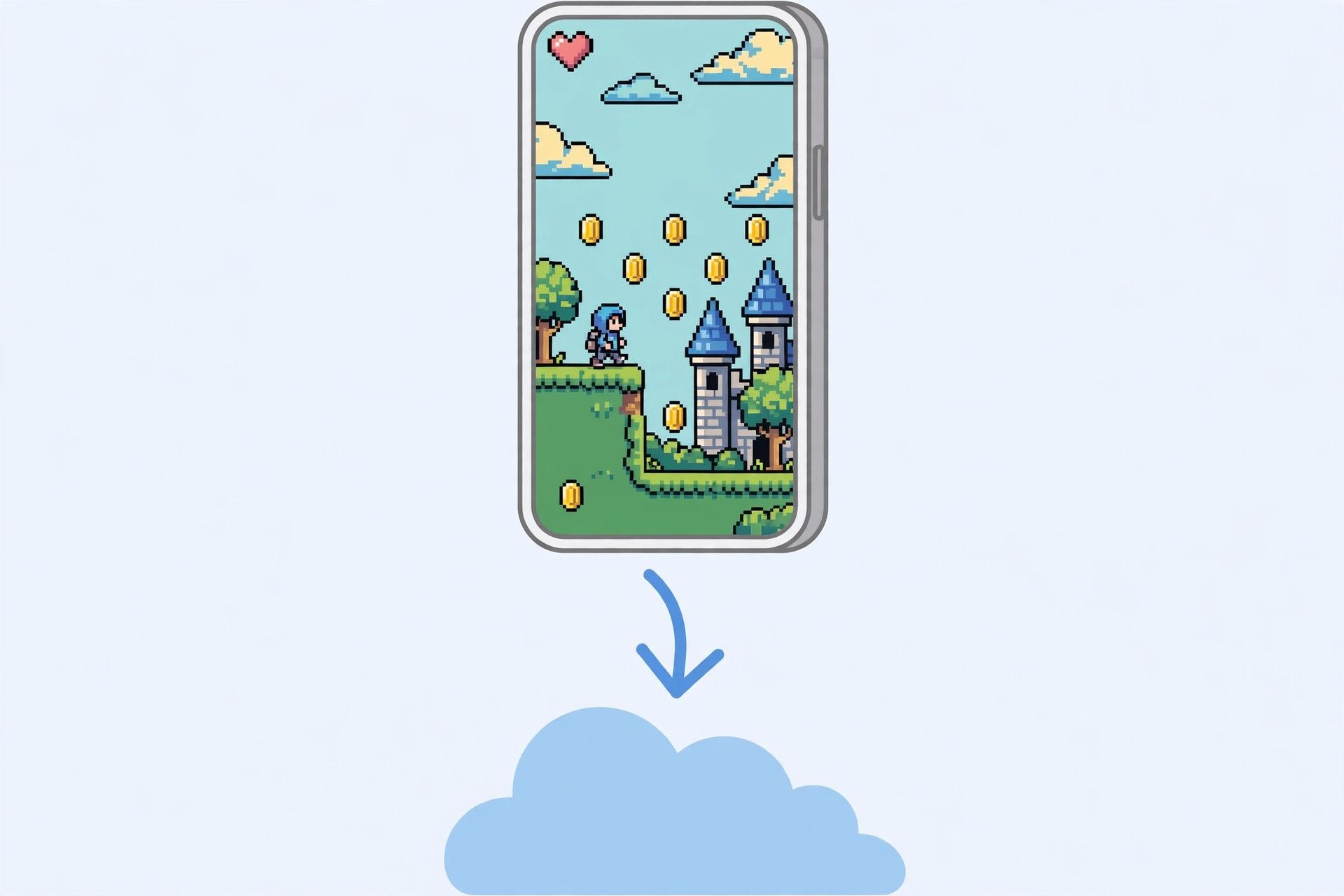
2. Force a sync
Play for a minute or trigger a manual save, then give the game a moment to upload. On the new iPhone, install the same game, sign in to the same account, and your progress should appear — sometimes after completing the tutorial level first.
This is by far the cleanest method, and 9to5Mac regularly recommends checking in-game cloud options before resorting to full-device restores. Apple’s own iPhone support pages note that Game Center can preserve achievements and progress across devices signed in to the same Apple ID.
Method 2: Quick Start device-to-device transfer
If both iPhones are with you, Apple’s Quick Start moves everything — including game data stored on the device — directly from old to new.
1. Start setup on the new iPhone
Turn on the new iPhone and place it next to the old one. When the Quick Start prompt appears on the old phone, tap Continue and scan the animation.
2. Choose Transfer from iPhone
When asked how to transfer your data, choose Transfer from iPhone (not iCloud). Keep the phones close and on Wi-Fi until it finishes. Every app’s local data — including game saves that never touch the cloud — comes along.
Method 3: Restore from a backup
If you no longer have the old iPhone, restore the new one from its backup. This works with either iCloud or a computer backup.
1. Back up the old iPhone
On the old phone, go to Settings → [your name] → iCloud → iCloud Backup → Back Up Now. For a computer backup, connect to a Mac or PC and back up via Finder or iTunes — choose encrypted backup so passwords and health data (and some game data) are included.
2. Restore onto the new iPhone
During the new iPhone’s setup, choose Restore from iCloud Backup or Restore from Mac/PC and pick the backup. Warning: restoring overwrites everything currently on the target phone, so do this during initial setup, not on a phone you’ve already been using.
Method 4: Check iCloud app data per game
Some games store documents in iCloud Drive without advertising it. On the old iPhone, go to Settings → [your name] → iCloud and look for the game in the app list — if its toggle is on, its data is already in iCloud and will download automatically when you install the game on the new phone with the same Apple ID. For keeping your Apple ID consistent across devices, see our guide to setting up message sync between iPhone and Mac.
If it still doesn’t work
Some games tie progress to a device identifier and simply don’t transfer — in that case, contact the game’s support with your old player ID; many developers can restore progress manually. Also check that both iPhones run a compatible iOS version, since a very old game build may not read a newer save format. And if you’re troubleshooting odd iOS behavior on the new phone, here’s why Spatial Photo mode isn’t working in iOS 26 — a common post-upgrade gotcha.
Frequently asked questions
Will Game Center alone transfer my saves?
Sometimes. Game Center reliably syncs achievements and leaderboards, but actual save files depend on the developer — many games use it only for achievements and keep saves in iCloud or their own servers. Always verify with the game’s own account screen.
Can I transfer saves without wiping the new iPhone?
Yes — use Method 1 (the game’s cloud sync) or install the game fresh and sign in. Only a full backup restore requires wiping; Quick Start and cloud syncs leave your existing setup alone.
Conclusion
Start with the game’s own cloud or account sync — it takes two minutes and never disturbs the rest of your phone. If that fails, Quick Start or a backup restore will carry over even stubborn locally-stored saves. Either way, your high scores are coming with you.





