
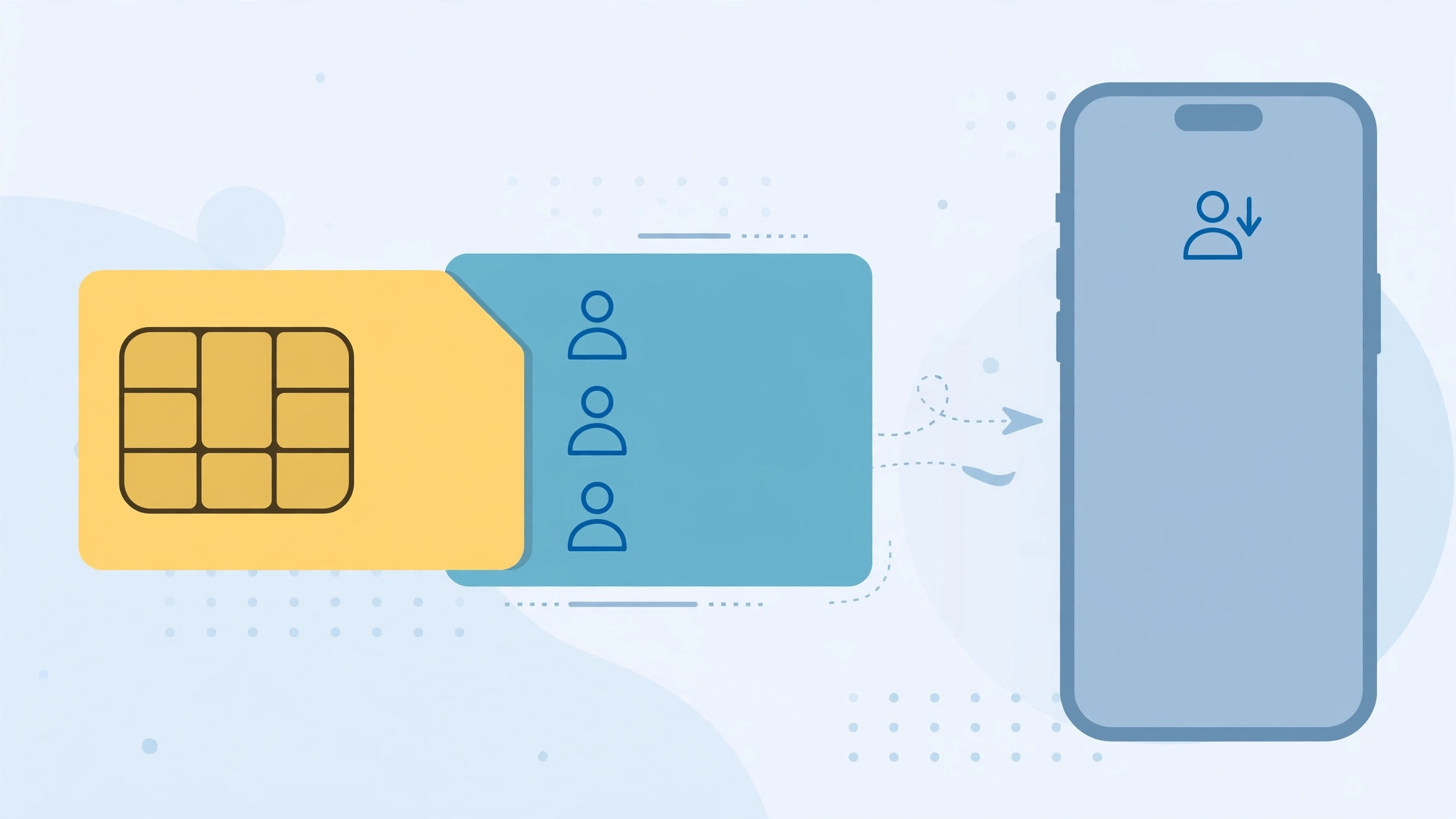
Switching from an Android phone or an older device to an iPhone? If your contacts live on the SIM card, you don’t need to retype hundreds of names and numbers. iPhones include a built-in option that copies every contact stored on a SIM straight into your phone’s address book in under a minute. Here’s how to do it.
What to check before you start
First, make sure the SIM card actually fits your iPhone. iPhones use nano-SIM cards, the smallest standard. If your old phone used a micro-SIM or a full-size SIM, the card physically won’t fit in the iPhone’s tray. In that case, ask your carrier for a nano-SIM replacement or a SIM adapter before continuing — forcing the wrong size into the tray can damage the slot.
Second, confirm your contacts are really saved on the SIM. On many Android phones, contacts sync to a Google account instead of the SIM. If you open the old phone’s contacts app and everything vanishes when you remove the SIM, the numbers are on the SIM. If they stay, they’re in the cloud and you should sync them another way instead.
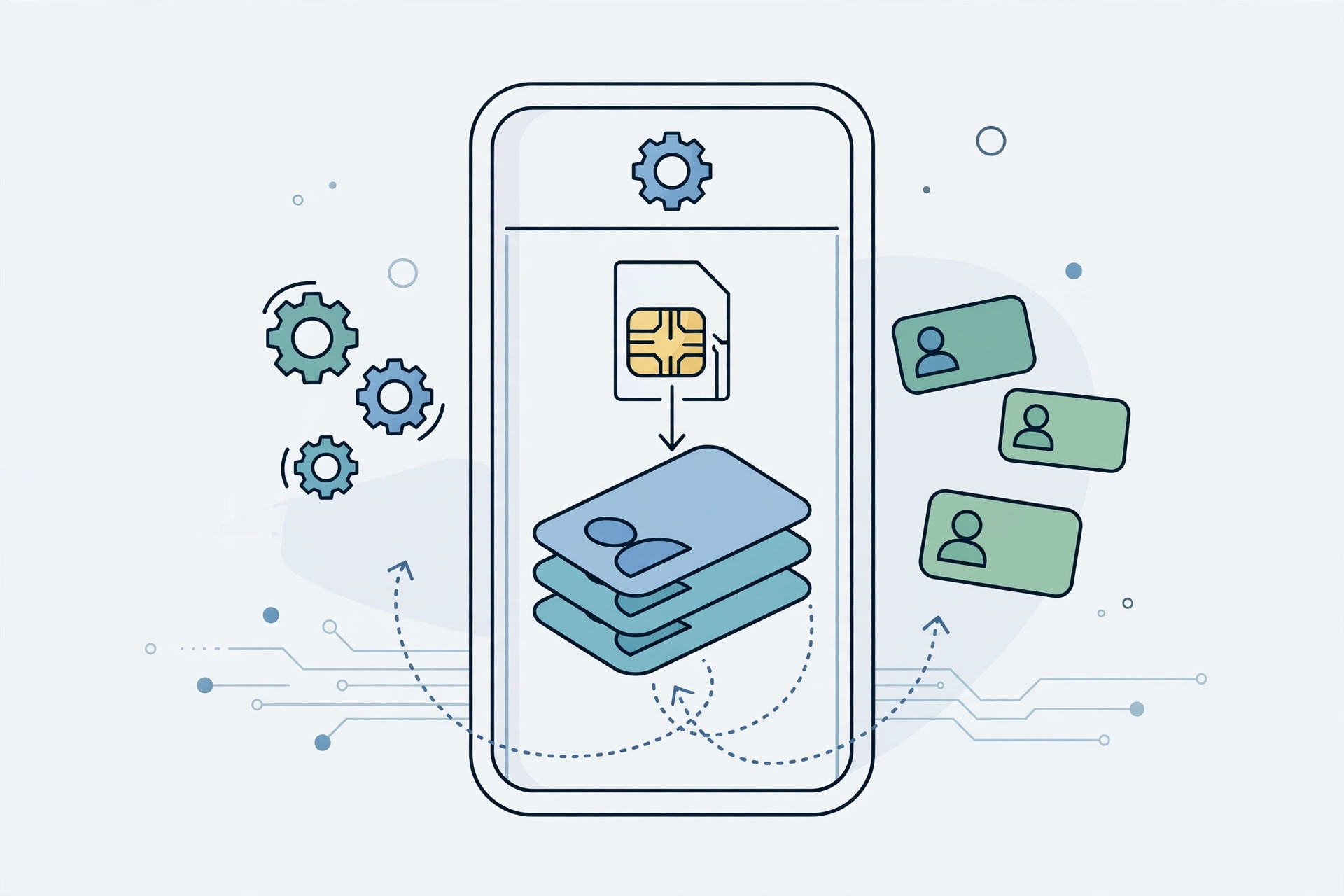
Step-by-step: import SIM contacts
1. Put the SIM card into your iPhone
Power off both phones. Use the SIM ejector tool (or a straightened paperclip) to pop open the SIM tray on your iPhone. Place the SIM card in the tray with the gold contacts facing down and the notched corner aligned, then slide the tray back in. Power the iPhone on and wait for it to recognize the network.
2. Open Contacts settings
On your iPhone, open Settings and scroll down to Contacts (on older iOS versions it may sit under Mail, Contacts, Calendars). If you’ve just set up a new SIM, give the phone a moment to finish carrier activation first.
3. Tap Import SIM Contacts
Inside Contacts settings, tap Import SIM Contacts. Your iPhone reads the SIM and copies every stored entry into your contacts list. This usually takes only a few seconds.
4. Choose where to save them
If you’re signed in to iCloud, the imported contacts land in your iCloud contacts by default, which keeps them backed up and synced. If prompted, choose iCloud rather than “On My iPhone” so you never lose them if the phone breaks. You can manage which account holds new contacts under Settings > Contacts > Default Account.
5. Check the results
Open the Phone app and tap Contacts. Scroll through to confirm your entries arrived. SIM cards store only names and phone numbers — no photos, email addresses, or custom fields — so entries may look sparser than you’re used to. You can flesh them out afterward.
Cleaning up after the import
SIM imports often create duplicates if some contacts already existed on the iPhone. Open the Contacts app, tap Lists at the top, and look for a duplicates suggestion, or merge them manually. It’s also worth deleting the old SIM entries from the SIM itself once you’re sure everything copied over, so a future import doesn’t double everything again.
If you juggle two numbers, you can also control which SIM handles calls in Focus mode once both lines are active.
If it still doesn’t work
If the Import SIM Contacts button is grayed out or nothing imports, the SIM may be locked with a PIN — enter it when prompted. If the button is missing entirely, your contacts probably aren’t on the SIM at all; export them from the old phone as a VCF file or sync them through a Google account instead. Apple’s support guide and this How-To Geek walkthrough cover the edge cases in more depth.
FAQ
Will importing delete contacts from the SIM?
No. Importing only copies the entries to your iPhone. The originals stay on the SIM until you erase them, so nothing is lost if something goes wrong.
Does this work with eSIM?
The import reads a physical SIM in the tray. If your number moved to an eSIM, the old physical SIM still holds its stored contacts — pop it into the iPhone temporarily, run the import, then remove it.
Conclusion
Moving contacts from a SIM card to an iPhone takes less than a minute: seat the nano-SIM, open Settings > Contacts, tap Import SIM Contacts, and verify the results. Keep them in iCloud for backup, merge any duplicates, and you’re done — no manual retyping required.





