How to keep separate contacts, notes, and calendars on iPhones sharing one Apple ID

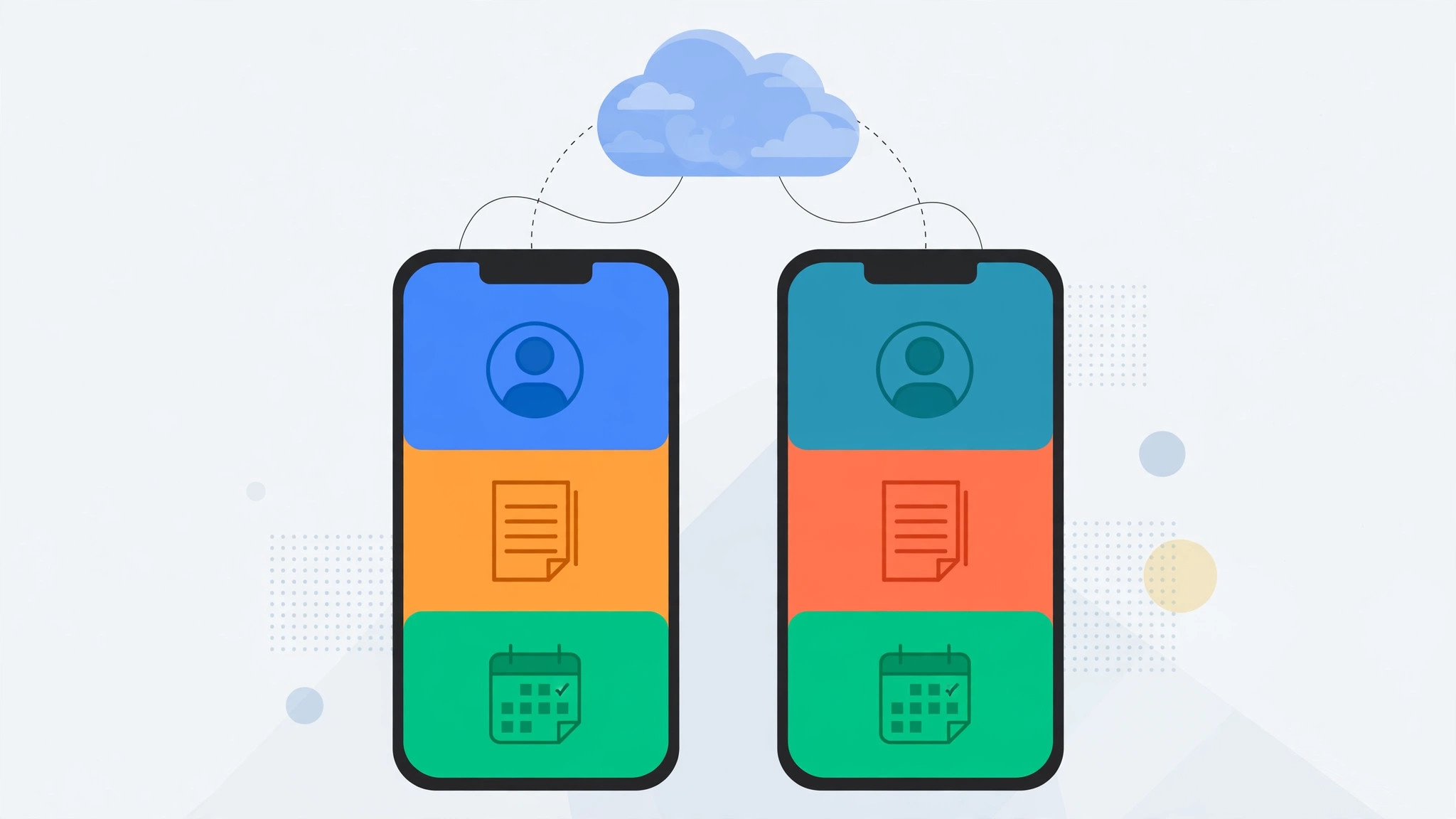
Sharing one Apple ID across two iPhones — yours and your partner’s, say, or your personal and work phones — feels convenient until contacts, notes, and calendar events start merging into one messy pile. You add a work meeting and it pops up on the other phone; a private note syncs somewhere it shouldn’t. Here’s how to keep everything separate without giving up the shared purchases that made you use one Apple ID in the first place.
Why this happens
When two devices sign in with the same Apple ID and leave iCloud sync switched on for Contacts, Notes, Calendars, and Reminders, both phones draw from the same iCloud data. Every change on one phone appears on the other. If you’ve set up message sync between iPhone and Mac, you’ve seen the same principle: one account, everywhere at once. That’s wonderful for one person’s devices — but not for two people sharing an account.
Option 1: Turn off sync on one device
If you want to keep sharing the Apple ID — for shared app purchases, subscriptions, or iCloud storage — you can simply stop the two phones from syncing the personal data categories.
1. Decide which phone keeps the shared data
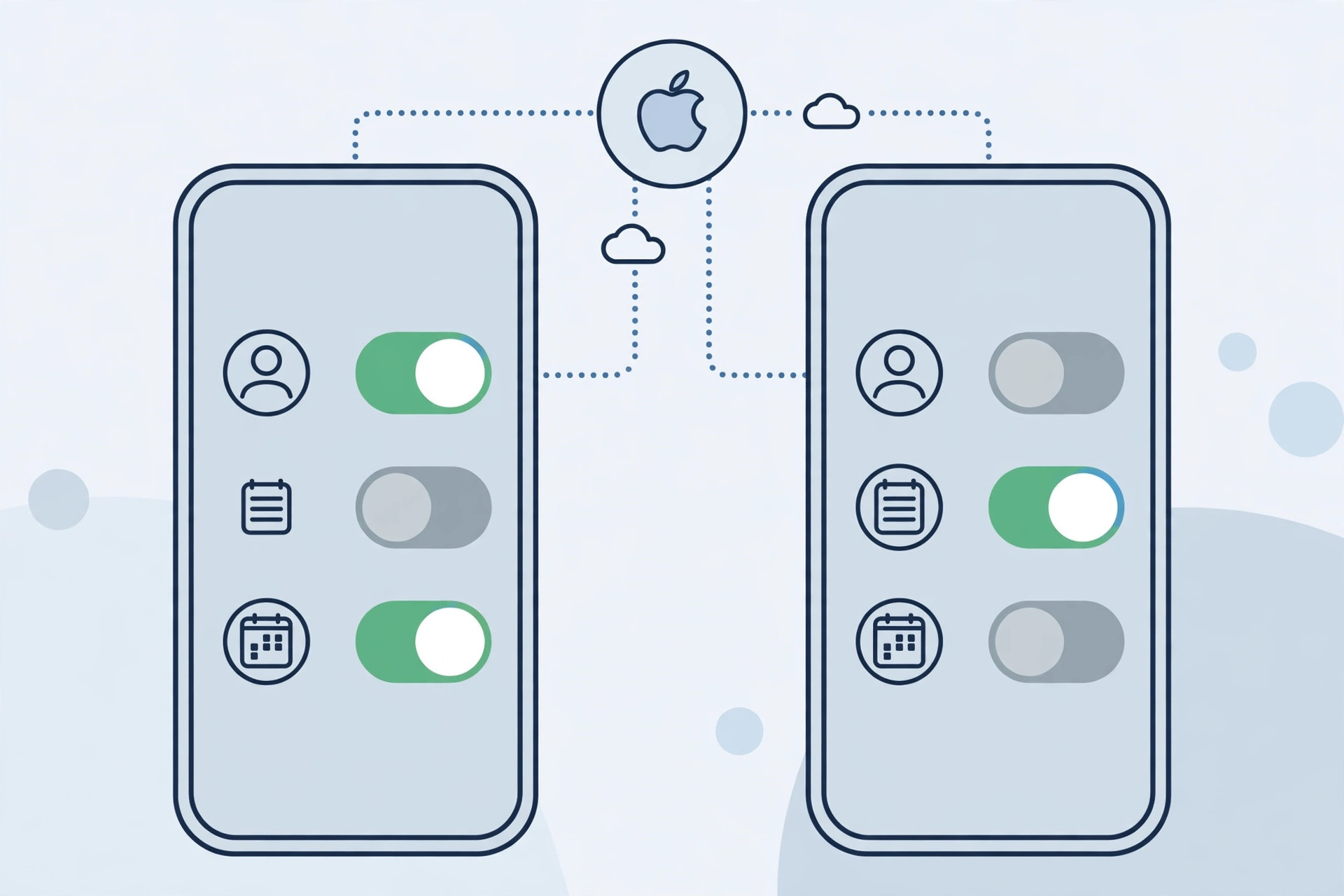
Pick one phone that will keep syncing contacts, notes, and calendars with iCloud. On the second phone, you’ll switch those categories off. Anything already synced stays on the first phone and in iCloud; it just stops flowing to the second one.
2. Switch off the categories on the second iPhone
On the second iPhone, open Settings, tap your name at the top, then tap iCloud. Under “Apps Using iCloud,” find Contacts, Notes, Calendars, and Reminders, and toggle each one off. You’ll be asked what to do with the data already on the phone — choose Delete from My iPhone for a clean separation. The data stays safe in iCloud and on the other phone. This is the fix MacRumors readers have been recommending to each other for years, and Apple documents the same behavior in its iCloud setup guides.
3. Clean up what’s already merged
Switching off sync stops future merging, but contacts and events that already crossed over won’t separate by themselves. On the second phone, delete the contacts, notes, and calendar entries that belong to the other person. It’s a one-time chore — going forward, each phone keeps its own local address book, notes, and calendars.
Option 2: Separate Apple IDs with Family Sharing
The cleaner long-term fix is to give each person their own Apple ID and link them with Family Sharing. Each person gets fully separate contacts, notes, calendars, photos, and messages — while still sharing app purchases, Apple Music, iCloud+ storage, and subscriptions. As TechRepublic has noted in its coverage of Apple account best practices, separate accounts are the only way to get true separation without constant fiddling.
To set it up: on one iPhone, go to Settings > [your name] > Family Sharing and invite the other person. They sign in with their own Apple ID (or create one). Shared purchases keep working, and the merged-data problem disappears for good. Never “solve” this by sharing the Apple ID password more widely or handing out the account credentials — that only deepens the tangle and weakens your security.
If it still doesn’t work
If contacts keep reappearing on the second phone, double-check that the toggles are off for every category — Calendars and Reminders are easy to miss. Also check Settings > Contacts > Default Account: if it’s set to iCloud on the second phone, new contacts still land in the shared account, so switch it to On My iPhone or a personal account. If you went the Family Sharing route and purchases aren’t sharing, make sure Purchase Sharing is enabled in the Family Sharing settings. While you’re tidying up Settings anyway, you might like our guide to turning off the Liquid Glass effect in iOS 26.
FAQ
Will turning off Contacts sync delete my contacts?
No — the data stays in iCloud and on the other device either way. When you toggle Contacts off, iOS asks whether to keep or delete the copy on that phone. Deleting from the phone only removes the local copy.
Can we still share photos with separate Apple IDs?
Yes. Family Sharing gives you a shared family photo album, and you can share individual albums over iCloud too. You lose nothing except the unwanted merging — which is the whole point.
Conclusion
Two iPhones, one Apple ID, and a merged mess of contacts is a rite of passage for shared accounts. The quick fix — toggling Contacts, Notes, and Calendars off on one device — takes two minutes. The lasting fix — separate Apple IDs joined by Family Sharing — takes ten and ends the problem for good. Pick the one that fits your household, and enjoy address books that are actually yours.





