
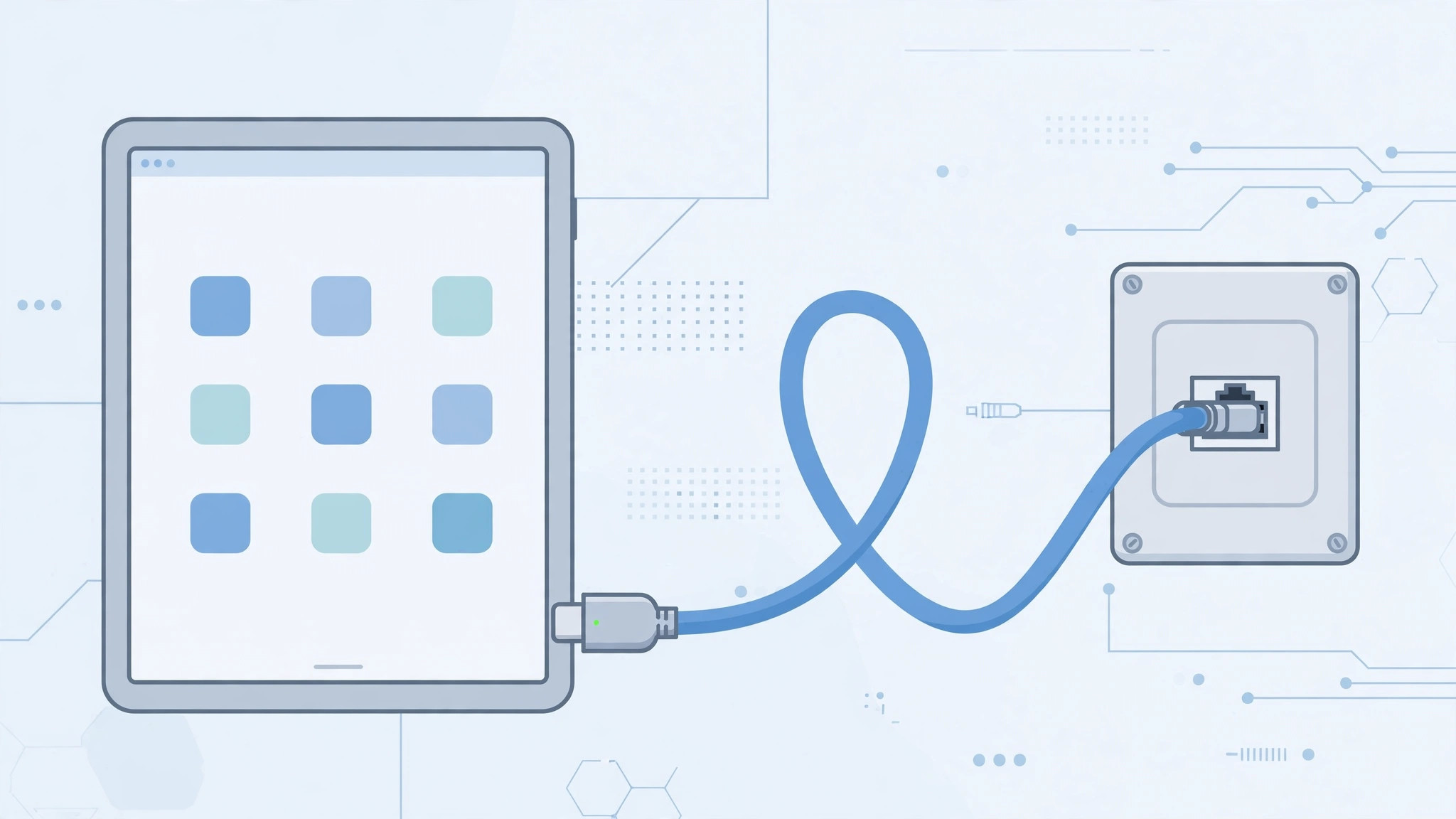
Most iPad owners assume Wi-Fi is the only way to get online — but sometimes a wired connection is faster, more stable, or simply the only option: a hotel room with only an Ethernet jack, a conference hall where the Wi-Fi buckles under the crowd, or a huge download you don’t want interrupted. The good news: yes, you can connect an iPad to a network with a LAN cable. You just need the right adapter, and iPadOS handles the rest automatically.
What you need
Unlike a Mac, the iPad has no built-in Ethernet port, so the LAN cable can’t plug in directly. You need a USB Ethernet adapter that matches your iPad’s connector:
- USB-C iPads (iPad Pro, iPad Air 4th generation and later, iPad mini 6th generation, iPad 10th generation): any USB-C to Gigabit Ethernet adapter.
- Lightning iPads (older models): Apple’s Lightning to USB 3 Camera Adapter plus a USB-A Ethernet adapter — the same kind of adapter you’d use to connect an external webcam to iPad.
How to connect an iPad to a wired network
- Plug the LAN cable into the adapter. Connect a standard Ethernet cable from your router, switch, or wall jack to the adapter’s port until it clicks.
- Connect the adapter to your iPad. Plug it into the iPad’s USB-C or Lightning port (via the Camera Adapter on older models). If the adapter has pass-through charging, you can keep the iPad powered while connected.
- Wait a few seconds. iPadOS detects the wired connection automatically — nothing to install, no app to open. iPadOS even prioritizes Ethernet over Wi-Fi, so traffic goes over the cable as soon as it’s live.
- Confirm it in Settings. Open Settings: a new Ethernet entry appears in the sidebar. Tap it to see the assigned IP address, subnet mask, router, and DNS — or tap Configure IP to enter static details manually.
- Test it. Open Safari and load a page. To be sure traffic goes over the wire, temporarily turn Wi-Fi off — Ethernet keeps working on its own.
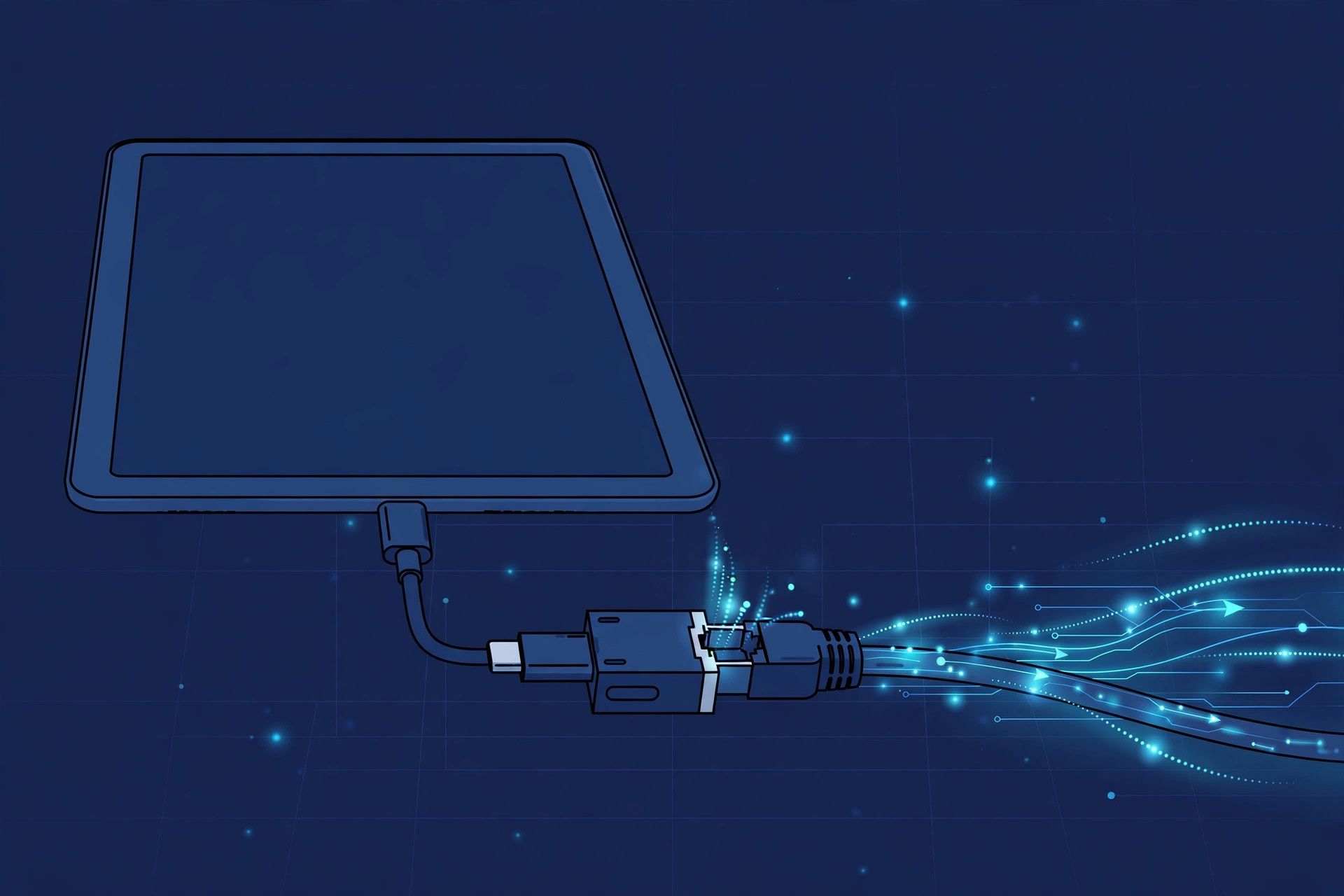
To put numbers on the difference, our guide on how to measure iPhone-to-Mac data transfer speed over cable shows the testing approach you can reuse to compare wired versus wireless throughput.
If it still doesn’t work
Rule out the physical layer first: try a different LAN cable and router port, and check for link lights on the adapter. If the Ethernet entry doesn’t appear in Settings, unplug the adapter and reconnect it firmly — some third-party adapters only enumerate on a fresh plug-in, and a few need external power via their charging port. A restart of the iPad clears most detection hiccups. On hotel and office networks, watch for a captive portal: open Safari and accept the login page. And if there’s no wired jack at all, you can share your iPhone’s internet over USB instead.
Frequently asked questions
Do I need to install drivers or an app for the Ethernet adapter?
No. iPadOS includes built-in drivers for common USB Ethernet chipsets, so adapters are plug-and-play. An unrecognized adapter is almost always a power or cable issue — Apple’s support pages list officially compatible adapters if you want a guaranteed match.
Is wired actually faster than Wi-Fi on an iPad?
Usually, yes. A USB-C Gigabit Ethernet adapter can deliver close to a full gigabit, while real-world Wi-Fi swings with signal strength and congestion. 9to5Mac has covered iPad networking tests, and YouTube walkthroughs demonstrate the setup and speed comparisons.
The bottom line
Connecting an iPad to a network with a LAN cable is one of those hidden iPadOS tricks that feels like it shouldn’t work — until you plug in a small adapter and watch a gigabit connection come alive. Keep one in your travel bag next to your charger, and you’ll never be at the mercy of bad hotel Wi-Fi again.





