
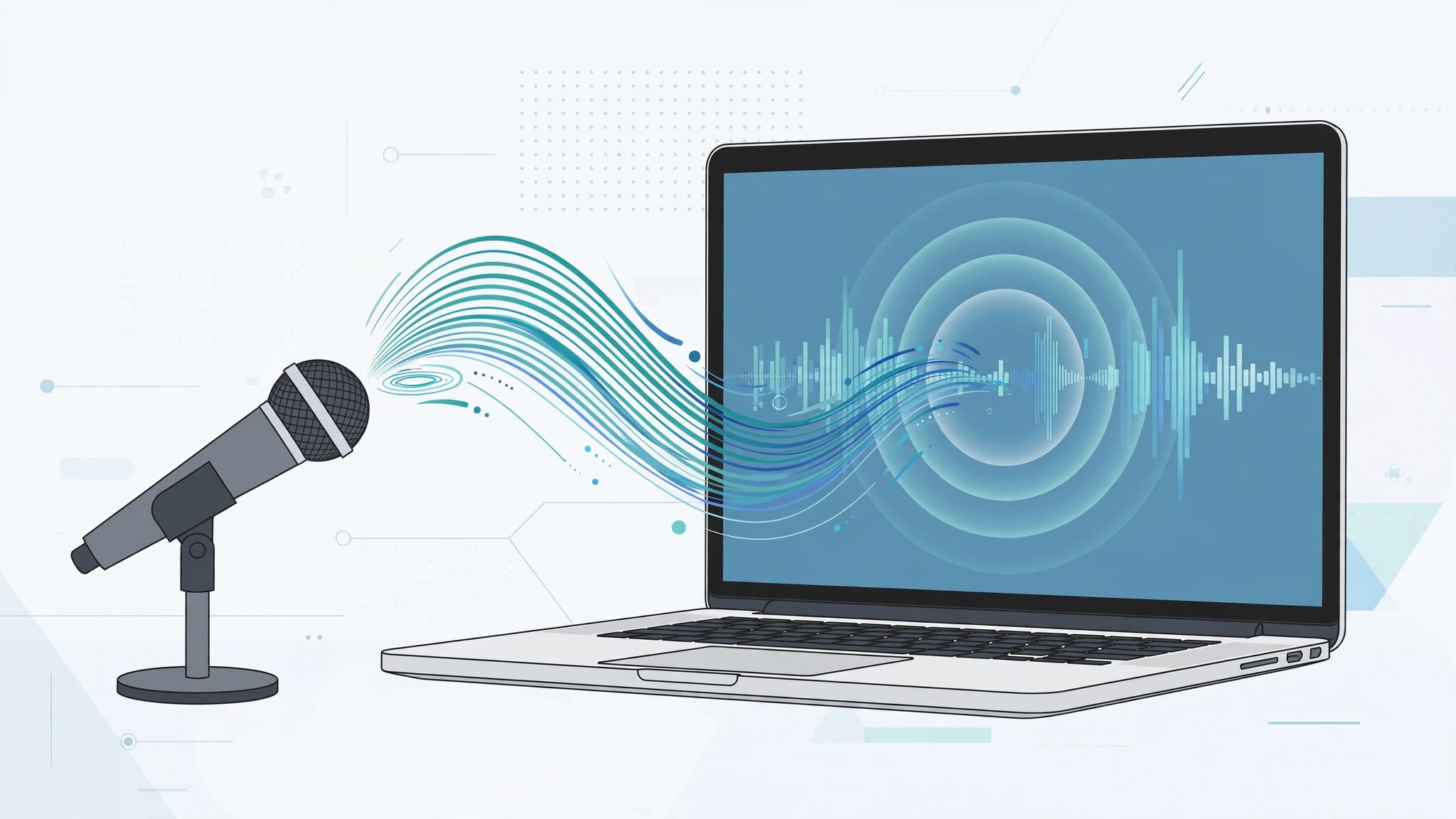
Your Mac listens better than you think. Beyond asking Siri for the weather, macOS includes a full hands-free control system called Voice Control that lets you open apps, click buttons, dictate text, and navigate the entire interface using only your voice. Setting it up takes less than two minutes.
In this guide, I will walk you through turning on Voice Control on your Mac, the most useful commands to learn first, and what to do if your Mac does not seem to hear you. If you like keyboard-driven workflows, you may also enjoy our guide on creating custom keyboard shortcuts in macOS — voice and hotkeys pair beautifully together.
How to turn on Voice Control on Mac
Voice Control is built into macOS and works entirely on-device once the language files are downloaded. Here is how to enable it:
- Click the Apple menu in the top-left corner and choose System Settings.
- In the sidebar, scroll down and select Accessibility.
- On the right, click Voice Control.
- Turn on the Voice Control toggle. Your Mac will download the necessary language data the first time — this is a one-time download.
- When prompted, allow microphone access. A small microphone icon appears in the menu bar, showing that your Mac is listening.
- Say “Show commands” to open the full command list, or “Open Safari” to try your first command.
- To dictate text anywhere, click into any text field and start speaking — your words appear as you talk. Say “Go to sleep” to pause listening and “Wake up” to resume.

Essential voice commands worth memorizing
Voice Control understands hundreds of commands, but a handful cover most daily tasks. As documented in Apple’s Mac User Guide, you can chain actions naturally:
- “Open Mail” or “Open Photos” — launch any app by name.
- “Click File” or “Click Send” — activate buttons and menu items by their visible labels.
- “Show numbers” — overlays a number on every clickable item; say the number to click it. Perfect for tricky interfaces.
- “Scroll down” or “Scroll to top” — move through pages and documents.
- “Switch to Safari” — jump between open apps.
- “Take a screenshot” — capture the screen without touching the keyboard.
Enthusiasts on MacRumors also recommend combining Voice Control with hotkeys for launching Mac apps for the fastest hands-free workflow.
Do not forget Siri
Voice Control handles device control, while Siri handles questions and quick tasks. To enable it, go to System Settings → Siri (or Apple Intelligence & Siri on newer Macs) and turn on “Listen for Hey Siri”. You can then ask for directions, set reminders, or control smart-home devices. Our walkthrough on activating Siri with the iPad Pro lock button covers the iPad side of the same coin, and video demos on YouTube show the setup in action.
If it still does not work
If your Mac is not responding to voice commands, work through these checks. First, open System Settings → Sound → Input and confirm the correct microphone is selected with a healthy input level. Second, make sure the language in Voice Control settings matches the language you are speaking. Third, toggle Voice Control off and back on — this reloads the speech engine. Finally, check for macOS updates, since Apple regularly improves on-device dictation. If the microphone works in other apps but not Voice Control, remove and re-grant microphone permission under System Settings → Privacy & Security → Microphone.
Frequently asked questions
Does Voice Control on Mac work without the internet?
Yes. After the initial one-time download of language data, Voice Control processes everything on-device, so it works offline and your voice never leaves your Mac.
What is the difference between Voice Control and Siri?
Siri is a voice assistant for questions, messages, and smart-home tasks. Voice Control is a full interface replacement — it lets you click, scroll, type, and navigate macOS itself with spoken commands.
Conclusion
Voice Control turns your Mac into a genuinely hands-free computer in about two minutes of setup. Start with the basics — opening apps and clicking buttons by name — then graduate to number overlays and dictation. Once muscle memory kicks in, you will wonder how you ever lived without it.






[…] If you rely on voice features elsewhere, note that macOS has its own equivalent — see our guide on controlling macOS with voice commands. […]