
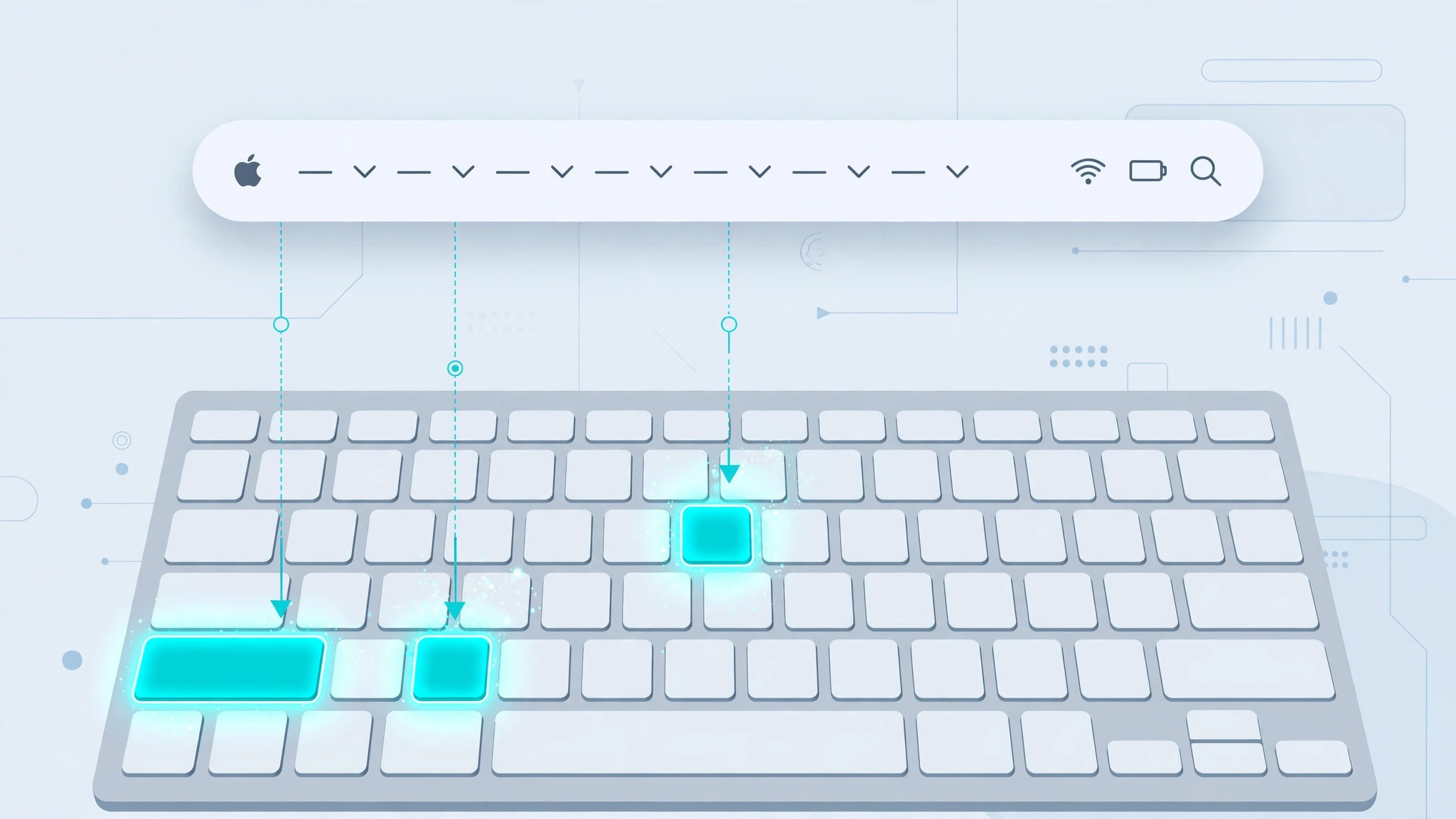
If your favorite Mac app buries a command three menus deep, you do not have to live with it. macOS includes a built-in feature called App Shortcuts that lets you assign your own keyboard shortcut to almost any menu-bar command in any application — no extra software needed. The trick is knowing where the feature lives and one rule that makes or breaks the whole thing: the command name must match the menu exactly.
Before you start: get the exact command name
Open the app and walk through its menu bar to find the command you want a shortcut for — for example, File → Export as PDF… in Mail. Note the exact wording, including capitalization, punctuation, and any ellipsis (…) at the end. If you are not sure which commands an app offers, browsing your full installed-apps list is a quick way to open the apps you use most and inspect their menus.
Step-by-step: create your custom shortcut
- Open System Settings. Click the Apple menu and choose System Settings (called System Preferences on older macOS releases).
- Go to Keyboard → Keyboard Shortcuts. Select Keyboard in the sidebar, then click the Keyboard Shortcuts button.
- Choose App Shortcuts. In the left pane, select App Shortcuts to see every custom shortcut you have created.
- Add a new shortcut. Click the + button below the list.
- Pick the application. From the Application menu, choose the app the command belongs to — or All Applications if the command appears in many apps.
- Type the exact menu command name. Enter the name precisely as it appears in the menu bar, ellipsis and all.
- Press your key combination. Click the Keyboard Shortcut field and press the keys you want, for example Control+Option+E. Steer clear of combos macOS already claims; Apple’s official list of Mac keyboard shortcuts shows which ones are taken.
- Click Add and verify. The shortcut saves instantly. Open the app and check the menu — your new hotkey now appears beside the command.

The exact-name rule
If your new shortcut does nothing, the name almost certainly does not match. macOS pairs the shortcut to the menu command by its literal text: a missing ellipsis, a different capital letter, or a stray space means the shortcut attaches to nothing. Open the app’s menu again, compare character by character, and fix the entry. Veteran Mac watchers such as 9to5Mac’s macOS coverage consistently flag this as the number-one reason custom shortcuts fail.
If it still doesn’t work
First, try a different key combination — yours may be claimed by the app or the system. Confirm you chose the right application in the dropdown, and restart the app after adding the shortcut so it re-reads its menus. Note that App Shortcuts only target menu-bar commands; if you want a hotkey that opens a whole app instead, launching Mac apps with hotkeys uses a different approach.
Frequently asked questions
Does this work in third-party apps too?
Yes. App Shortcuts works with any application that uses a standard macOS menu bar, including Apple’s own apps and most third-party software. It cannot target buttons drawn inside an app’s window or menu-bar extras.
What if two apps have the same menu command name?
Assign the shortcut to a specific application instead of All Applications, or give each app’s version a different key combination. The per-app dropdown exists precisely for this situation.
Conclusion
Custom App Shortcuts turn repetitive menu diving into a single keystroke, and once you respect the exact-name rule, each one takes under a minute to set up. Start with the two or three commands you reach for daily — you will wonder why you waited. To remove another small daily friction, see how automatic hotspot connections from iPhone on Mac keep you online without lifting a finger.






[…] killall ends anything that refuses to go quietly. Memorize the shortcut now — or go further and create custom keyboard shortcuts in macOS for your most-used tools. And if you’d rather open apps without the mouse, launching Mac apps […]