
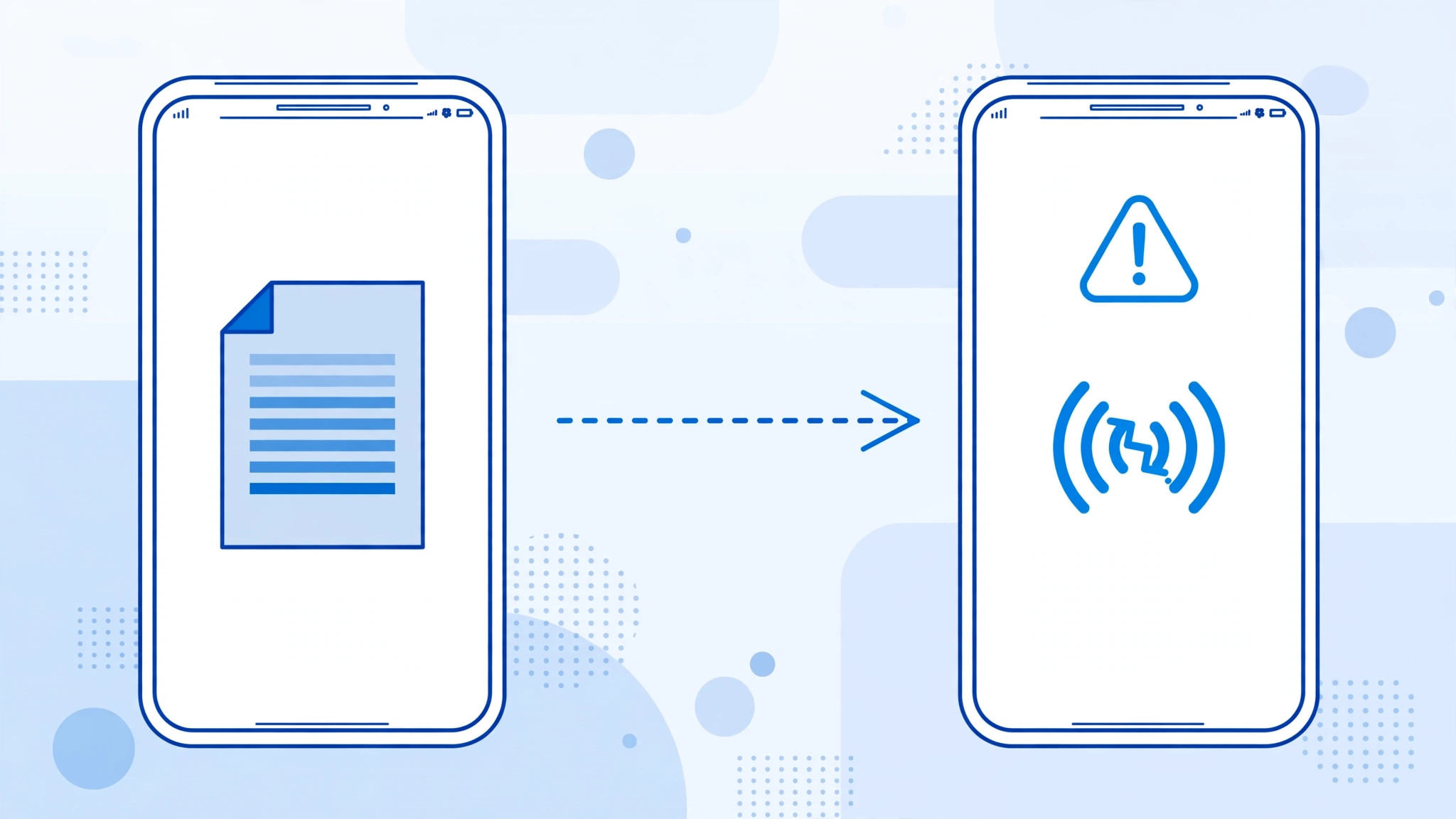
AirDrop is one of those Apple features that feels like magic — until it suddenly stops working. You tap Share, choose the nearby iPhone, and… nothing happens. Here is the twist: if your iPhone happily receives files but cannot send them, the problem is most likely not your phone at all. It is on the receiving end.
Receiving and sending both use the same Bluetooth and Wi-Fi radios, so if one direction works, your hardware is fine. Something on the receiving iPhone — a hotspot hogging the radios, restrictive discovery settings, or a Screen Time lock — is silently blocking the transfer. The fixes below run through the five most common causes.
Five fixes for an iPhone that can’t send via AirDrop
- Restart both iPhones. Turn off the sender and the receiver, then power them back on. A restart clears the Bluetooth-stack glitches that quietly break AirDrop transfers — it fixes a surprising number of “it just stopped working” cases.
- Make sure Wi-Fi and Bluetooth are on — on both devices. AirDrop needs Bluetooth to discover nearby devices and Wi-Fi to beam the actual file across. Check in Settings, not just Control Center, and make sure neither phone is in Airplane Mode. You don’t need an internet connection — just the radios switched on.
- Turn off Personal Hotspot on both phones. An active hotspot monopolizes the wireless radios and blocks AirDrop while a transfer is underway. Swipe into Settings → Personal Hotspot on each iPhone and switch it off before you try sending again. Apple’s AirDrop guide and Guiding Tech’s AirDrop troubleshooting both flag this as a classic culprit.
- Let the receiving iPhone accept files from everyone. On the receiver, open Control Center, long-press the connectivity block (the square with Wi-Fi and Bluetooth icons), tap AirDrop, and choose Everyone. If the receiver is set to “Contacts Only” and you are not in its contacts, your phone simply won’t see it.
- Check that AirDrop isn’t blocked by Screen Time. On the receiving iPhone, go to Settings → Screen Time → Content & Privacy Restrictions → Allowed Apps and make sure the AirDrop toggle is on — or switch Content & Privacy Restrictions off entirely. A locked-down AirDrop can’t accept anything.
If it still doesn’t work
Try reversing the direction: have the other iPhone send you a file. If that works, you have confirmed the problem sits with its settings, not yours. Also, if you spot the same device listed twice in the share menu, sending to the “ghost” copy will always fail — see our guide to why devices are duplicated in the AirDrop menu and clear it first.
Frequently asked questions
Why does my iPhone receive files but refuse to send them?
Because sending depends on the receiver’s side of the handshake. Your radios work — you proved that by receiving. The blocker is the receiver’s hotspot, its AirDrop discovery mode, or a Screen Time restriction.
Do both iPhones need Wi-Fi connected to the same network?
No. AirDrop builds its own direct wireless link between the two devices, so no shared Wi-Fi network and no internet connection are needed — Wi-Fi and Bluetooth just have to be switched on.
Conclusion
An iPhone that receives but won’t send is almost always fighting the receiving device’s settings rather than its own. Restart both phones, kill the hotspots, open AirDrop to everyone, and check Screen Time — and your files will be flying again in minutes. For more ways to move things between Apple devices, read our guide on setting up message sync between iPhone and Mac.





