
Downloaded ringtones have a way of piling up on an iPhone. A tone grabbed from a website in Safari, a file saved through the Files app, a clip cooked up in a ringtone-making app — before you know it, the Ringtone list in Settings is a scrolling mess of tones you never use anymore. The good news is that the iPhone lets you delete downloaded ringtones right on the device with a simple swipe — no computer required. The one catch: ringtones that were synced from a computer through iTunes or the Finder are removed a different way. This guide covers both, so you can clean up the list no matter where your tones came from.
How to delete a downloaded ringtone on iPhone
For any ringtone that landed on your iPhone directly — a Safari download, a file from the Files app, or a tone from a third-party app — removal takes seconds:
- Open Settings on your iPhone.
- Tap Sounds & Vibration. On some iPhone models this menu is labeled Sounds & Haptics; it is the same place.
- Tap Ringtone near the top of the screen. You will see every ringtone on the phone, including the ones you downloaded.
- Find the downloaded ringtone you want to remove in the list.
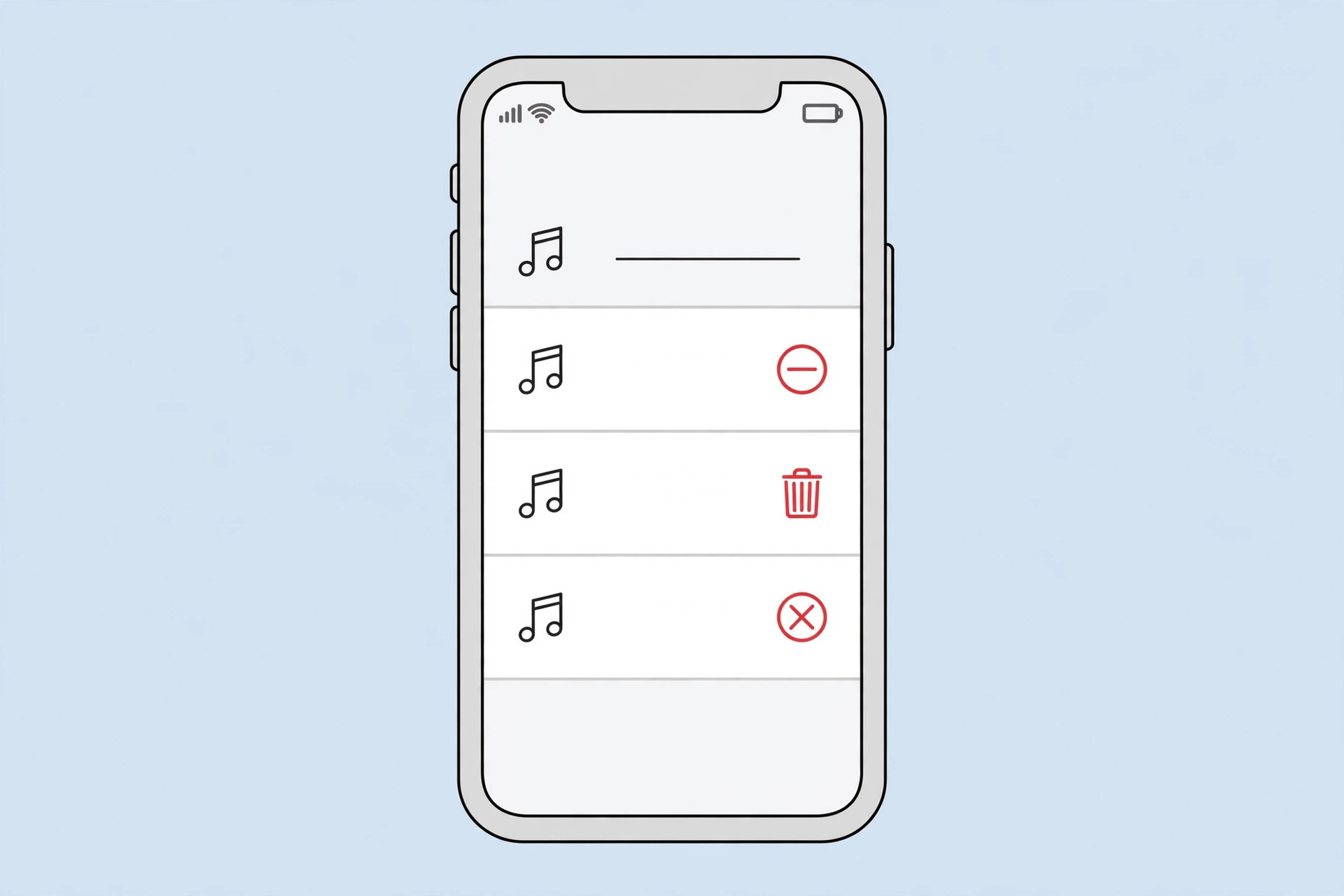
- Swipe left across its name. A red Delete button slides into view.
- Tap Delete. The ringtone is removed from your iPhone immediately — it will not play again and it no longer clutters the list.
The swipe gesture is the whole trick, and it works in iOS 26 exactly as it has for years. Apple’s guide to ringtones on iPhone covers the basics of managing tones, and the walkthroughs at MacRumors confirm the swipe-to-delete method for on-device tones.
Removing ringtones synced from a computer
There is one situation where the swipe gesture does nothing: ringtones that were synced from a computer. If your tones came through iTunes (Windows or older macOS) or the Finder (macOS Catalina and later), they are managed by the sync relationship, not by the iPhone alone. To remove them:
- Connect your iPhone to the computer you originally synced it with.
- Open the Finder (Mac) or iTunes (Windows) and select your iPhone.
- Open the Tones section.
- Deselect the ringtones you want gone — or turn off tone syncing entirely.
- Sync again. The deselected tones are removed from the iPhone.
If you ever want to go the other direction and add sounds instead of removing them, our guide on adding and changing the iPhone startup sound in iOS walks through the setup. And if you are generally tidying up how your iPhone handles sound, see how to stop your iPhone from auto-switching audio to your headphones.
If it still doesn’t work
If swiping left on a ringtone reveals no Delete button, the tone was almost certainly synced from a computer — use the Finder/iTunes method above instead. If a deleted tone reappears after syncing, you deselected it in the wrong library or the sync did not finish; uncheck it in Tones and sync once more. And if the whole Sounds menu feels sluggish, a quick iPhone restart clears temporary glitches.
Frequently asked questions
Can I get a deleted ringtone back?
Only if you still have the original file. Re-download it from wherever it came from, or re-sync it from your computer. There is no “recently deleted” bin for ringtones, so delete with confidence — or keep a copy in the Files app first.
What happens if I delete the ringtone I am currently using?
Your iPhone simply falls back to the default tone. Nothing breaks; you can pick a new favorite from the remaining list right away.
Conclusion
Deleting downloaded ringtones on an iPhone is a ten-second job: Settings, Sounds & Vibration, Ringtone, swipe left, Delete. Just remember the split — on-device downloads die by swipe, computer-synced tones die by re-syncing with the Tones section deselected. Clean out the ones you skip past every time, and the next time your phone rings, it will be a tone you actually chose.





