You open a photo on your iPhone and it looks soft, almost smudged, and a small exclamation-mark badge sits in the corner of the screen. What you are looking at is a low-resolution preview, not the real photo: your iPhone is showing you a placeholder while it tries to fetch the full-resolution original from iCloud. When that download never finishes, your photo library feels broken even though nothing is actually lost. Here is why it happens and how to get your full-resolution photos back.
Why your iPhone keeps low-resolution previews
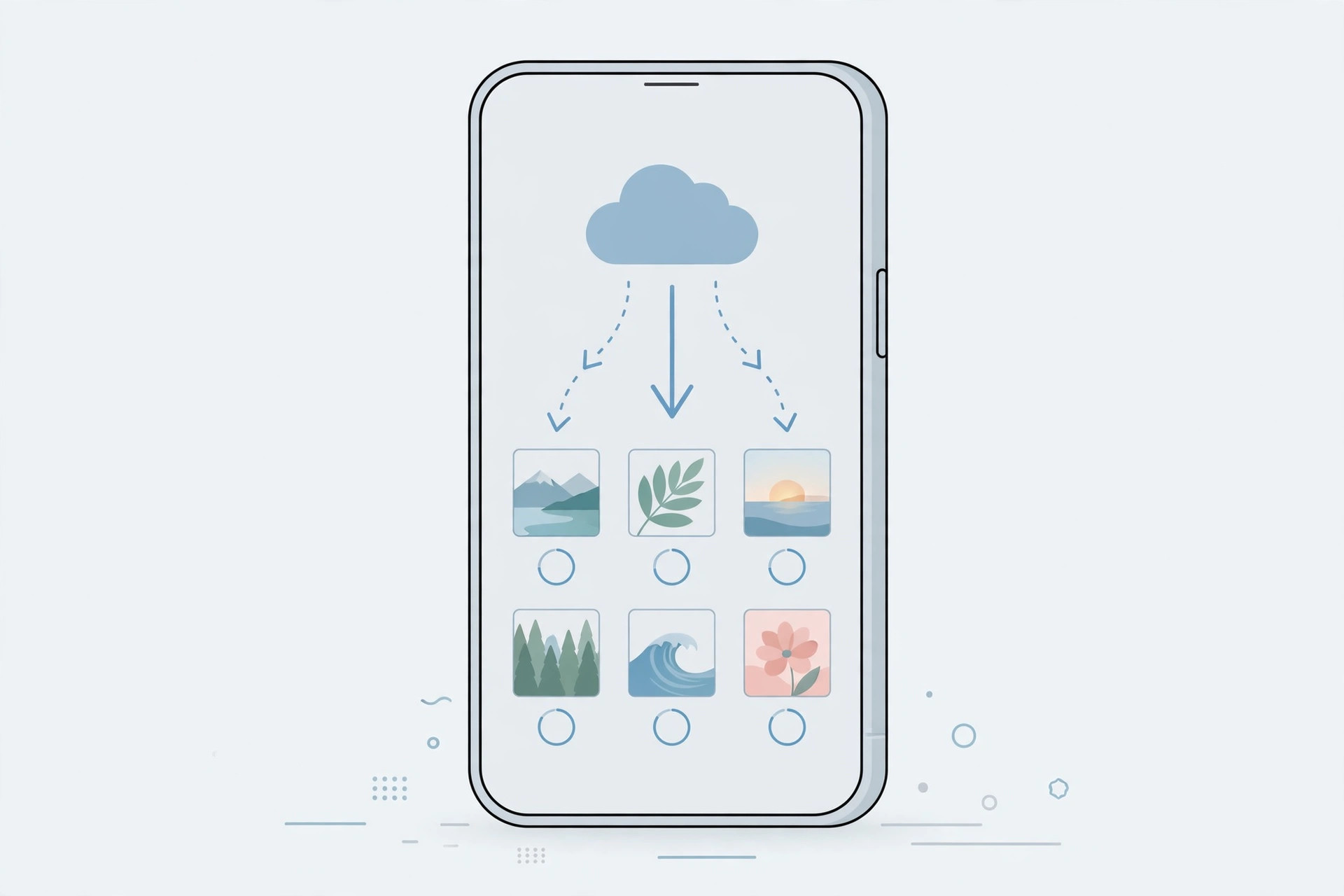
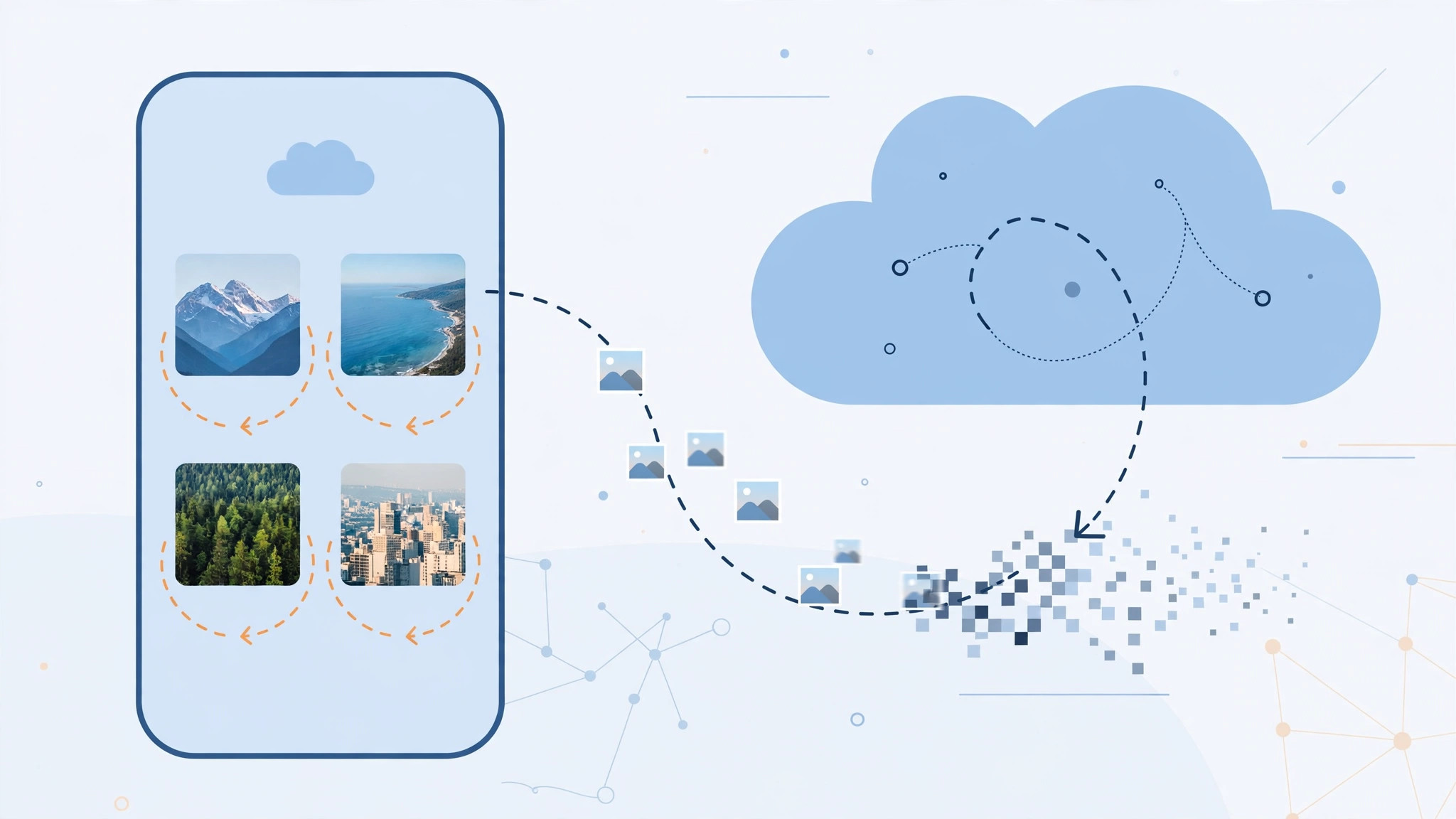
iPhones with Optimize iPhone Storage turned on (Settings > Photos) do not keep full-resolution originals on the device. Instead, the phone stores tiny compressed previews locally and keeps the real files in iCloud, downloading an original only when you open it. That is normally invisible — but if the original cannot be downloaded, you are stuck with the blurry preview and the exclamation-mark badge telling you so.
How to force the original to download
Before changing anything, try the simplest trick first:
- Open the blurry photo and tap Edit in the top-right corner. Entering the built-in photo editor almost always triggers the original download, and the full-resolution version usually appears within seconds.
- Wait for the spinner to finish. Large originals, especially long videos, can take a while on a slow connection. Give it a full minute on Wi-Fi before deciding it is stuck.
- Connect to reliable Wi-Fi. iCloud photo downloads pause or stall on weak or unstable connections, and they may not run at all over a poor cellular signal. Move closer to your router or switch networks and try again.
- Check your free space. Go to Settings > General > iPhone Storage. If the iPhone is nearly full, originals physically cannot download — the download silently fails and the blurry preview stays. Free up a few gigabytes by deleting unused apps, old videos, or downloads. Our guide to built-in apps you can safely delete is a good starting point for reclaiming space.
- Wait out Apple’s servers. During busy periods — a major iOS release, the holidays, evenings — Apple’s servers can be overloaded and downloads crawl or stall. Check the System Status page if you suspect an outage, and simply try again later.
- Switch to Download and Keep Originals. If you want full-resolution copies on your iPhone permanently, go to Settings > Photos and choose Download and Keep Originals. This kicks off a one-time sync of your entire library, so leave the phone charging on stable Wi-Fi overnight. You need enough free storage for this to complete.
Apple’s own guide to iCloud Photos explains the difference between Optimize Storage and keeping originals, and roundups at MacRumors regularly cover iCloud-related quirks after major iOS updates.
If it still doesn’t work
If the exclamation badge persists on Wi-Fi with plenty of free storage, sign out of iCloud and back in: Settings > [your name] > scroll down > Sign Out, then sign back in and let Photos resync. As a last resort, restore the phone from a backup — but contact Apple Support before doing that, since a restore is rarely necessary for this issue. If you are troubleshooting other camera oddities, see our guide on fixing Spatial Photo mode in iOS 26.
Frequently asked questions
Are my original photos lost if I only see blurry previews?
No. The full-resolution originals are safe in iCloud. The blurry versions are just placeholders your iPhone shows while it fails to download the real files. Once the download completes, the preview is replaced with the original.
Will turning on Download and Keep Originals delete anything?
No, it only downloads the full-resolution files to your iPhone. Nothing is removed from iCloud. Just make sure you have enough free storage first, because the initial sync can be very large.
Conclusion
A blurry photo with an exclamation mark almost always means the original is waiting in iCloud and your iPhone cannot fetch it — usually because of low storage, a bad connection, or busy Apple servers. Open the photo in the editor to trigger the download, fix whichever of those three is blocking it, and switch to Download and Keep Originals if you never want to think about it again.