
Apple Music’s catalog is enormous — tens of millions of tracks — but it doesn’t have everything. Indie releases, live bootlegs, family recordings, workout mixes, and obscure remixes often live only on your computer. The good news: you can add your own music to Apple Music so those tracks sit right alongside the streaming catalog on your iPhone.
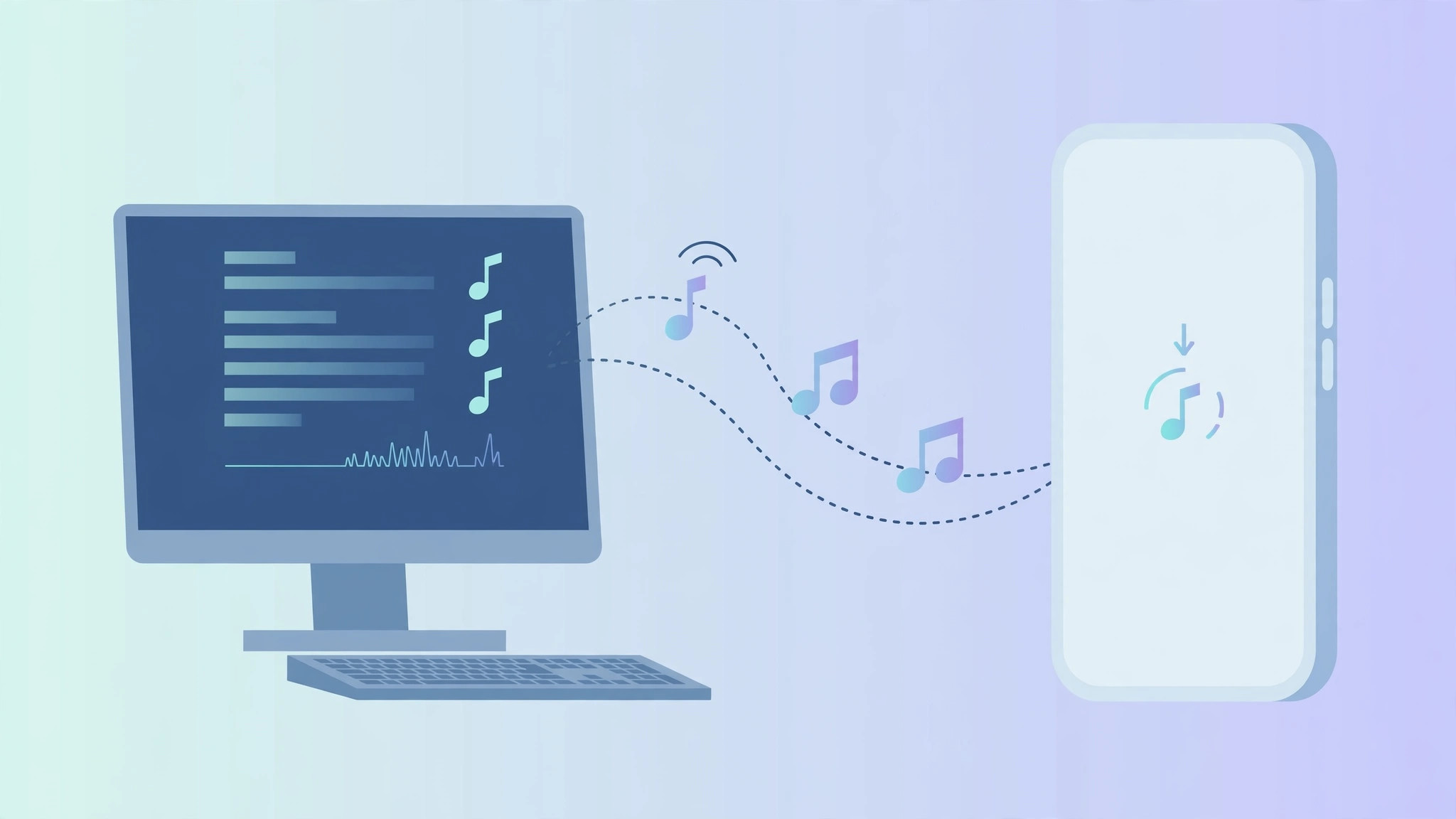
What you need: Sync Library
Apple’s official solution is called Sync Library (previously iCloud Music Library). It uploads your personal tracks to the cloud and makes them available on every device signed in with the same Apple ID. Apple documents the feature in its guide to using Sync Library with your Apple Music subscription, and MacRumors has covered its evolution across macOS and iOS updates.
Add your music step by step
Here is the full sync flow, computer to iPhone:
- Turn on Sync Library on your iPhone. Open Settings > Music and switch on Sync Library. Make sure the phone is signed in with the Apple ID you want to use everywhere — a mismatch is the most common cause of missing tracks.
- Open your music app on the computer. On a Mac, use the Music app; on Windows (or older macOS), use iTunes. Sign in with the same Apple ID as your iPhone.
- Turn on Sync Library on the computer too. Open Settings (or Preferences) > General and switch on Sync Library there.
- Add your tracks. Go to File > Add to Library, choose your music files, then right-click a track and select “Add to iCloud Music Library.”
- Wait for the sync. After a few minutes your songs upload and appear in the Music app on your iPhone, iPad, and Mac — listed right next to Apple Music’s catalog.
The no-sync alternative: WALTR 2
If you’d rather skip the cloud entirely, the WALTR 2 app takes a different route: drag audio files into it, and it converts them on the fly and pushes them straight into the iPhone Music app’s Downloaded section. No syncing, no Apple ID matching, no waiting on uploads. It offers a free trial and then becomes a paid app — worth it if you regularly move large collections of personal audio to your phone.
If it still doesn’t work
If your tracks refuse to appear, double-check that both devices are signed into the same Apple ID and that Sync Library is switched on at both ends. Large first-time libraries can also take a while to finish uploading, so give it an hour before troubleshooting further. And if your iPhone keeps grabbing the wrong audio output while you listen, see our guide on stopping the iPhone from auto-switching audio to headphones.
Frequently asked questions
Do I need an Apple Music subscription to use Sync Library?
Sync Library works with an Apple Music subscription (or the standalone iTunes Match service). Without one, your personal tracks won’t sync through Apple’s cloud — which is exactly the situation where the WALTR 2 alternative shines.
Will my uploaded music use up my iCloud storage?
Apple handles music uploads through Sync Library separately from your iCloud storage plan, so your personal tracks don’t eat into the space your photos and backups use. Check Apple’s Sync Library guide for the current limits.
Conclusion
Whether you go the Sync Library route or drag-and-drop with WALTR 2, your own tracks can live right next to Apple Music’s catalog on your iPhone. And once your library is exactly how you want it, try automatically identifying songs playing nearby on iPhone — a great way to keep discovering new additions to that library.





