
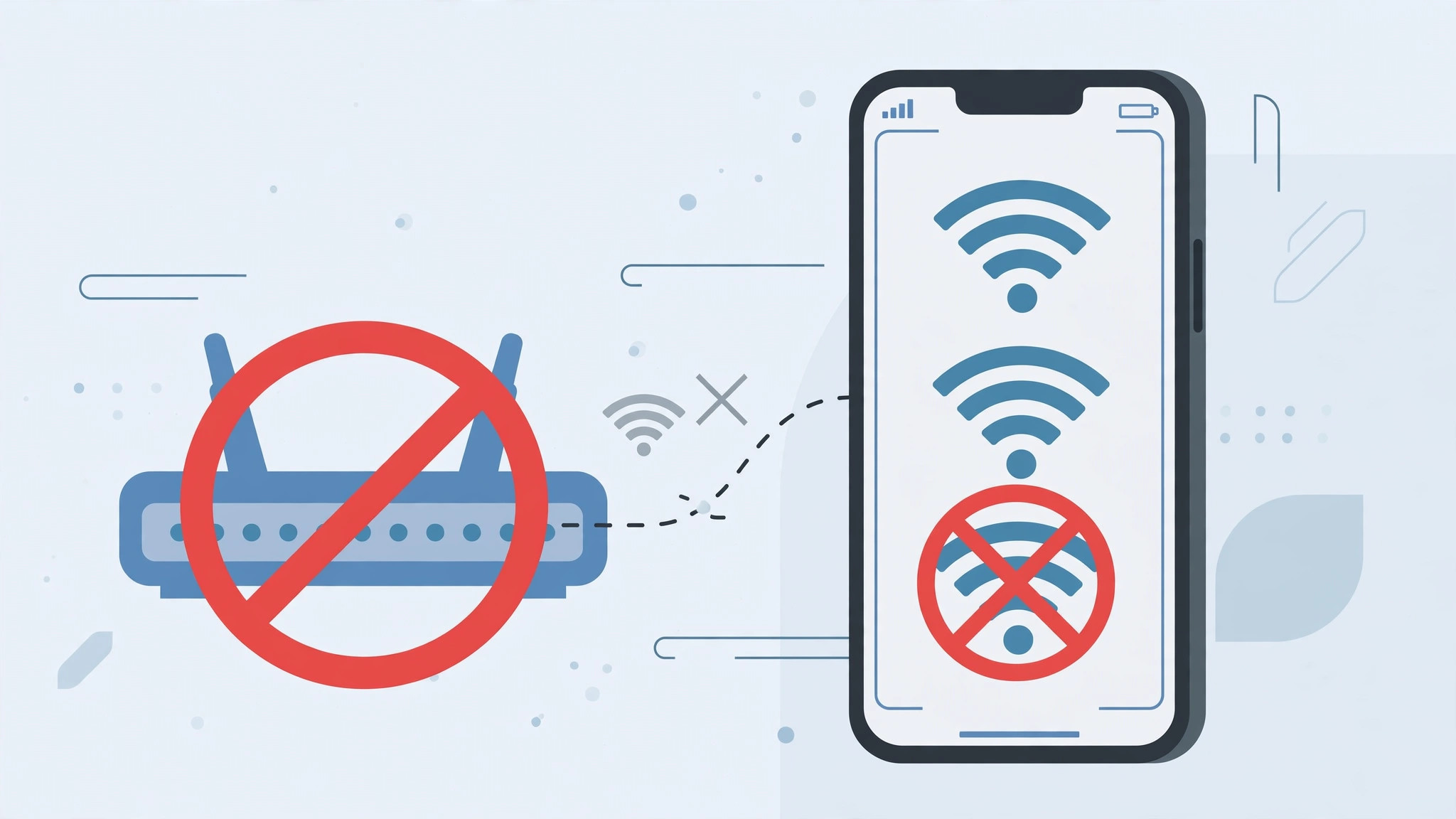
There is a special kind of annoyance reserved for the weak coffee-shop network your iPhone keeps clinging to. You walk past, your phone latches on, and suddenly your messages stop loading because the signal is too feeble to be useful. The good news: you can tell your iPhone to stop joining that one network automatically — without deleting its saved password.
Why your iPhone keeps joining bad networks
Your iPhone remembers every network you join and reconnects whenever it sees one again. That is convenient at home, but a headache with networks that only reach you at the weak edge of their range. Apple explains how the iPhone manages known networks in its guide to connecting to Wi-Fi on iPhone and iPad, and 9to5Mac has covered auto-join quirks over the years.
The key distinction: Auto-Join off vs. Forget This Network
This is the part most people get wrong. Tapping “Forget This Network” deletes the saved password from your keychain entirely — you would have to ask for the password again next time. Turning off Auto-Join keeps the password saved but tells the iPhone never to connect on its own. Same network, completely different outcome — and Auto-Join off is almost always what you actually want.
How to stop auto-join for one network
It takes about thirty seconds:
- Open Settings > Wi-Fi. Find the network in the list of known networks.
- Tap the ⓘ info icon next to the network name.
- Turn off the Auto-Join toggle. That is the whole fix.
- Join manually anytime by tapping the network name — the saved password still works.
When to use “Forget This Network” instead
Use Forget only when you want the credentials gone completely — a network you never plan to use again, a password that changed, or a network you no longer trust. For everything else, Auto-Join off is the gentler, fully reversible option.
If it still doesn’t work
If the iPhone still jumps onto the network, double-check you disabled Auto-Join on the right entry — similarly named networks (like “CoffeeShop” and “CoffeeShop_Guest”) are easy to confuse. Also confirm the toggle actually stayed off; a settings sync hiccup can occasionally revert it. For related wireless annoyances, see our guide on stopping your iPhone from auto-switching audio to headphones — another case of the iPhone being a little too eager to connect.
Frequently asked questions
Will turning off Auto-Join delete the password?
No — that is the whole point. The password stays in your keychain; the phone just will not connect on its own. Tap the network name to connect manually whenever you want.
Can I disable auto-join for all networks at once?
No, Auto-Join is a per-network setting. But you can make Wi-Fi more deliberate by turning off “Ask to Join Networks” too. And if you tether often, check our guide to setting up automatic hotspot connection from iPhone on Mac — the same “connect automatically” idea, but for a connection you actually want.
Conclusion
Auto-Join off is the thirty-second fix for the weak-network problem: password kept, sanity restored. And while you are curating which connections your iPhone makes on its own, take a look at automatic hotspot connection from iPhone on Mac — one automatic connection that is genuinely worth keeping.





