
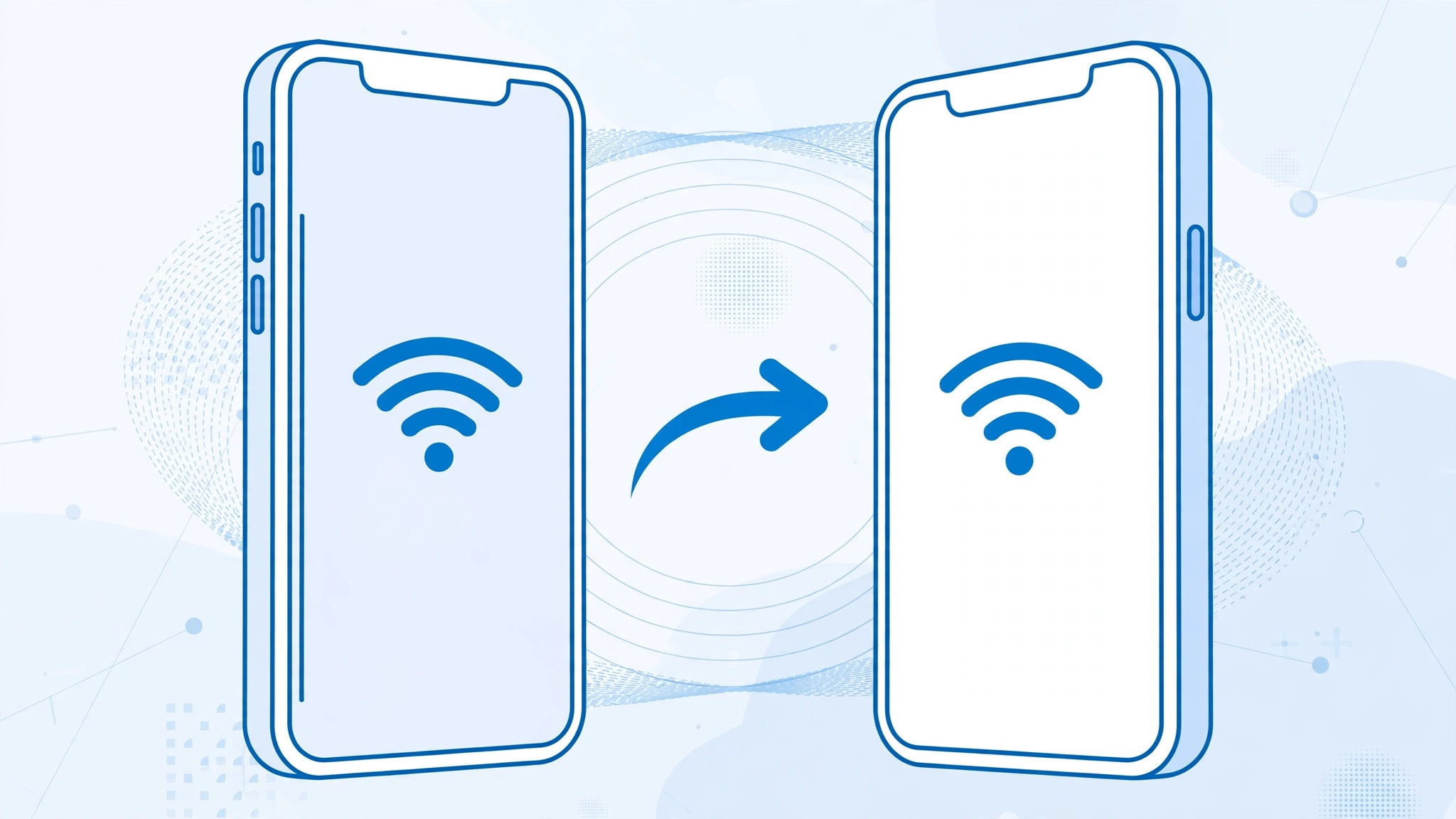
A friend comes over, opens Settings > Wi-Fi on their iPhone, taps your network name — and you both stare at your screen, waiting for the magic “Share Wi-Fi password?” prompt. It never appears. This feature is famously temperamental, and the reason is simple: it only fires when six separate conditions are all true at the same time. Miss even one, and your iPhone stays silent.
The good news is that every condition is easy to check. Run through this checklist and the prompt will show up.
The 6 conditions for sharing a Wi-Fi password
- Both devices run iOS 11 or newer. Password sharing debuted in iOS 11, so anything older simply doesn’t have the feature. Apple’s guide to sharing Wi-Fi passwords assumes a current iOS on both sides.
- The two devices use different Apple IDs. This one surprises people: if both iPhones are signed into the same Apple ID, the Wi-Fi password already syncs between them through iCloud Keychain, so there is nothing to share and no prompt appears. Sharing only makes sense — and only triggers — between two different Apple IDs.
- Bluetooth is on — on both devices. The handshake that triggers the prompt happens over Bluetooth, not Wi-Fi. If either phone has Bluetooth switched off (check Control Center or Settings > Bluetooth), the devices can’t discover each other and the dialog never fires. As 9to5Mac has pointed out in its iOS tips coverage, a disabled Bluetooth radio is the single most common culprit.
- Both devices are unlocked and close together. Hold the two iPhones within a few feet of each other, with both screens awake and unlocked. A locked phone won’t present — or receive — the sharing dialog.
- Start joining on the new device first. On the iPhone that wants the password, open Settings > Wi-Fi and tap the network name so the password-entry screen appears. Until that screen is up, the other phone has nothing to react to. Our guide to setting up automatic hotspot connection from iPhone on Mac covers a related Apple continuity trick that also depends on this kind of device-to-device handshake.
- Tap Share on the connected device. Only now — with all five conditions above met — does the already-connected iPhone display the “Share Wi-Fi password?” dialog. Tap Share, and the password fills in on the other phone automatically.
If it still doesn’t work
Toggle Wi-Fi and Bluetooth off and back on on both devices, then restart both iPhones and walk through the checklist again — in order. Also make sure Personal Hotspot is turned off on the sharing phone, since an active hotspot can hijack the Wi-Fi radio and suppress the prompt. AppleInsider has noted that Apple’s continuity features in general are sensitive to radio state, so a clean toggle often clears whatever was stuck. And if passwords are a recurring annoyance, our guide on stopping Safari from suggesting passwords on iPhone tames another one of iOS’s overeager password helpers.
Frequently asked questions
Why does the prompt appear sometimes but not others?
Because all six conditions have to line up at once. The ones people miss most often: Bluetooth turned off on one phone, or the joining phone not sitting on the password-entry screen yet. The order matters — start the join first, then wait for the dialog.
Can I share a Wi-Fi password with an Android phone?
No — this one-tap sharing is an Apple-only continuity feature. For Android guests you’ll need to read the password out loud, show it from your saved networks, or share it via a QR code generated from the network details.
Conclusion
Wi-Fi password sharing feels like magic when it works and like a bug when it doesn’t — but it’s neither. It’s a strict six-point checklist: current iOS, different Apple IDs, Bluetooth on, both phones unlocked and nearby, the join started on the new device, and then the tap on Share. Line them all up, and the prompt appears every time.





