
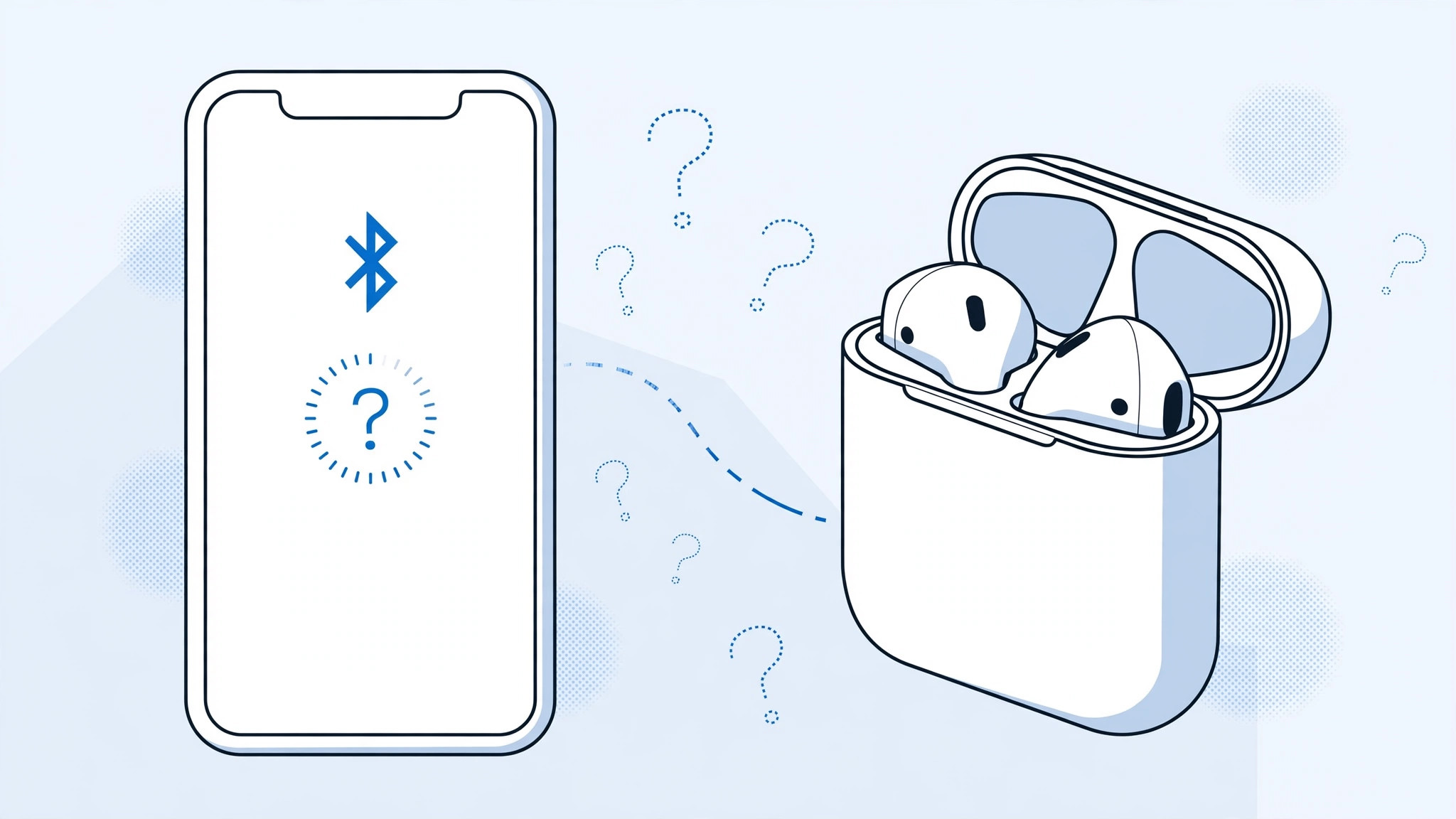
You open the AirPods case next to your iPhone, wait for the familiar pairing animation — and nothing happens. The earbuds don’t show up in Bluetooth settings either. Before you assume they’re dead, run through these fixes: in most cases the AirPods just need a clean reset and a fresh pairing, and you’ll be listening again in minutes.
How to get your iPhone to see AirPods again
- Check that Bluetooth is on. Open Settings > Bluetooth on the iPhone and make sure the toggle is green. Apple’s AirPods troubleshooting guide lists this as the first thing to verify — the pairing animation can’t appear if the radio is off.
- Confirm the AirPods have charge. Put both earbuds in the charging case and open the lid — the status light should come on. No light means a dead case, and dead AirPods can’t pair with anything. Charge for at least 15 minutes and try again.
- Reset the AirPods. With the lid open, press and hold the setup button on the back of the case for about 15 seconds. The status light will flash amber, then white — that means the earbuds are back to factory state and ready to pair as if new. As 9to5Mac notes in its AirPods guides, this reset clears the glitched pairing data that causes most “invisible AirPods” cases.
- Forget the old pairing on the iPhone. Go to Settings > Bluetooth, find your AirPods in the device list, tap the “i” next to them and choose Forget This Device. This clears the stale connection record so the fresh pairing in the next step doesn’t conflict with it.
- Restart the iPhone and pair fresh. Restart the phone, then hold the open AirPods case close to it. The setup animation should appear — follow the on-screen prompts to reconnect. If the case’s chime bothers you while doing this, our guide to turning off AirPods charging case sounds shows how to silence it.
- Rule out software or hardware failure. Update iOS to the latest version (Settings > General > Software Update), then try pairing the AirPods with a different iPhone or iPad. If they pair elsewhere, the problem is your phone’s Bluetooth; if they pair nowhere, the earbuds or case are faulty and it’s time for service.
If it still doesn’t work
Try the reset once more, but this time keep the AirPods in the case with the lid open for a full 30 seconds before pressing the setup button — a longer settle can help when the earbuds’ firmware is confused. Also move away from other Bluetooth devices and Wi-Fi routers while pairing, since radio interference can drown out the handshake. AppleInsider has covered how crowded 2.4 GHz environments cause exactly these flaky pairing symptoms. Once they’re connected, if audio keeps jumping between devices on its own, see our guide on stopping the iPhone from auto-switching headphone audio.
Frequently asked questions
Why do my AirPods connect to my iPad but not my iPhone?
That points to a stale pairing record on the iPhone rather than a problem with the AirPods. Use “Forget This Device” on the iPhone, reset the AirPods, and pair fresh — the iPad connection proves the earbuds themselves are fine.
The status light won’t turn white during the reset. What’s wrong?
Usually the case battery is too low to complete the reset — charge the case (with the AirPods inside) for at least 20 minutes first. If the light still misbehaves on a full charge, the case itself may need service.
Conclusion
An iPhone that can’t see AirPods is rarely a hardware tragedy — it’s almost always a Bluetooth toggle, a dead battery, or a corrupted pairing that a 15-second reset wipes clean. Work the steps in order, and only reach for a service appointment after the earbuds fail to pair with a second device too.





