
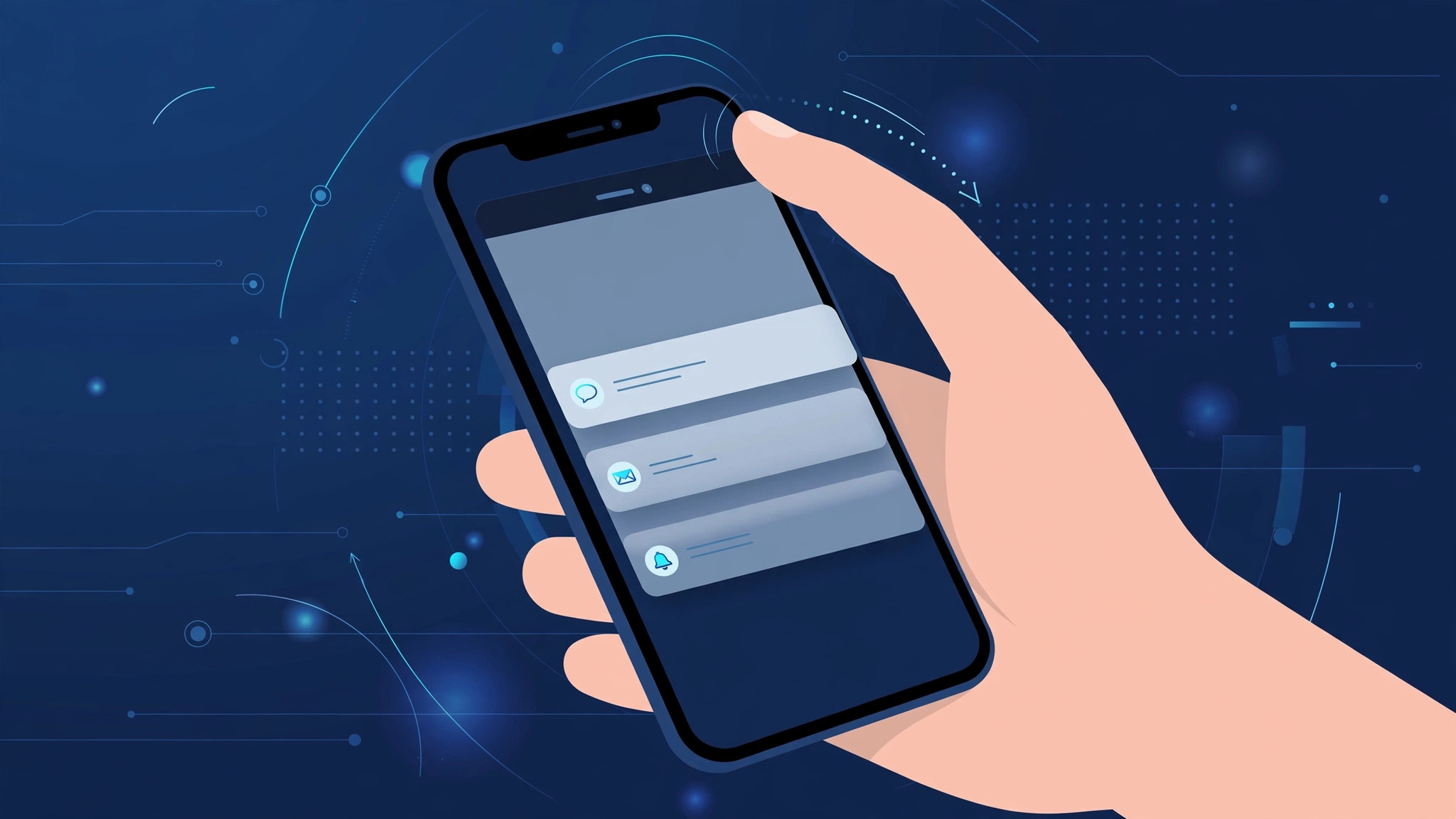
When Apple removed the Home button with the iPhone X, reaching Notification Center moved all the way to the top of a very tall screen — suddenly a stretch for anyone with smaller hands. The good news: although the swipe gesture can’t be remapped, a few built-in tricks put notifications back within thumb’s reach.
Why notifications feel hard to reach on iPhone X
On iPhone X, Apple replaced the classic top-down swipe with a notch-era gesture: swipe down from the top edge for Notification Center, or the top-right for Control Center. Apple’s guide to gestures for iPhone models with Face ID documents these, and MacRumors rounded up gestural tricks to try with your new iPhone X back at launch. But the top corners of a tall display are simply far from the average thumb — which is why these workarounds matter.
How to make notifications easier to reach
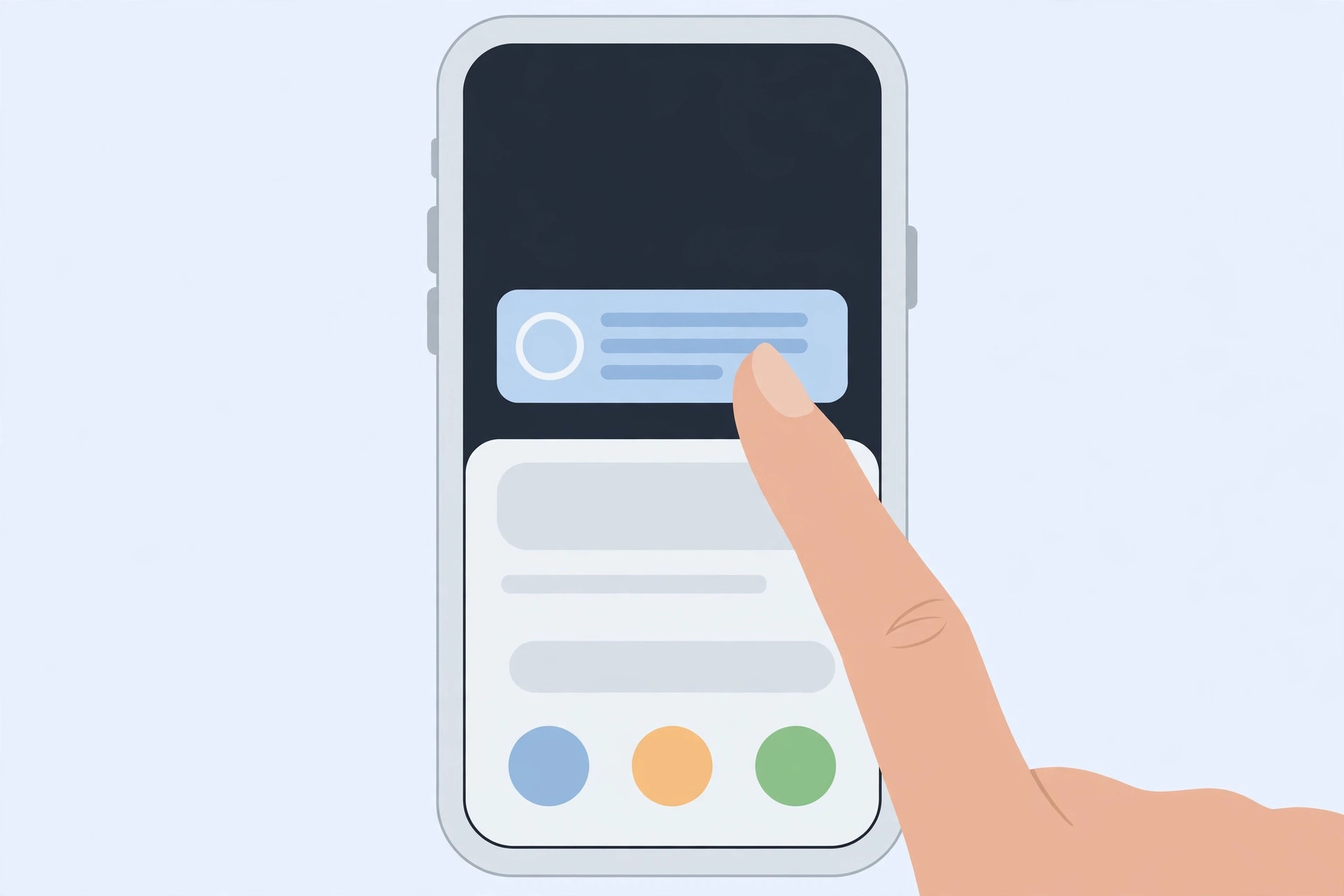
- Turn on Reachability. Go to Settings > Accessibility > Touch and enable Reachability. Then swipe down on the home indicator bar — the whole display slides down so the top edge is within thumb’s reach.
- Use Reachability to open Notification Center. After the screen lowers, swipe down from the now-reachable top edge to open Notification Center (swipe from the top-right for Control Center). Note: on iPhone X, Reachability is off by default — enable it first as in step 1.
- Add AssistiveTouch as a backup. Go to Settings > Accessibility > Touch > AssistiveTouch and turn it on. Customize its top-level menu to include Notification Center — now one tap on the floating button opens your notifications from anywhere.
- On the lock screen, swipe from the middle. From the lock screen you don’t need the top edge at all: swipe down from the middle of the screen to reveal notifications — no reach required.
- Shift your grip. Slide your hand a little lower on the phone, or use your other hand — a small habit change beats straining your thumb. If you like customizing the lock screen anyway, see how to move lock screen widgets down in iOS 26 — and never miss an important ping again with alarms for urgent reminders in iOS 26.
If it still doesn’t work
If Reachability doesn’t lower the screen, confirm it’s enabled and try again — the swipe must start on the home indicator bar, not the middle of the screen. If notifications themselves are missing, check Settings > Notifications and make sure the app is allowed to show them on the Lock Screen.
Frequently asked questions
Can I move the Notification Center gesture somewhere lower?
No — the swipe gesture can’t be remapped. Reachability and AssistiveTouch are the intended one-handed solutions, and both still work on current iPhones.
Is Reachability still on newer iPhones?
Yes. It works on every Face ID iPhone with a home indicator, including current models — the steps above still apply well beyond the iPhone X.
Conclusion
Tall screens pushed notifications out of thumb’s reach, but you don’t have to stretch. Enable Reachability, add Notification Center to AssistiveTouch, and swipe from the middle on the lock screen — your notifications are within reach again.






[…] alerts misbehave in other ways — for example, notifications not reaching your wrist reliably — the same re-pairing trick often clears those up too, since most watch alert issues trace back […]