
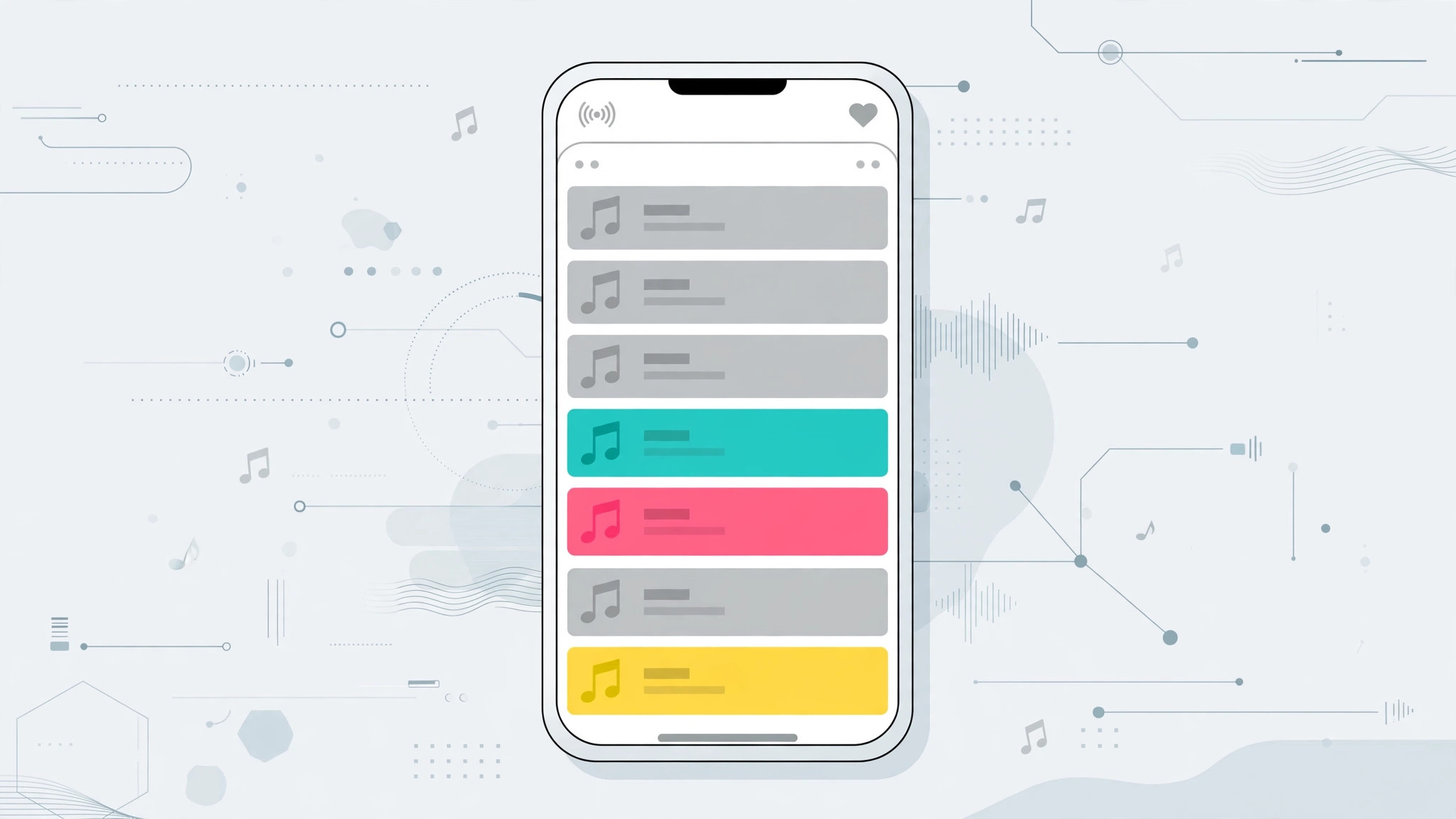
You’re scrolling through a playlist when you spot it: a few songs look washed out in pale grey. You tap one and nothing happens, while the rest plays fine. Almost every Apple Music user runs into this sooner or later, and most greyed-out songs are fixable. Here is why it happens and what to do about each cause.
1. Check your internet connection first
The most common reason is simple: the song isn’t downloaded and your iPhone has no connection to stream it. Airplane mode, dead Wi-Fi, or weak cellular data makes catalog songs unavailable. Connect to a working network and reopen the playlist — the tracks should come back to life. If you enjoy finding new tracks, try automatically identifying songs playing nearby on iPhone while you’re online.
2. Confirm your subscription is still active
A lapsed subscription cuts off the streaming catalog, greying out any track you don’t own. Go to Settings, tap your name, then Subscriptions, and check Apple Music’s status. If it expired, renew it and the greyed-out tracks will unlock. Also confirm you’re signed in with the Apple Account that holds the subscription.
3. Search the catalog: the song may have been pulled
Sometimes the track is gone for everyone. Labels change licensing deals, and a song can vanish from Apple Music overnight with no warning. Search its title: if it doesn’t appear at all, the label pulled it and no setting will bring it back. Licensing also varies by region. Engadget, Macworld, and Apple Support document these catalog shifts.
4. Toggle Sync Library off and on
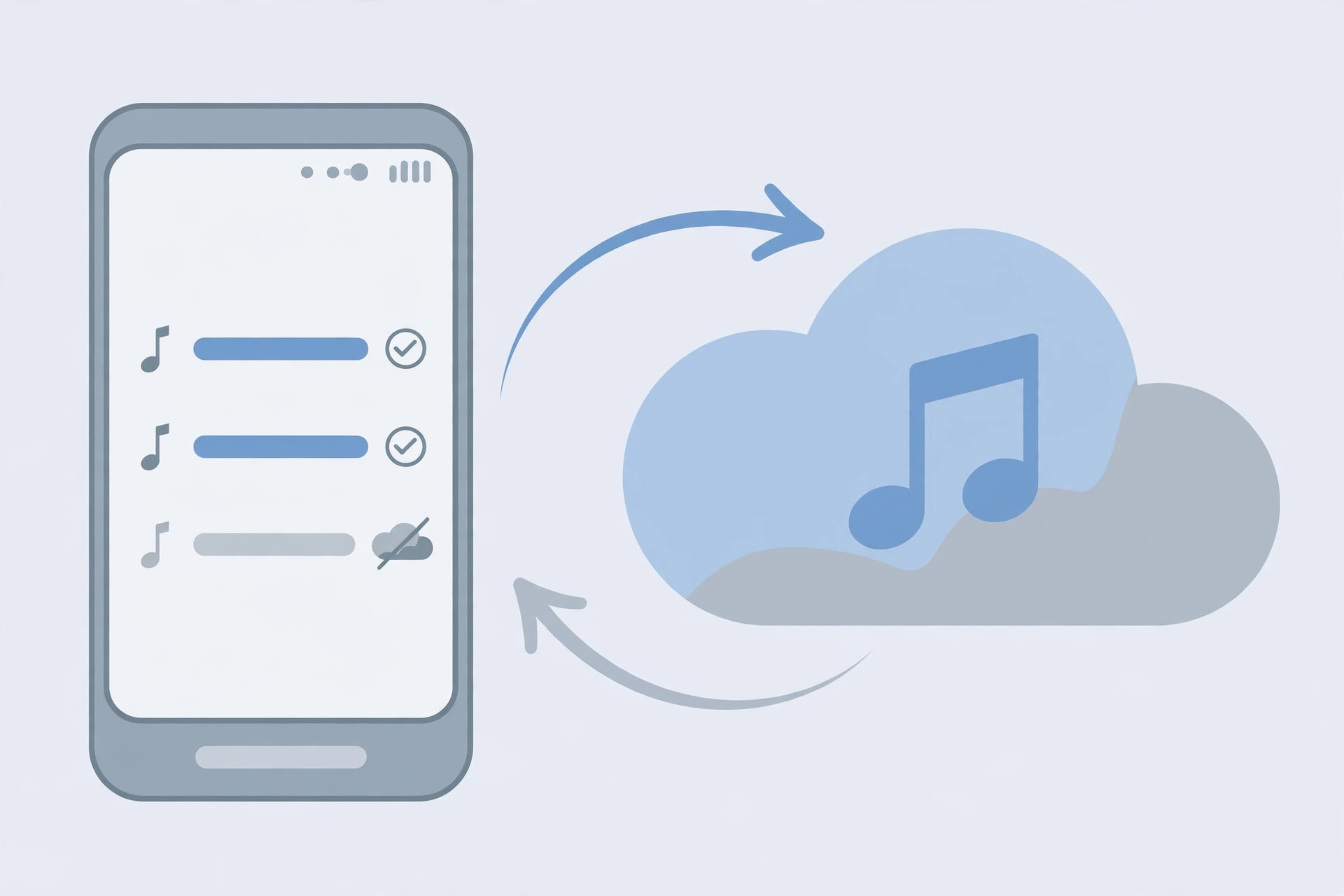
If tracks are greyed out on your iPhone but play on another device, your iCloud Music Library sync has stalled. Go to Settings → Music, toggle Sync Library off, wait a minute, then toggle it back on. Give the iPhone time to re-sync — large libraries take a while — then retry the greyed-out songs.
5. Sign out of Media & Purchases, then sign back in
A stale sign-in can block your device from verifying streaming rights, greying out tracks even with a valid subscription. In Settings, tap your name, then Media & Purchases, and sign out. Restart your iPhone and sign back in with the same Apple Account — this refreshes your license tokens.
6. Check Screen Time content restrictions
If only the explicit songs are greyed out, parental controls may be the cause. Go to Settings → Screen Time → Content & Privacy Restrictions and check whether Music blocks explicit content. Allow explicit content if that’s your preference, then retry the songs.
7. Remove the greyed tracks and re-add them
As a last resort, delete the greyed-out songs from your library, search for them fresh, and add the new copies. This clears corrupted library entries that survive sync toggles and sign-outs. If the label re-released the song under a new listing, old playlists keep pointing at the dead one. If sound routes oddly afterward, see how to stop your iPhone auto-switching audio to headphones.
If it still doesn’t work
If greyed-out tracks persist and the songs still exist in the catalog for other listeners, the library database on your device may be damaged. Back up your iPhone and restore it. Also test the same tracks on another device on your account: if they play there, the problem is your phone, not your library.
FAQ
Why are songs greyed out on my iPhone but not on my Mac?
If sync is incomplete on one device, greyed-out tracks appear only there. Toggling Sync Library off and on on the affected device — step 4 — usually brings them back into agreement.
Can a greyed-out song come back on its own?
Yes. Licensing deals flip back and forth, so a pulled song often returns weeks later. When it reappears, delete the dead entry and add the fresh one from search.
Greyed-out tracks are almost always a symptom, not a permanent loss — a missing connection, a sync hiccup, or a licensing change. Work through the steps above and your playlist will be back in full color.





