
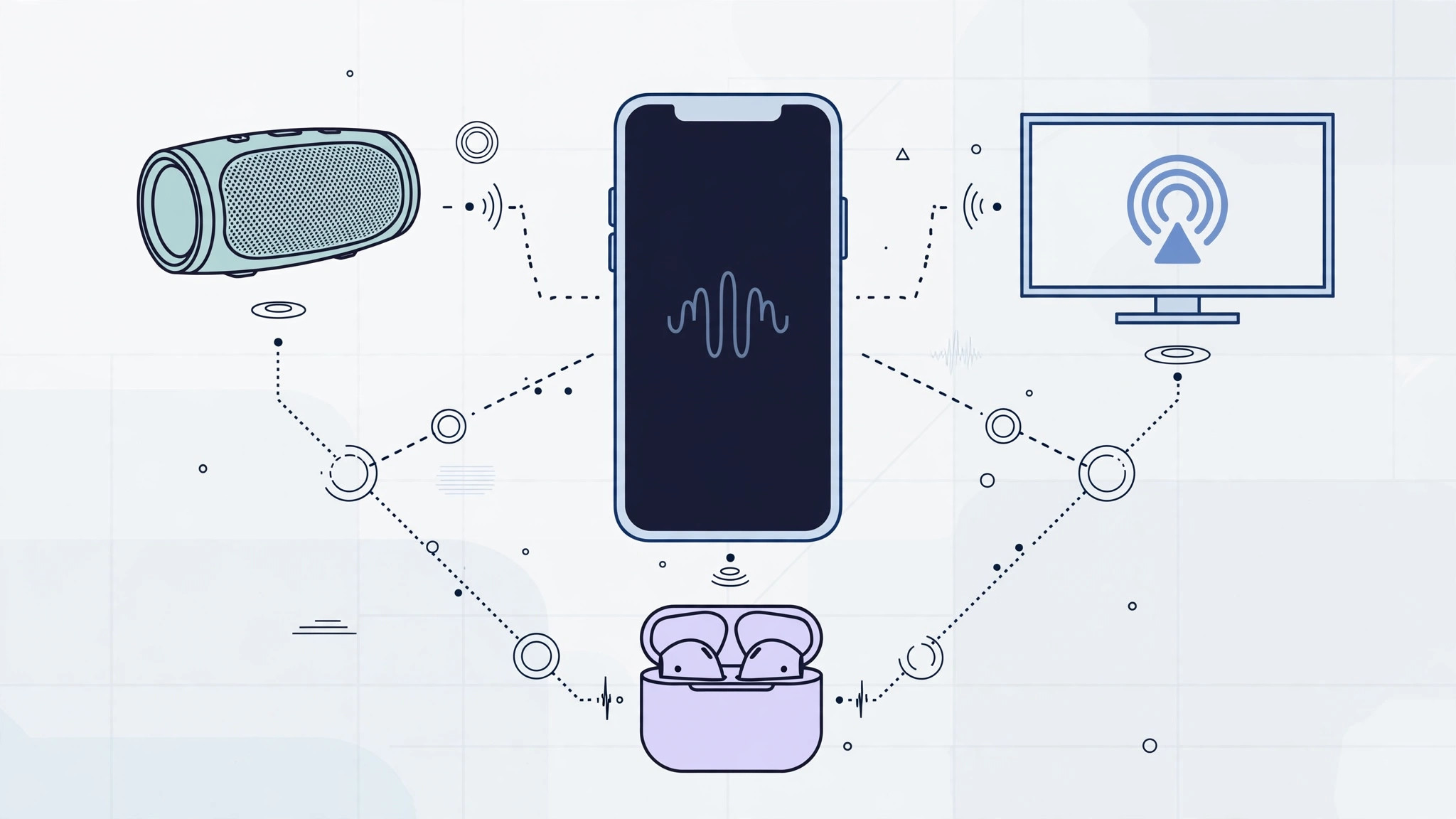
You’re about to play a song with your AirPods in your ears — but the music blasts out of the iPhone speaker anyway. In iOS 11, Apple moved the quick audio-source switcher behind the music widget, so the old tap-and-switch shortcut works differently now. The good news: switching outputs still takes just a few seconds once you know where the new controls live.
1. Open Control Center
Swipe up from the bottom of the screen to open Control Center (on iPhone X, swipe down from the top-right corner). This is now the hub for audio routing in iOS 11. Make sure your Bluetooth device or AirPlay speaker is powered on and paired first — the phone can’t list what it can’t see.
2. Expand the music card with a firm press
Find the music widget in the top-right area of Control Center. If your iPhone has 3D Touch, press firmly on it; otherwise, press and hold. The card expands into a larger panel with the track name, artwork, and playback controls. This firm-press gesture is the key to the new switcher.
3. Tap the AirPlay icon in the corner
In the top-right corner of the expanded card you’ll see the AirPlay icon — a small triangle with concentric arcs. Tap it to open the audio-output list, the new home of the source switcher, working for music, podcasts, and videos alike. iMore and Cult of Mac covered the change at launch, and Apple Support documents the current switching behavior.
4. Choose your output device
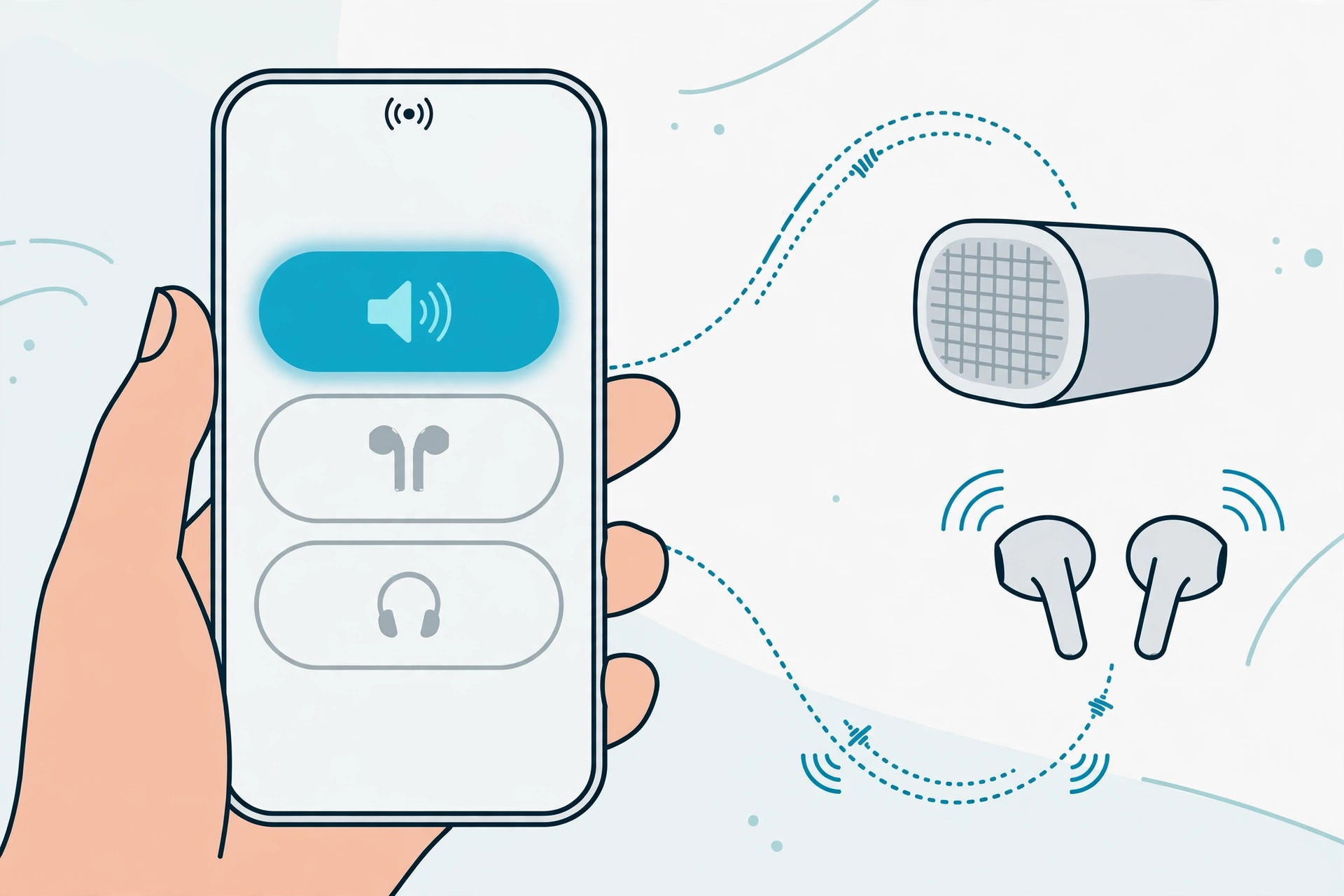
The list shows every destination: iPhone (the built-in speaker), Bluetooth headphones, AirPods, and any AirPlay speakers on the same Wi-Fi network. Tap the one you want — a checkmark appears and the audio switches instantly, no unpairing needed. If the device you want isn’t listed, toggle Bluetooth off and on in Control Center. For persistent routing headaches, see how to stop your iPhone auto-switching audio to headphones.
5. Switching sources during a phone call
Mid-call audio doesn’t need Control Center. On the active call screen, tap the “audio” button (a small speaker icon) and pick from iPhone earpiece, speakerphone, or a connected Bluetooth device — the call jumps to it immediately. Handy when you answer on speaker and want to move the call to your AirPods.
6. Use the AirPlay icon in Now Playing
You don’t have to open Control Center every time. In the Music app, open Now Playing and tap the same AirPlay icon next to the volume slider — it opens the identical output list. It’s the fastest route when you’re already browsing your library. And if your case chirps at odd moments, here’s how to turn off AirPods charging case sounds.
If it still doesn’t work
If a Bluetooth device won’t appear in the list, forget it under Settings → Bluetooth and pair it again. For AirPlay speakers, restart both the speaker and your iPhone, and keep them on the same Wi-Fi network. A general restart clears most stuck-audio issues in iOS 11.
FAQ
Why did the old audio switcher disappear in iOS 11?
Apple redesigned Control Center in iOS 11 and tucked the output picker behind a firm press on the music widget. The feature wasn’t removed — it was nested one level deeper, which is why many users thought it was gone.
Does this work with third-party Bluetooth speakers?
Yes. Any Bluetooth speaker, headphones, or headset that pairs with your iPhone shows up in the output list. Select it once and iOS 11 usually remembers your choice for that device.
That’s the whole trick: expand the music card, tap AirPlay, pick your destination. Once it becomes muscle memory, switching takes seconds.





