
You say “Hey Siri” — and get silence. Or Siri hears you but gets everything wrong. Before writing Siri off, run a quick diagnosis: the fault is either the microphone itself or Siri’s voice recognition, and each needs a different fix. A five-minute dictation test tells you which one you’re dealing with.
Follow the steps below in order — the test in step 1 decides which fix you need.
1. Test the microphone with Dictation
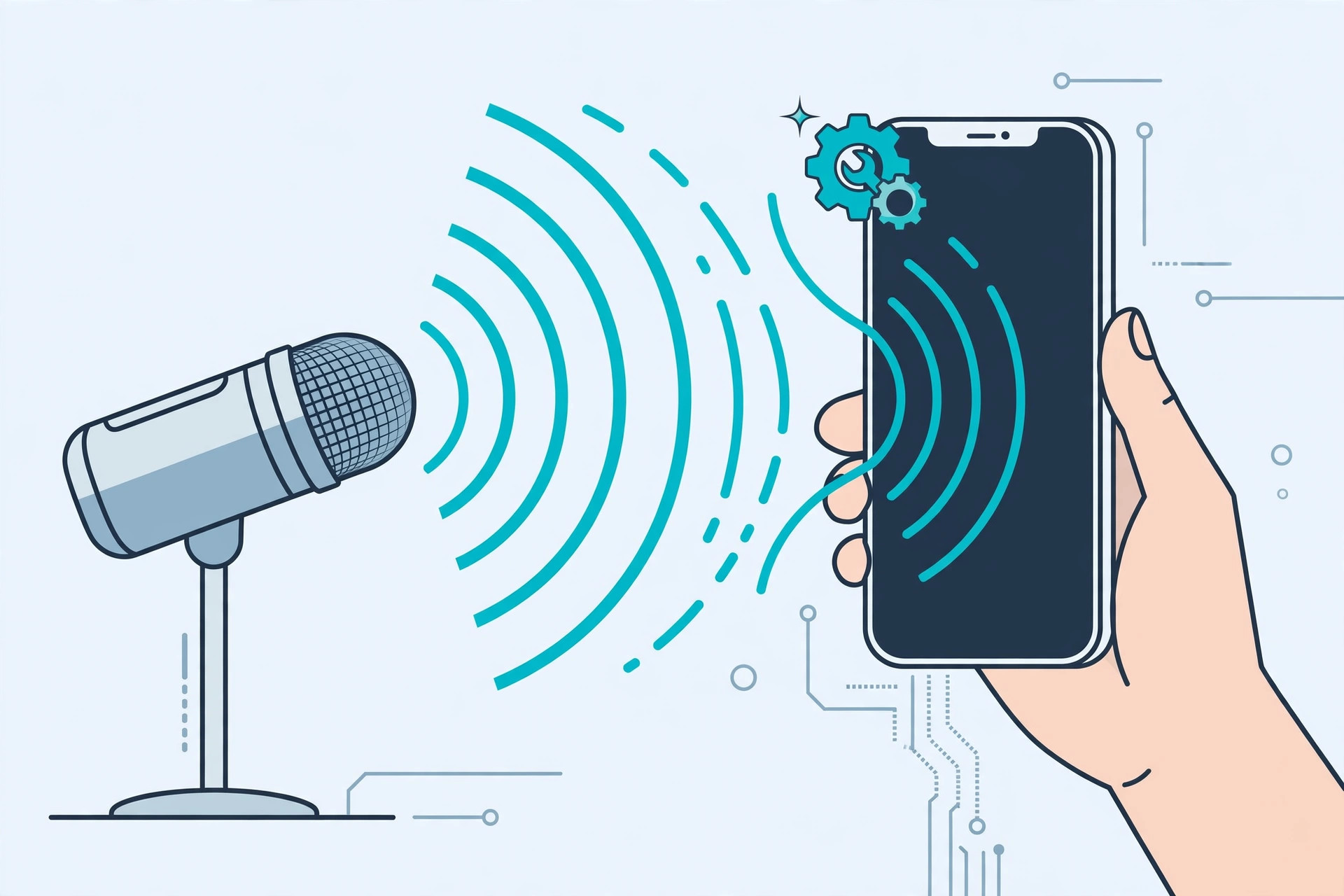
Siri and Dictation use the same microphone, so Dictation makes a perfect test. Turn it on in Settings → General → Keyboard, open Spotlight search, tap the microphone icon on the keyboard, and dictate a few words. If your words appear accurately, the microphone works — skip ahead to step 3. If Siri can’t hear you at all, note that Siri-powered features like automatically identifying songs playing nearby will struggle too, since they rely on the same mic.
2. If Dictation fails, the microphone is likely broken
If Dictation transcribes nothing or garbles everything you say, the microphone itself is probably faulty — no software toggle will fix that. Back up your iPhone and take it to Apple or an authorized service provider for a hardware check. Apple Support‘s “If Siri isn’t working on your iPhone” guide covers microphone checks before a service visit.
3. Retrain Siri’s voice recognition
Microphone fine, but Siri still can’t recognize you? The voice model needs retraining. Go to Settings → Siri and toggle “Listen for ‘Hey Siri'” off, then back on — the iPhone will walk you through the setup phrases again so Siri learns your voice fresh. Also verify that Siri’s language matches the language you actually speak: a language mismatch is a classic cause of constant mishearing. 9to5Mac regularly covers Siri setup quirks with each iOS release.
4. Check for a blocked or hijacked microphone
A bulky case can muffle the mic — try Siri with the case removed. Also check that no Bluetooth device is stealing the audio input: if your iPhone is connected to headphones or a car system, Siri may be listening through that device instead of the phone’s mic. Disconnect Bluetooth and try again. If your iPhone keeps jumping between audio devices on its own, our guide to stopping auto-switching audio to headphones will help you tame that behavior. MacRumors tracks Siri and audio-input bugs reported after iOS updates.
If it still doesn’t work
Restart the iPhone, update to the latest iOS, and check whether Siri’s online services are down — Siri needs Apple’s servers, so a server-side outage can look like a broken assistant. If Siri worked before an iOS update and nothing above helps, contact Apple Support: persistent failure after a clean voice retrain points to a deeper software or account issue.
FAQ
Why does Siri understand my partner but not me?
“Hey Siri” voice recognition is trained per voice. If someone else set it up, retrain it with your own voice in Settings → Siri by toggling “Listen for ‘Hey Siri'” off and on.
Does Siri need an internet connection?
Yes — Siri sends most requests to Apple’s servers for processing. With no connection, Siri can’t respond, which can look exactly like a recognition failure.
Conclusion
Most “Siri can’t hear me” cases end at one of two answers: a broken microphone (caught by the Dictation test) or a stale voice model (fixed by retraining “Hey Siri”). Test the mic first, retrain second, and check for case and Bluetooth interference — that sequence resolves the problem for nearly everyone.





