
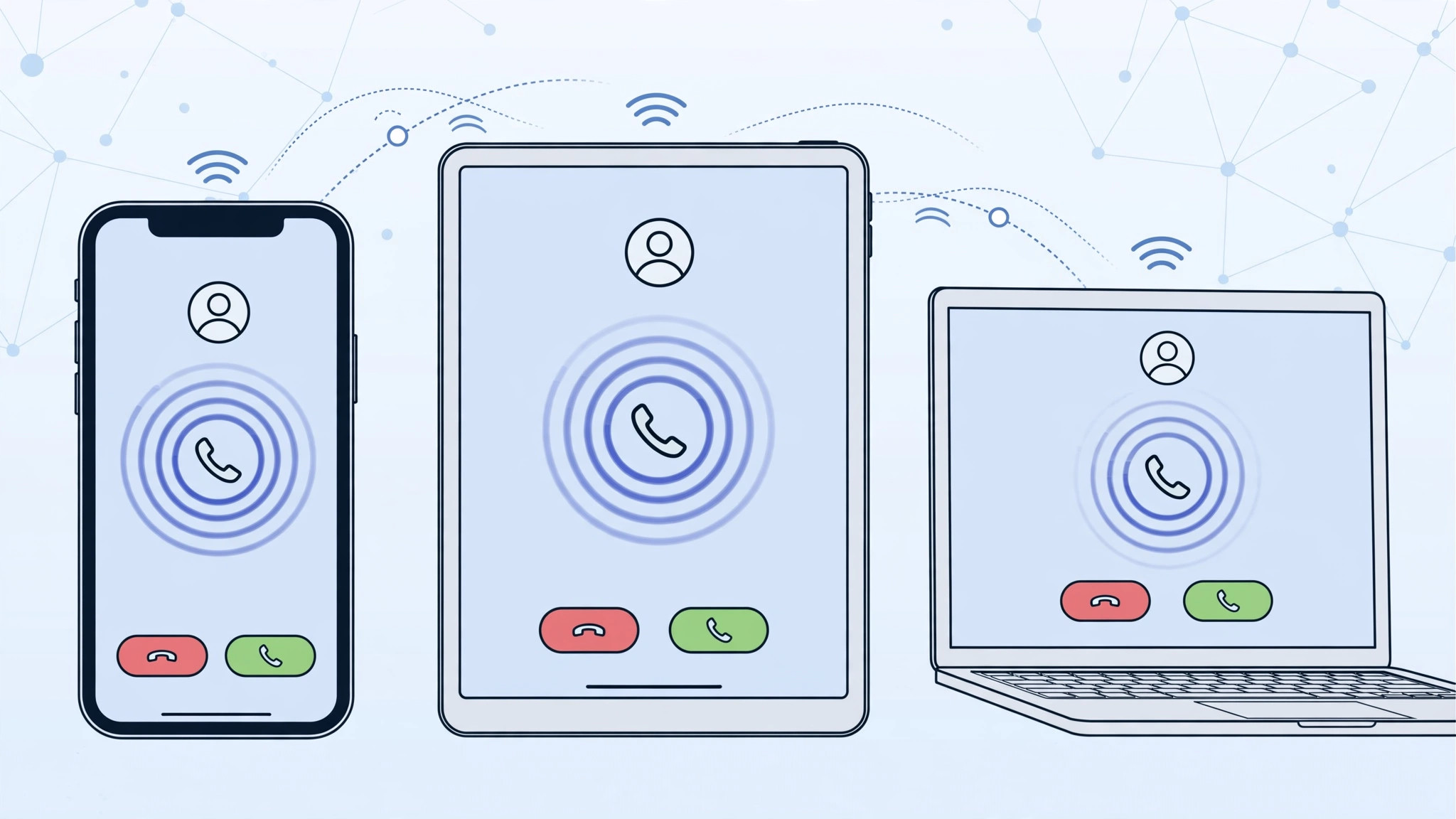
Your iPhone rings — and so does your iPad and your Mac, all at once. This is call duplication, an Apple ecosystem feature that forwards iPhone calls to your other devices. It can be handy when your phone is in another room, but in a quiet office or at home it is mostly annoying. The good news: the fix takes seconds and lives entirely on your iPhone. Note that this is the fuller guide to the feature — it covers both the iCloud-level switch and the per-device toggles. If you only need the quick per-device switch, see our earlier guide to turning off call duplication between iPhone and iPad.
Option 1: stop calls on ALL devices at once
- On your iPhone, open Settings > Apple Account > iCloud.
- Tap See All to open the full list of synced items.
- Find Phone and FaceTime and switch it off. This stops call data from syncing through iCloud, so no other device receives your calls. FaceTime calls placed from the other devices themselves still work — you are only disabling the relay of cellular calls.
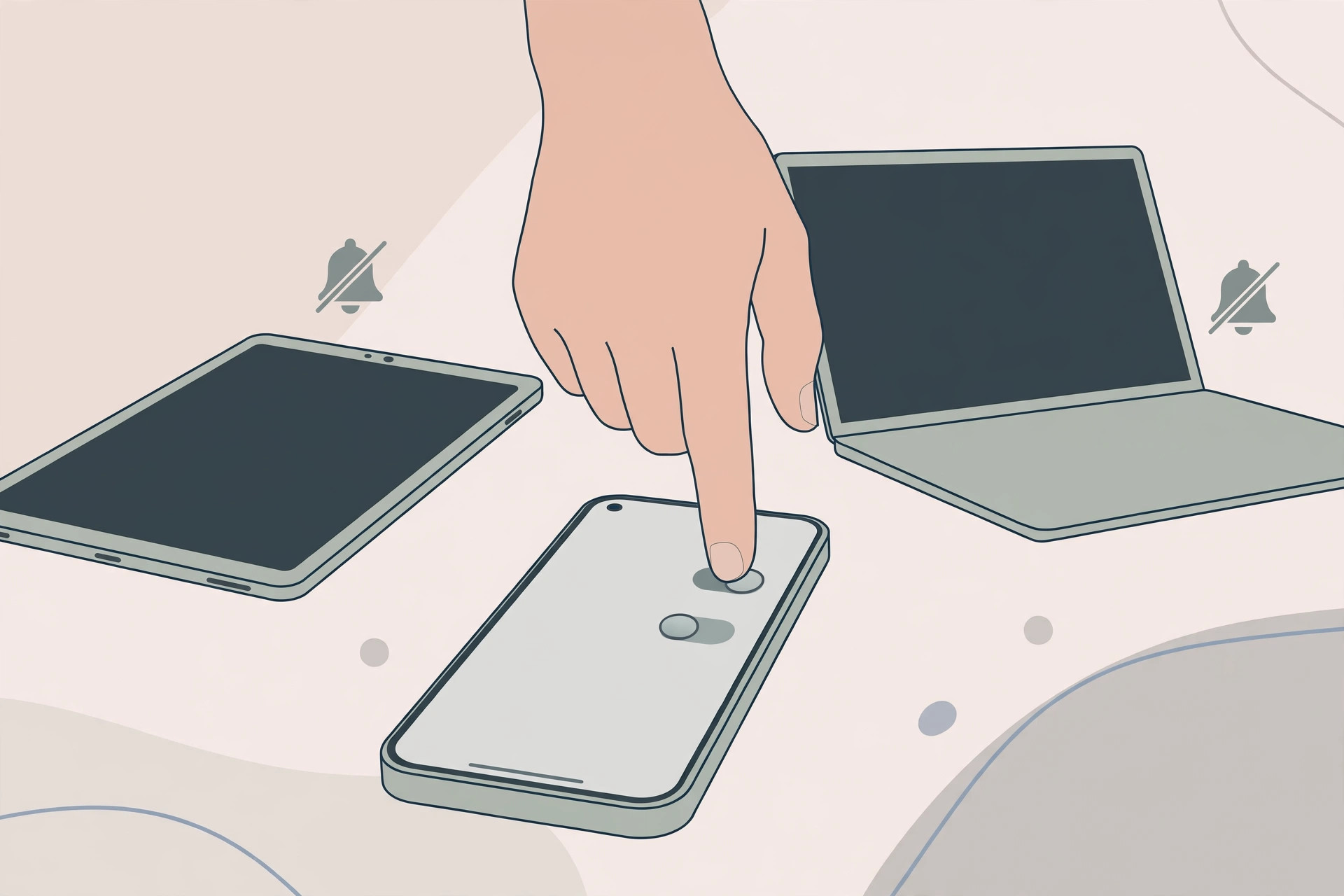
Option 2: stop calls on ONE device only
- On your iPhone, go to Settings > Apps > Phone.
- Open Calls on Other Devices.
- Switch off the toggle for each device where you no longer want calls to appear. The other devices keep ringing as before.
When to expect call duplication
The feature only works when every device is signed in to the same Apple ID, is nearby, and shares the same Wi-Fi network — so a ringing iPad at home while you are at work is not this feature; that would be a call-forwarding or SIM issue instead. It also requires your carrier to support Wi-Fi calling for the relay. Apple’s Calls on Other Devices documentation covers the full setup and requirements, and 9to5Mac has practical walkthroughs of the iCloud switches involved. Related: allowing calls only from a specific SIM card in Focus mode.
If it still doesn’t work
If a device keeps ringing after you turned its toggle off, check that it is signed in to the same Apple ID as your iPhone — a device on a different account has its own settings. Also restart both devices so the change takes effect, and verify there is no separate call-forwarding rule active in Settings > Phone > Call Forwarding. If everything looks right, toggle Calls on Other Devices off and on once more on the iPhone; the sync sometimes needs a nudge to propagate to the rest of the ecosystem.
FAQ
Will turning off Phone and FaceTime in iCloud delete anything?
No. It only stops the live syncing of call-related data between devices. Your contacts, messages, and call history stay intact on each device, and you can turn the switch back on at any time.
Can I keep calls on my Mac but not my iPad?
Yes — that is exactly what Option 2 is for. Leave the iCloud switch on and disable only the iPad in Calls on Other Devices. You can fine-tune each device independently.
Conclusion
Use the iCloud Phone and FaceTime switch to silence every device at once, or Calls on Other Devices to fine-tune per device. Either way, your phone calls go back to ringing in exactly one place — and you can re-enable any device later with the same two switches.





