
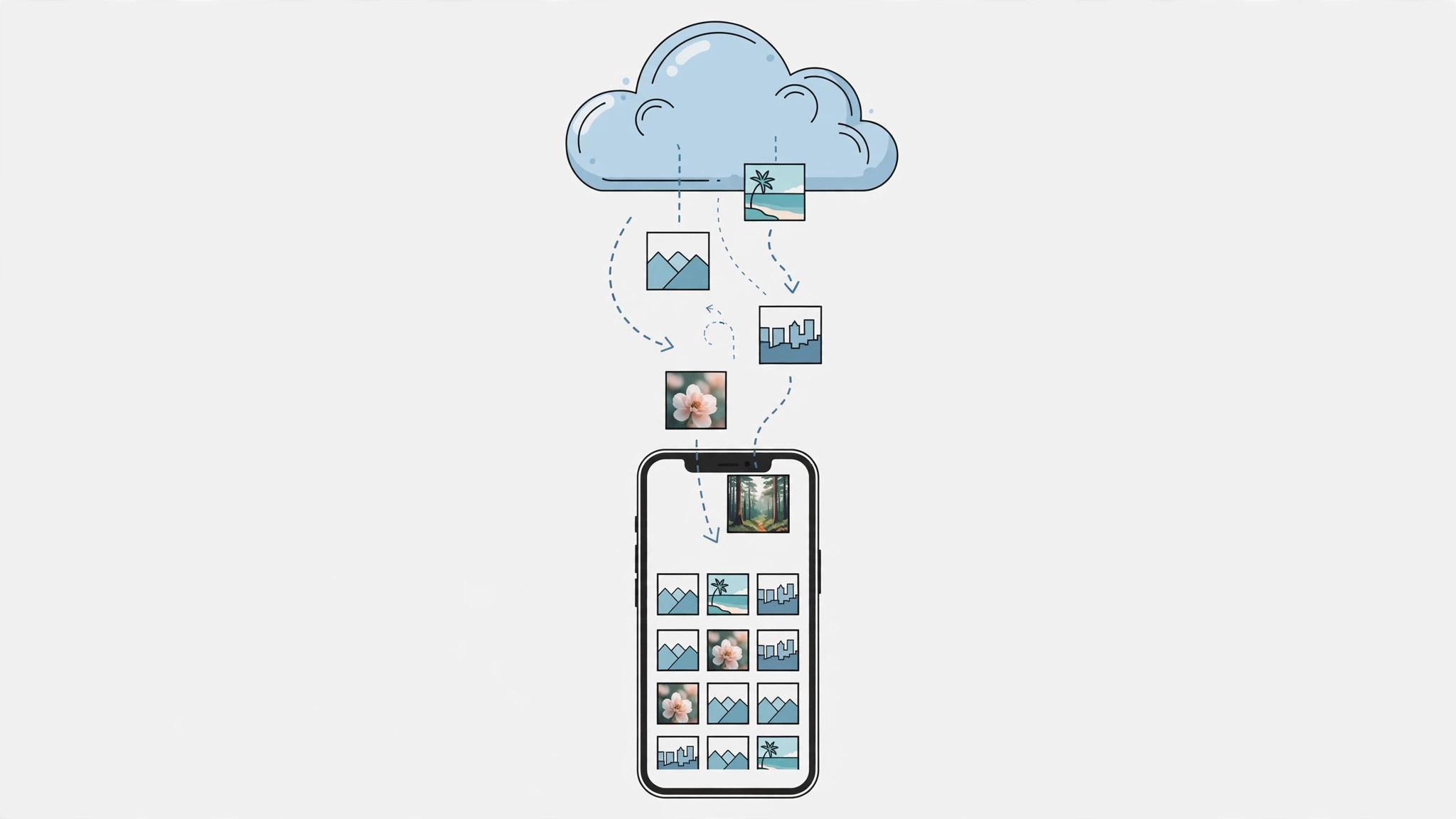
When you switch your iPhone to Optimize iPhone Storage, full-resolution photos move to iCloud and only small previews stay on the device. That is great for saving space — until you want the originals back, whether because you are moving to a new phone, editing images in full quality, or simply want a local backup. Here is the important catch: switching the setting back to Download and Keep Originals only affects future downloads. Photos already living in the cloud stay as small previews. To get the originals back, you need to download them properly.
Download originals using a computer (best method)
- Open iCloud.com in a browser. Sign in with the same Apple Account you use on your iPhone and open the Photos app. Apple’s iCloud Photos documentation describes this as the most reliable way to get full-quality copies, since a desktop browser handles large transfers better than a phone.
- Select the full range of photos. Click Select, scroll all the way to the oldest photo, and select it. Then scroll to the newest photo and Shift-click it — everything in between is selected in one range. You can also drag across thumbnails to pick specific groups.
- Click Download. iCloud downloads the selected photos in original full quality. For very large libraries, download in batches of a few thousand at a time to avoid browser timeouts, keep the tab open until the download finishes, and do not put the computer to sleep mid-transfer.
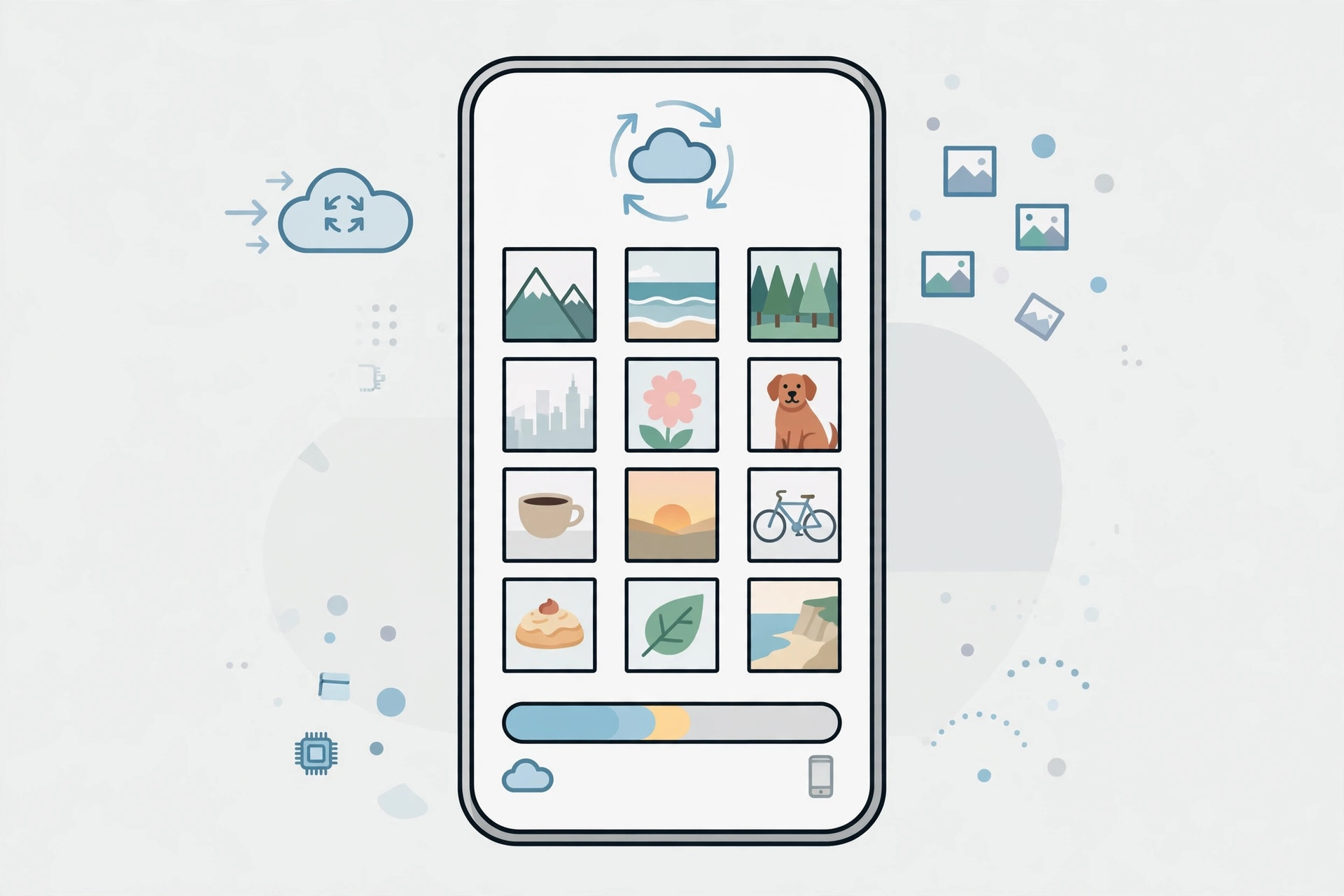
Download originals on the iPhone itself
- Make sure the iPhone has enough free storage for the full library and is connected to stable Wi-Fi. If the library is larger than the free space, the download will stall partway.
- Go to Settings > [your name] > iCloud > Photos and choose Download and Keep Originals.
- Leave the iPhone plugged in and connected overnight — full-resolution downloads for a large library can take hours. Do not enable Low Power Mode, which pauses background downloads, and avoid restarting the phone during the process.
If it still doesn’t work
If originals refuse to download, first check that you are signed in to the correct Apple Account and that iCloud Photos is turned on. If storage is the blocker, free up space or upgrade your iCloud plan — the phone cannot pull down originals it has nowhere to put. A stuck sync is often fixed by turning iCloud Photos off and on again, or by signing out of iCloud and signing back in, as MacRumors guides note. Also confirm your iCloud storage is not full: uploads and downloads both stop when the plan runs out of room. Related reading on our site: setting up message sync between iPhone and Mac and permanently deleting text messages from iPhone and iCloud.
FAQ
Will switching back to Download and Keep Originals restore my old photos?
No — it only affects future photos. Everything already in the cloud stays as an optimized preview until you download it explicitly, either through iCloud.com or the overnight sync described above. This is the single most misunderstood part of the process.
Can I download just a few originals instead of the whole library?
Yes. On iCloud.com, select only the photos you need and click Download — there is no requirement to take everything. On the iPhone, opening an individual photo downloads its full-resolution version on demand when Optimize Storage is on.
Conclusion
The fastest route to full-resolution originals is a computer and iCloud.com; the iPhone itself works too if you give it storage, Wi-Fi, and an overnight window. Once the originals are local, copy them to an external drive or backup service — do not let the cloud be your only copy of years of memories.





