

Every Mac owner knows the moment: the cursor turns into a spinning beach ball, the app stops responding, and nothing you click seems to matter. Before you reach for the power button, take a breath — most freezes are fixable in under a minute. The golden rule of diagnosis is simple: if one app freezes, the problem is almost certainly software; if everything freezes, suspect the system or the hardware.
How to unfreeze a Mac app, step by step
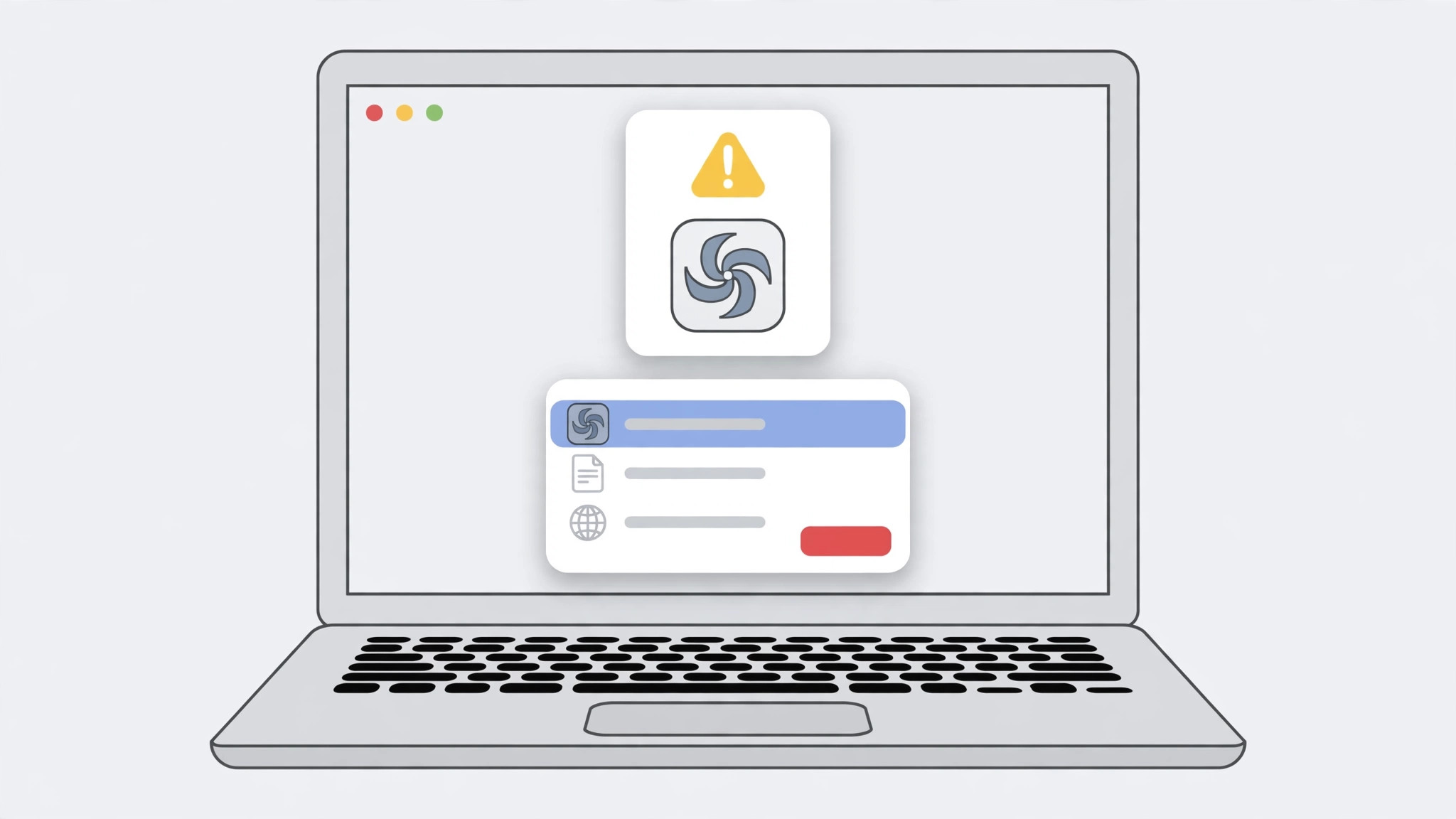
- Force-quit the frozen app. Press Option-Command-Esc to open the Force Quit window, select the stuck app, and click Force Quit. In a hurry, holding Option-Command-Shift-Esc for a few seconds quits the frontmost app instantly. Apple Support’s force-quit guide documents both shortcuts.
- Relaunch the app — carefully. Open it again, but if macOS offers to restore the windows that were open, decline once: a corrupted document or window state is often what froze it in the first place.
- Restart your Mac. The classic fix still works. A restart clears stuck processes, frees memory, and resolves the majority of one-off hangs.
- Update macOS and the app. Running an old macOS with a new app version (or vice versa) is one of the top causes of freezes. Go to System Settings > General > Software Update, then update the app from the App Store or the developer’s site.
- Check Activity Monitor for resource hogs. Open Activity Monitor — a fast way to reach it is via our guide on quickly opening the installed apps list in macOS 26 — and look at the CPU and Memory tabs. An app pinning a core at 100% or ballooning in memory is your culprit: quit it and look for an update.
- Free up disk space. A nearly full drive makes macOS sluggish and causes hangs, because the system has no room for swap files and caches. Aim to keep at least 10–15% of your disk free; move large files to external storage or the cloud.
- On Apple Silicon Macs, check for Intel apps. Apps built for Intel processors run through Rosetta 2 translation on M-series Macs, and that translation layer can cause freezes. In Activity Monitor’s CPU tab, the “Kind” column shows Apple versus Intel — prefer the native Apple-silicon version whenever one exists.
- If every app freezes, suspect hardware. Boot into Recovery, open Disk Utility > First Aid, and check the startup disk. On older Macs, aging storage or failing RAM shows up as system-wide freezes long before anything else does.
- Last resort: reinstall. Delete the problem app and install a fresh copy — the same remove-and-reinstall logic as deleting built-in iPhone apps you no longer want. If the whole system is unstable, reinstalling macOS (which keeps your data) is the final software fix.
If it still doesn’t work
Freezes that survive a restart, updates, and a reinstall point at the hardware: run Apple Diagnostics (hold D at startup on Intel Macs, or hold the power button on Apple Silicon), and watch for kernel panics or unexpected shutdowns, which MacRumors readers often trace to failing SSDs or RAM. Back up immediately — a Mac that freezes everywhere is a Mac telling you something is dying.
Frequently asked questions
Is force-quitting an app bad for my Mac?
No. Force Quit simply terminates the process; it does not harm macOS. You may lose unsaved work in that app, which is why relaunching carefully matters — but the system itself is unaffected.
Why does the same app keep freezing after every update?
Some apps freeze because of your data, not their code: a corrupted preference file, cache, or document. Try the app in a fresh user account or after clearing its caches; if the freeze follows your account, the app’s support team is your next stop.
Conclusion
Most Mac app freezes end with Option-Command-Esc and a restart. Work through updates, Activity Monitor, and disk space before you blame the hardware — and remember the framing: one frozen app is a software problem, while a frozen everything is a system or hardware problem.





