
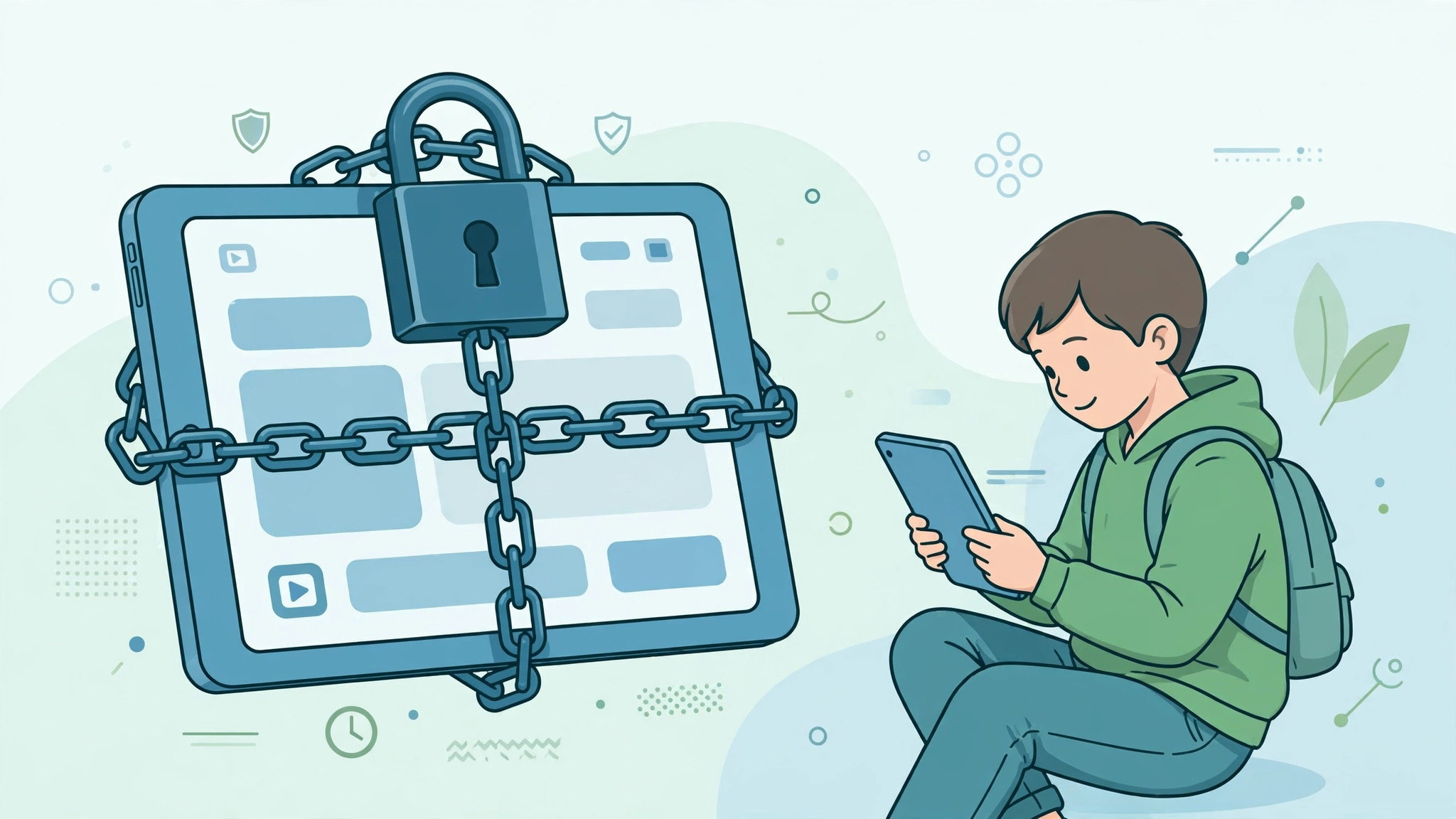
Every parent knows the moment: you hand your iPad to your child so they can watch a video or play a learning game, and thirty seconds later they have opened your email, deleted a photo album, or bought an expensive in-app upgrade. Guided Access is Apple’s built-in answer to this problem. It locks the iPad to a single app, letting you disable parts of the screen, block the hardware buttons, and even set a time limit — and exiting requires your passcode or biometrics. Here is how to set it up and use it like a pro.
Step 1: Turn on Guided Access
- Open Settings > Accessibility > Guided Access.
- Toggle Guided Access on.
- Tap Passcode Settings and choose Set Guided Access Passcode. Enter a 4-digit code you will remember — this is what ends a session. On iPads with Face ID or Touch ID, you can also enable the biometric option so you can end a session with your face or fingerprint instead of typing the code.
- Optional but useful: enable Accessibility Shortcut for Guided Access so a triple-click of the Top button can also start sessions even outside the Settings flow. This shortcut pairs nicely with other accessibility tricks; for example, our guide to taking HDR screenshots on iPhone and iPad uses button combinations too.
Step 2: Start a Guided Access session
- Open the app you want to lock the iPad into (a video app, a game, a reading app — anything).
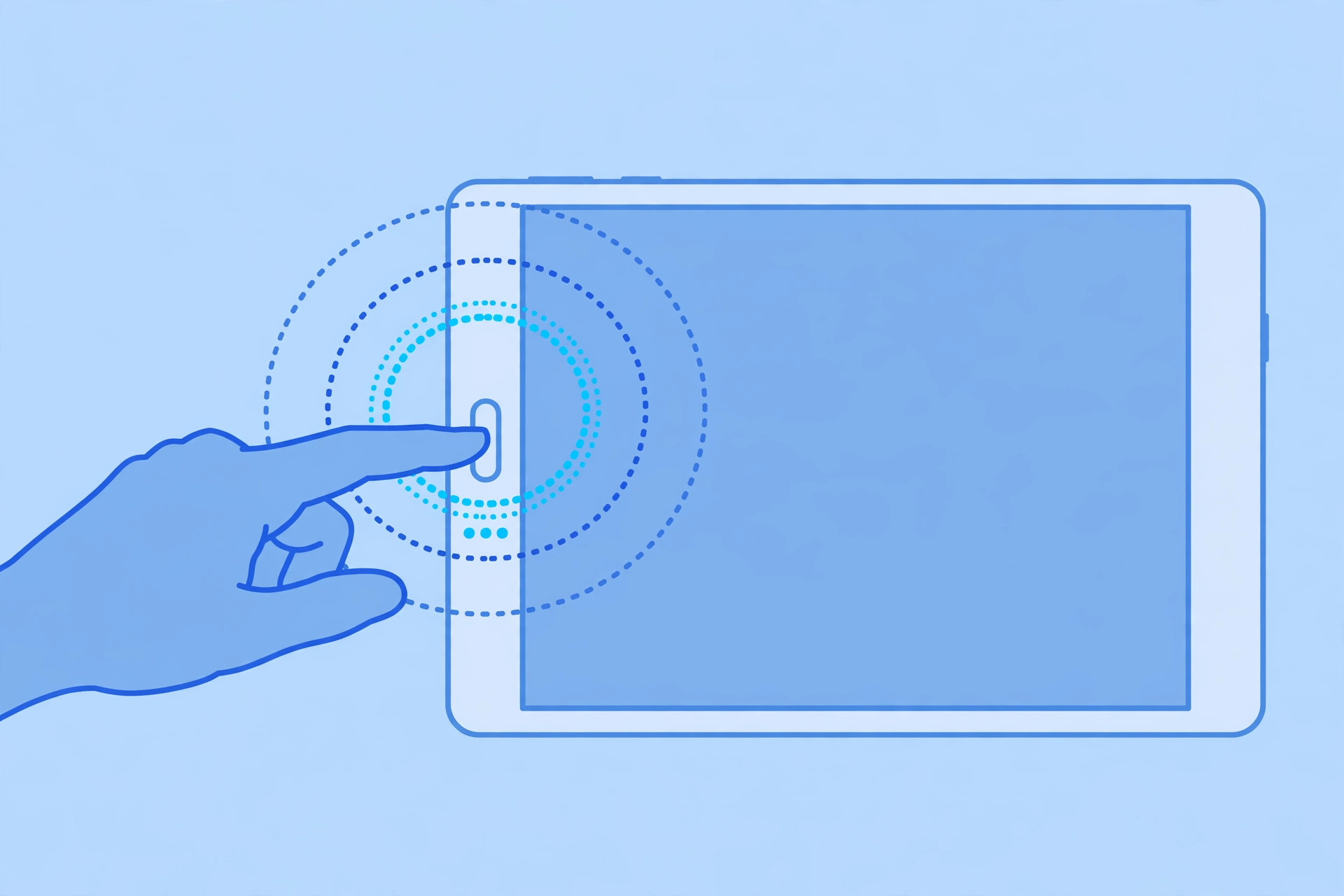
- Triple-click the Top button (or the Home button on older iPads with one).
- Before tapping Start, customize the session:
- Circle areas on the screen with your finger to disable touch there — perfect for blocking ads, settings gears, or buy buttons inside kids’ games.
- Tap Options (bottom-left) to control the Sleep/Wake button, volume buttons, motion (e.g., tilt controls in games), keyboards, and touch overall.
- Tap Time Limit to auto-end the session after, say, 30 minutes — great for screen-time rules.
- Tap Start (top-right). The iPad is now locked into that one app.
Step 3: End the session
- Triple-click the Top (or Home) button again.
- Enter your Guided Access passcode, or authenticate with Face ID / Touch ID.
- Tap End (top-left). The iPad returns to normal use.
Kiosk and classroom tip
Guided Access also works beautifully for single-purpose setups: a demo iPad in a shop, a check-in tablet at an event, or classroom devices. Combine it with a Screen Time app limit for a layered approach — Apple documents both features on its official iPad user guide for Guided Access, and MacRumors has a good overview of real-world use cases. If you share an iPad with family members who also use iPhone calling, you may also like our tutorial on turning off call duplication from iPhone on iPad.
If it still doesn’t work
If triple-clicking the button does nothing, go back to Settings > Accessibility > Accessibility Shortcut and make sure Guided Access is the selected shortcut — if several features share the triple-click, iOS shows a menu instead of starting Guided Access immediately. Also confirm you are not already inside a Guided Access session (a small banner at the top indicates one), and restart the iPad if the session refuses to end with the correct passcode.
Frequently asked questions
Can my child exit Guided Access without the passcode?
No — that is the entire point. Exiting requires the Guided Access passcode or your enrolled Face ID / Touch ID. Just make sure the passcode is not the same as the iPad’s unlock code if your child knows that one.
Does Guided Access work on iPhone too?
Yes. The exact same steps work on iPhone — Settings > Accessibility > Guided Access — and the triple-click gesture uses the Side button. It is handy for lending your phone to someone to show them a single photo without them swiping through your whole library.
Conclusion
Guided Access takes two minutes to set up and saves countless headaches: no more accidental purchases, deleted messages, or privacy surprises when someone else uses your iPad. Turn it on, set a passcode you will remember, and hand over your iPad with confidence.






[…] 120Hz in Safari on iPad Pro for a taste of what those screens can do. Setting one up for a kid? Guided Access on iPad keeps them locked into the drawing […]