
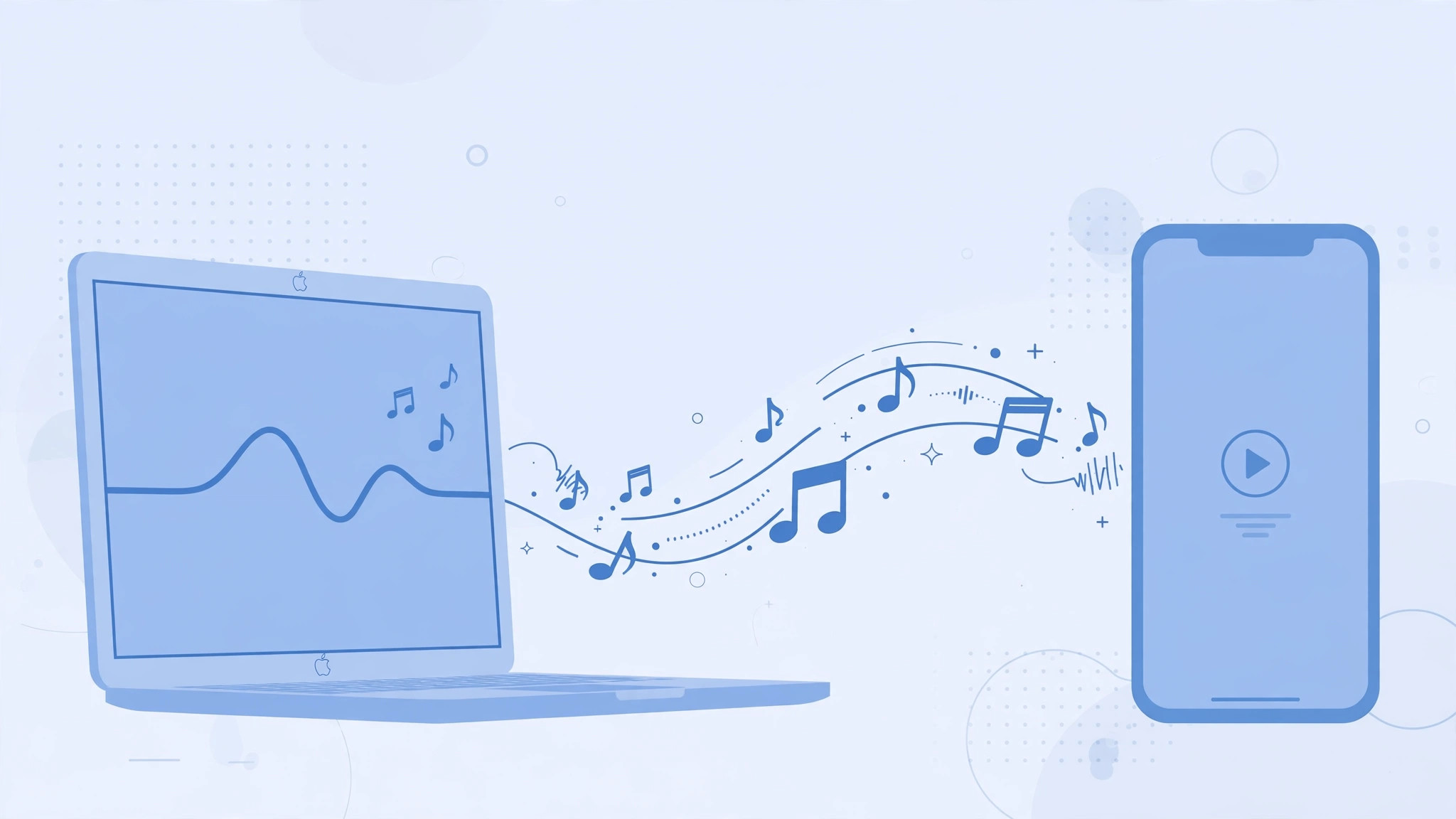
Streaming is convenient, but a lot of us still keep a real music library on a Mac — MP3s, ripped CDs, live recordings you can’t find anywhere else. The good news: getting that music onto your iPhone takes just a few minutes with a cable and the Finder. Here’s the modern workflow, which replaced the old iTunes sync on macOS Catalina and later.
Sync music with the Finder
1. Connect your iPhone to the Mac with a USB cable. If the phone asks, tap “Trust” to let the Mac access its data. A good-quality cable matters here — measuring your cable’s iPhone-to-Mac transfer speed is a quick way to spot a dying cable before a big sync.
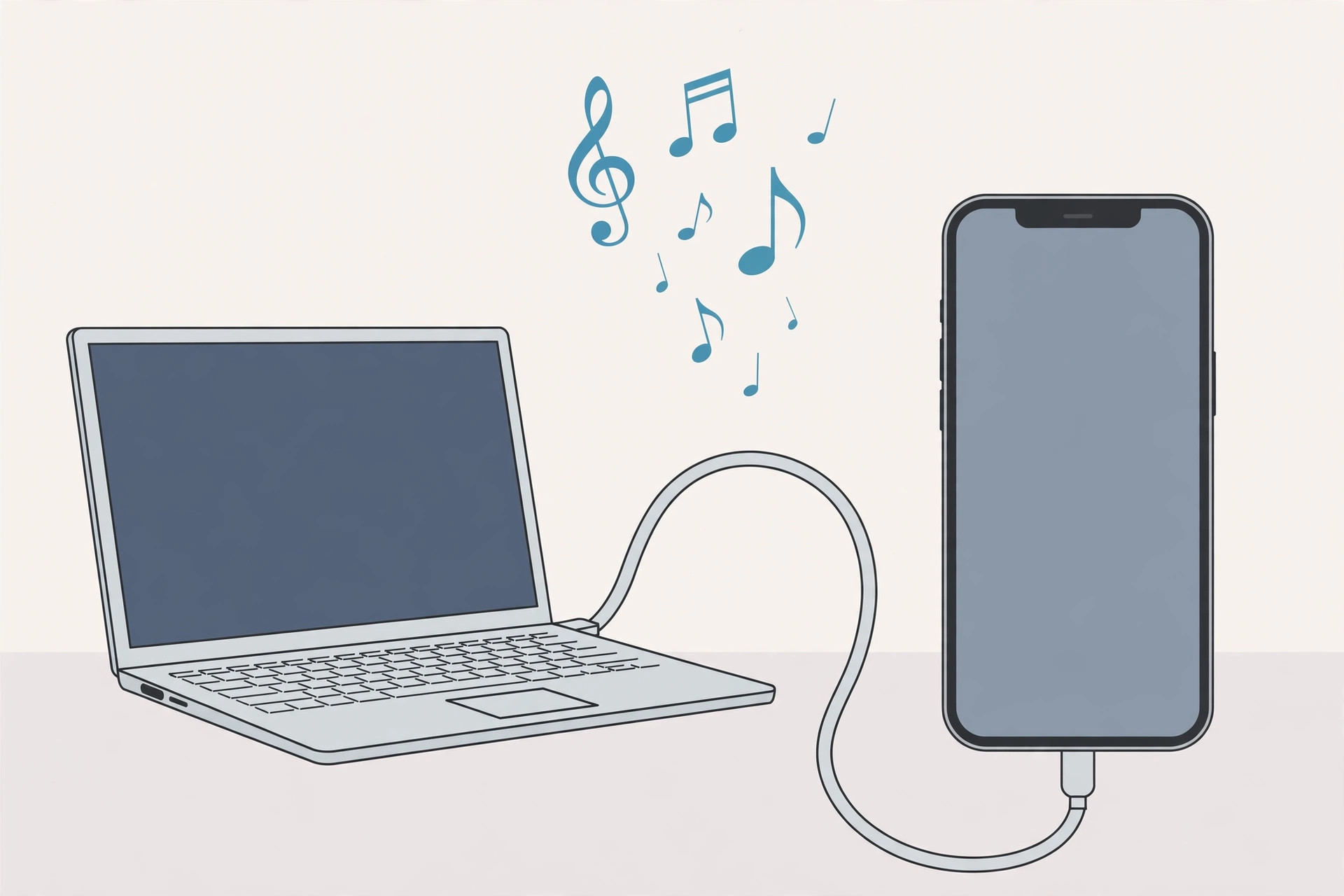
2. Open the Finder and select your iPhone in the sidebar. You’ll see a row of tabs across the top — click the “Music” tab to open the music sync settings.
3. Tick “Sync music onto iPhone”. Now choose how much to transfer: the entire library, or selected playlists, artists, albums, and genres. The second option is the smart move if your Mac’s library is bigger than your iPhone’s free space.
4. Click Apply, then Sync. The Mac copies the chosen tracks to your phone. When it’s done, you’ll find everything under Music > Library > Songs on the iPhone. Apple’s own guide to syncing iPhone with a Mac in the Finder documents the same steps, including the General and Files tabs for other content types.
Drag and drop tracks manually
5. Prefer picking individual songs? In the Finder’s Music tab for your iPhone, enable “Manually manage music, movies, and TV shows”. After that, you can drag tracks or albums straight from your Mac’s Music app onto the iPhone in the Finder sidebar. This is ideal when you only want a handful of songs and don’t want a full sync relationship.
Sync wirelessly with Sync Library
6. Skip the cable with Apple Music’s Sync Library. If you subscribe to Apple Music, turn on Sync Library in Settings > Music on the iPhone and in the Music app’s preferences on the Mac. Your Mac’s library — including uploaded tracks — then appears on the iPhone over the network with no cable involved. Just note this needs an active subscription, while Finder sync is free. And once your library is on the phone, identifying songs playing nearby is a handy companion trick for discovering new music on the go.
For more ways to get tracks onto your phone, Macworld’s guide to getting music on an iPhone covers the same Finder workflow alongside streaming and purchase options.
If it still doesn’t work
If your iPhone doesn’t appear in the Finder sidebar, unlock the phone and tap “Trust” again, try a different USB port, and make sure your Mac is running the latest macOS — very old Macs that still use iTunes follow the older iTunes sync flow instead. If a sync fails halfway, restart both devices and try again before doing anything drastic.
FAQ
Will syncing erase the music already on my iPhone?
Yes — a Finder music sync replaces the phone’s on-device music with whatever is selected in the Music tab. Tracks you bought from the iTunes Store stay tied to your Apple ID and can be re-downloaded, but anything not in the Mac’s library won’t survive the sync. Back up anything irreplaceable first.
Why can’t I drag files onto my iPhone in the Finder?
Manual drag-and-drop only works after you enable “Manually manage music, movies, and TV shows” in the iPhone’s Music tab and click Apply. Until then, the Finder uses automatic sync rules and rejects dropped files.
Conclusion
On modern macOS, the Finder is where iPhone music syncing lives: connect, open the Music tab, pick your tracks, and hit Sync. Prefer choosing songs by hand? Manual management gives you drag-and-drop. And if you’d rather skip cables entirely, Sync Library with an Apple Music subscription keeps your library matched wirelessly.





