
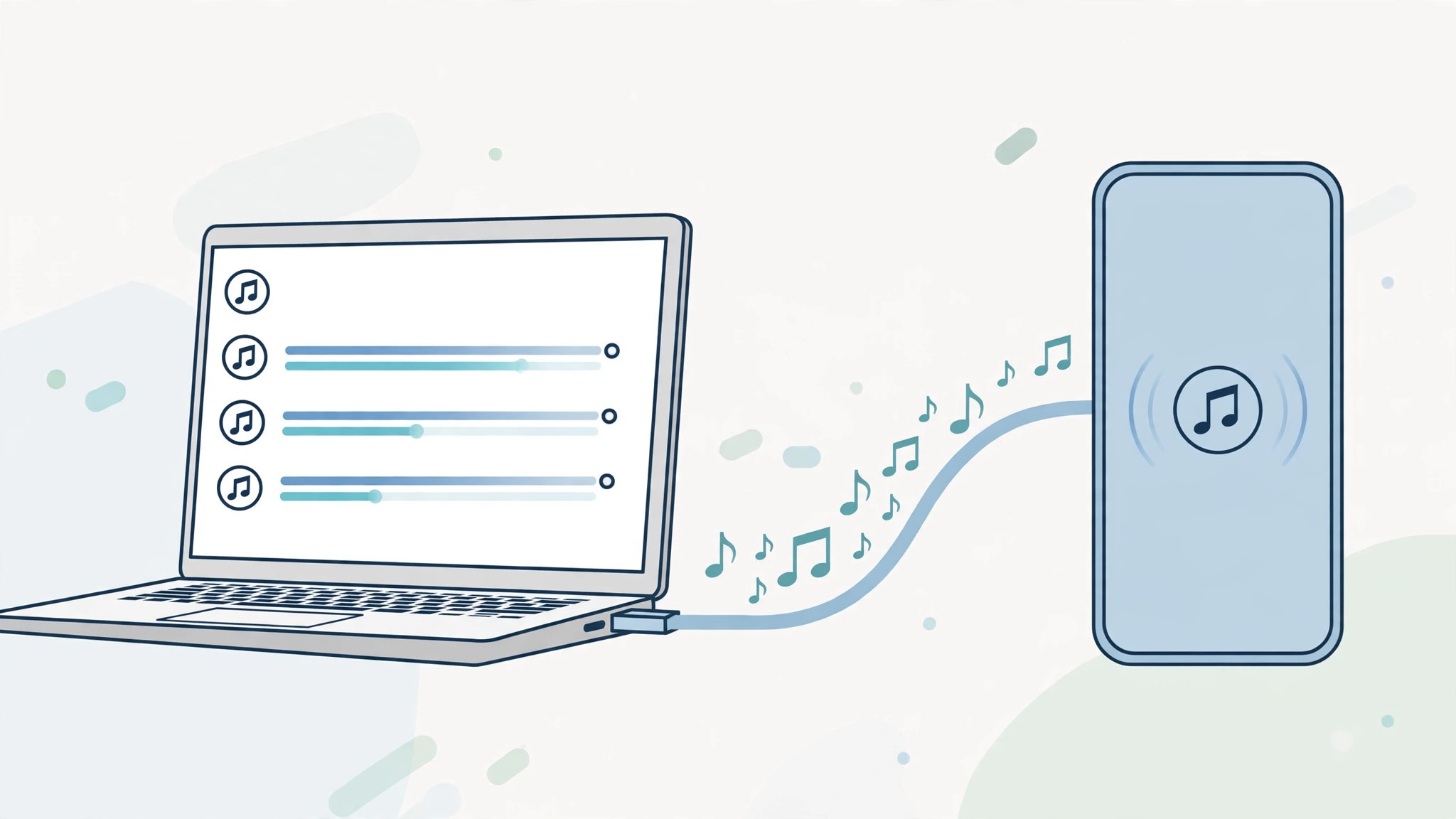
You have just dropped a fresh batch of MP3s into iTunes, hit sync, and… nothing. The songs sit happily in your computer’s library but refuse to show up on your iPhone. This is one of the most common iTunes headaches, and it almost always comes down to one toggle: iCloud Music Library. Here is the fix that gets your tracks onto the phone.
Make iTunes and your iPhone speak the same language
For songs added on a computer to appear on iOS, both sides must have iCloud Music Library enabled and be signed in with the same Apple ID. Apple Support’s sync guide and the iCloud Music Library documentation describe the setup. Follow these steps:
- On your iPhone, open Settings > Music and switch on iCloud Music Library.
- In iTunes on your Mac or PC, enable iCloud Music Library too. It lives in iTunes preferences under the General tab.
- Confirm both devices use the same Apple ID. A mismatch here is the silent killer — the phone and the computer must be logged into the identical account.
- Create a new playlist in iTunes and add the songs you want on the phone to it.
- On your iPhone, open the Music app and go to Playlists. Find the new playlist — your songs will be there, ready to download or stream.
A note for modern setups
On current systems iTunes itself has been retired: macOS uses the Music app and Windows uses the Apple Devices app for syncing. The same principle applies, though — enable the cloud library on both ends, keep the Apple ID consistent, and use a playlist as the bridge. For more music tips, see our guide on identifying songs playing nearby on iPhone, and if your cable syncs feel sluggish, our article on measuring iPhone-to-Mac data transfer speed over cable.
If it still doesn’t work
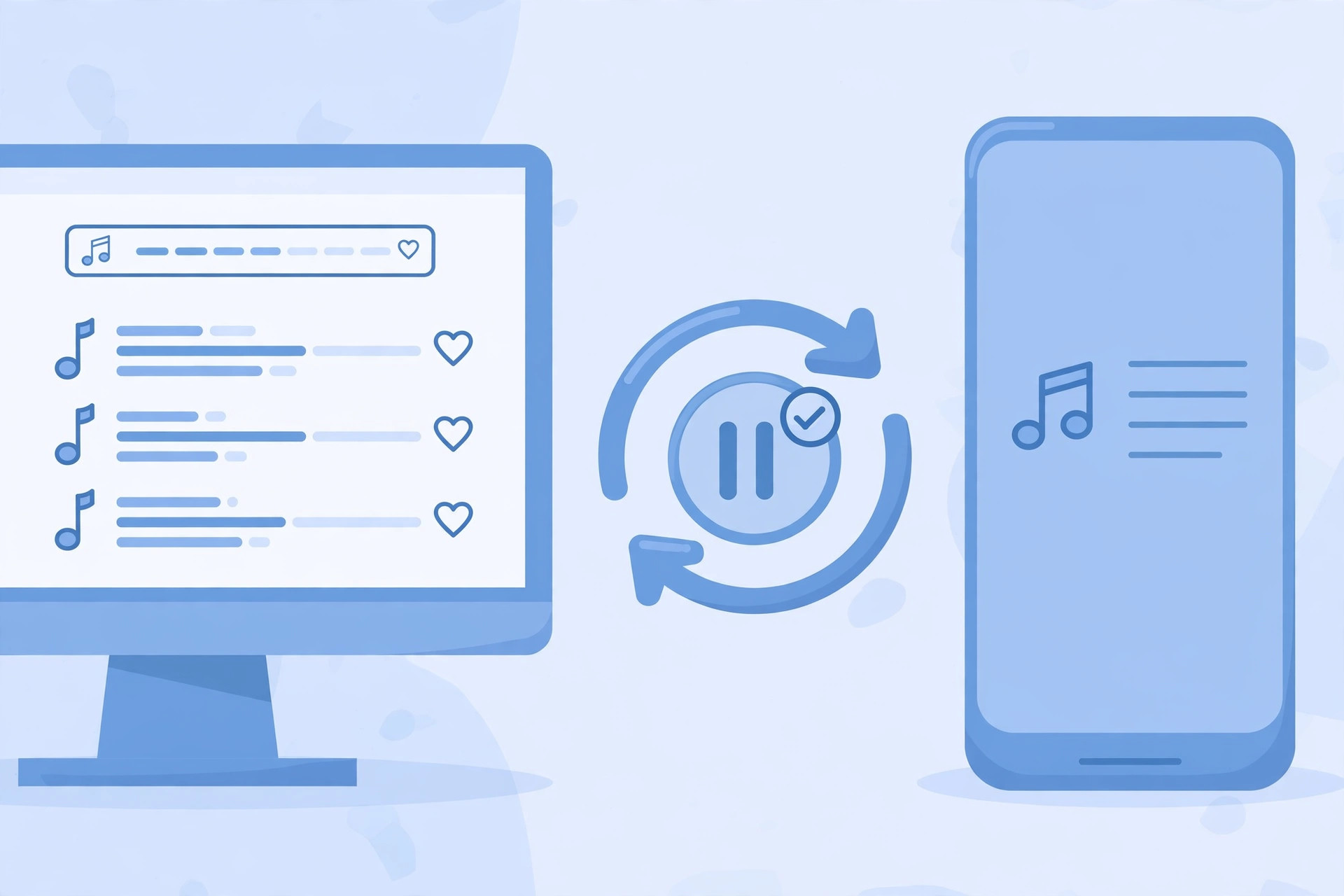
If the playlist still does not appear on the phone, toggle iCloud Music Library off and on again on the iPhone, then give it a few minutes — the first upload pass can take a while for large libraries. Also check that the tracks are in a format iTunes accepts (MP3 and AAC work; some exotic formats get skipped).
Frequently asked questions
Do I have to use a playlist, or can I sync the whole library?
A playlist is the most reliable test because it creates a fresh, clearly named container. Once the mechanism works, you can add any songs or albums the same way.
Why do the songs show in iTunes but never upload?
Usually iCloud Music Library is off on one side, or the Apple IDs differ. Fixing both solves the problem in the overwhelming majority of cases.
Conclusion
Songs that stall in iTunes are rarely a mystery: flip on iCloud Music Library on both the phone and the computer, match the Apple IDs, move the tracks into a playlist, and they will appear in the iPhone’s Music app. Five minutes of setup, and your music follows you everywhere again.
One more tip: after the playlist appears on the phone, tap the download icon next to it if you want the tracks stored offline for flights or areas with poor reception. Offline copies count against your iPhone’s storage, so keep an eye on free space if your collection is large.





