
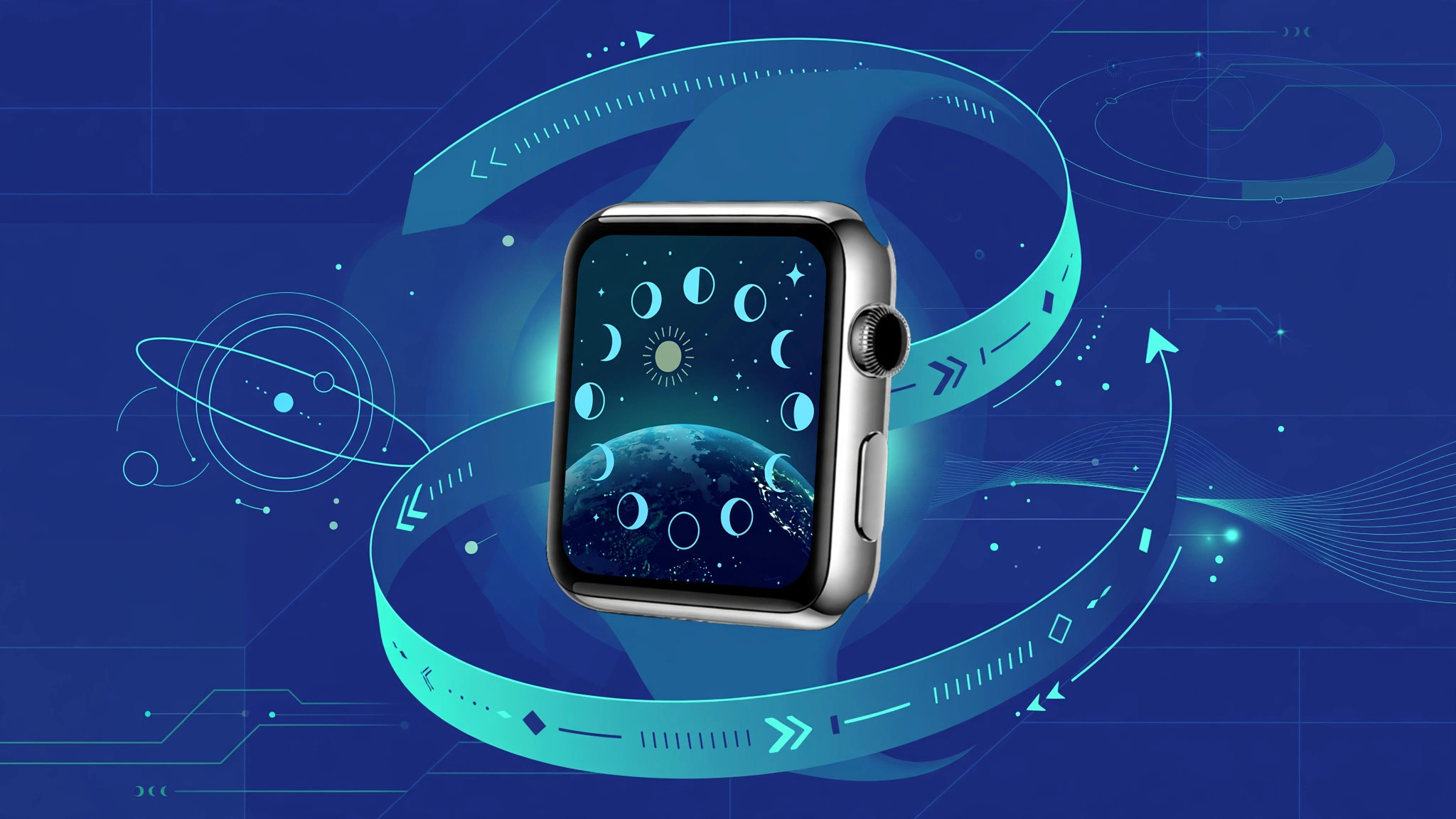
You updated your Apple Watch to watchOS 3.0, turned the Digital Crown on your favorite watch face… and nothing happens. Time Travel seems to have vanished. Do not worry: Apple did not remove the feature. It just made it available on far fewer faces than before. Here is where it went and how to get it back.
Time Travel was restricted, not removed
First, the important fact: watchOS 3.0 did not delete Time Travel. Turning the Digital Crown to scrub forward and backward in time still works — but only on the Astronomy and Solar watch faces. If your favorite face shows no reaction to the Crown, that is by design.
Some context helps here. Even on earlier watchOS versions, Time Travel already did not work on the Motion, X-Large, Timelapse, Photo Album, Photo, and Live Photo faces — their designs simply have no time-based complications to scrub. What watchOS 3.0 changed was narrowing support even further, down to just Astronomy and Solar. MacRumors reported the change when watchOS 3.0 shipped.
How to enable Time Travel in watchOS 3.0
- Open the Watch app on your iPhone.
- Go to Settings > Clock (Apple’s own Apple Watch support pages document this menu path).
- Turn on the Time Travel toggle.
- Switch your watch to the Astronomy or Solar face — firm-press the display, swipe through the faces, and pick one of those two.
- Turn the Digital Crown to scrub backward and forward in time. Complications update as you turn; press the Crown or tap “Now” to jump back to the present.
One line for modern readers
The story did not end happily for Time Travel fans: Apple eventually removed the feature entirely in watchOS 11 (2024). On modern watches it is gone for good — but if you are running watchOS 3.0, the steps above still bring it to life. For other watch tricks, see our guides on the iOS 26 Liquid Glass lock screen clock and turning off call duplication between iPhone and iPad.
If it still doesn’t work
Double-check that Time Travel is toggled on in the Watch app under Settings > Clock, and confirm you are actually on the Astronomy or Solar face — it is easy to mistake a look-alike. If the toggle is on and the face is right, restart both the iPhone and the watch and try again.
Frequently asked questions
Why doesn’t Time Travel work on the Photo face?
The Photo and Photo Album faces display a static image with no time-based complications, so there is nothing for Time Travel to scrub through. It never worked on those faces, even before watchOS 3.0.
Did Apple bring Time Travel back in later watchOS versions?
No — the feature stayed restricted for years and was removed completely in watchOS 11. Astronomy and Solar faces on watchOS 3.0 remain the best place to experience it.
Conclusion
Time Travel did not disappear in watchOS 3.0 — it just moved to a smaller stage. Switch to the Astronomy or Solar face, flip the toggle in the Watch app’s Clock settings, and the Digital Crown becomes a time machine again.
As a side note, the Astronomy face is also a great showcase for the Digital Crown in general: beyond Time Travel, its globe, solar-system, and moon views all respond to the Crown with smooth animations, which makes it one of the most interactive faces Apple has shipped.





