Calls and messages stopped working on Mac after buying a new iPhone — Continuity broken

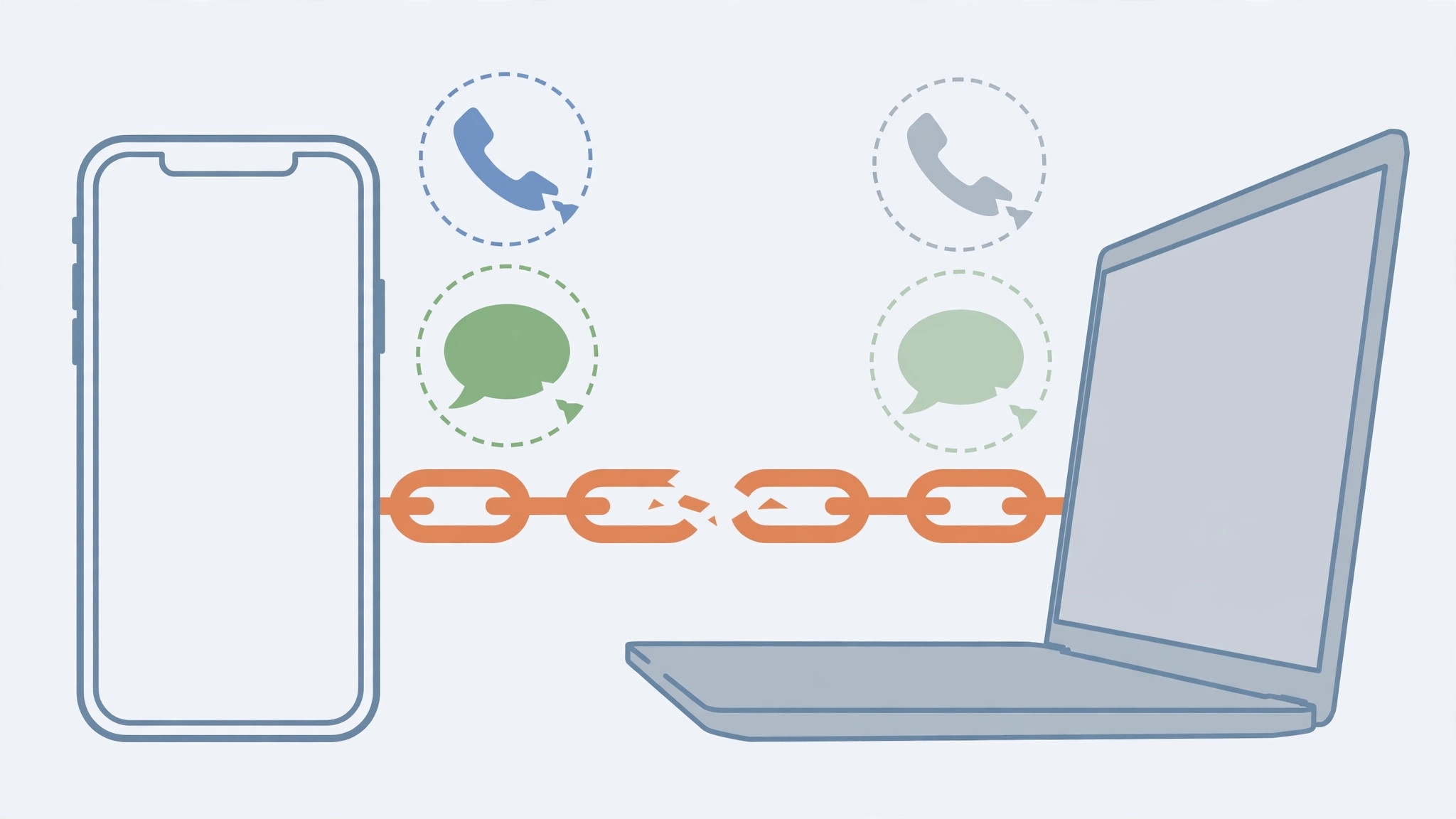
You just unboxed a shiny new iPhone, set everything up — and then notice the silence: your Mac no longer rings when someone calls, and text messages no longer pop up on the desktop. Calls and SMS used to flow between your devices, and now they don’t. The good news is that nothing is broken for good: a new iPhone simply resets the pairing, and you can re-authorize everything in a few minutes.
Why a new iPhone breaks Continuity
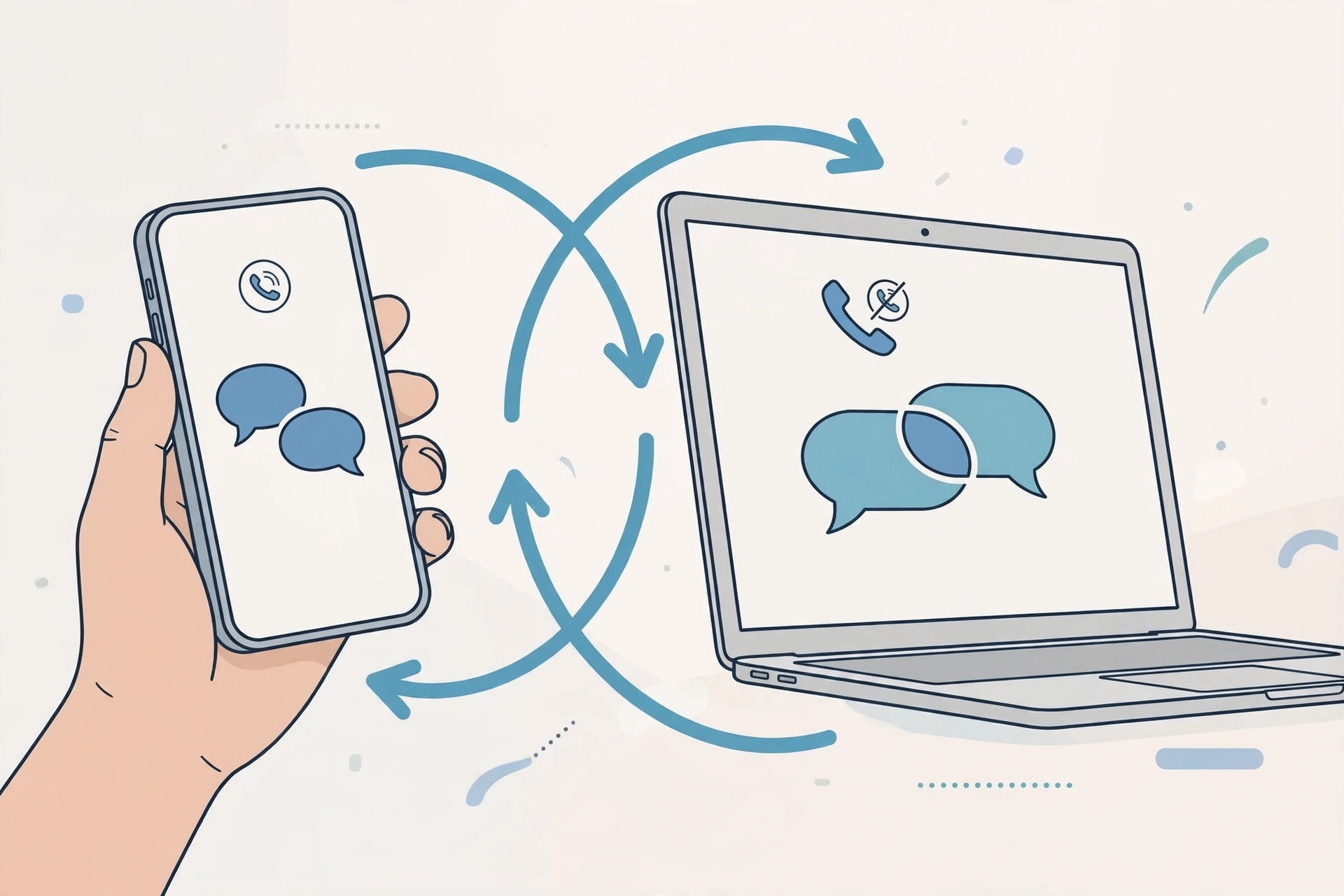
Apple’s Continuity features — cellular calls on Mac, SMS forwarding, Handoff — are tied to a trust chain between your specific devices and your Apple Account. When you replace your iPhone, the old phone’s trust dies with it, and your Mac quietly loses permission to place calls and relay texts on the new phone’s behalf. Apple documents the full list of requirements on Apple Support, and iMore has a handy explainer of how Continuity pieces fit together when things go wrong.
Re-authorize everything, step by step
- Use the same Apple Account everywhere. Sign in with the same iCloud account on the Mac and the new iPhone. A new phone breaks the old pairing, so every Continuity feature must be re-authorized from scratch.
- Get both devices on the same network. Connect the Mac and iPhone to the same Wi-Fi network and switch Bluetooth on for both — Continuity relies on both radios.
- Re-enable calls on the Mac. On the new iPhone, open Settings > Phone > Calls on Other Devices, turn the feature on, and enable your Mac in the list. If a verification code appears on the Mac, type it into the iPhone when prompted.
- Re-enable text message forwarding. On the iPhone, open Settings > Messages > Text Message Forwarding and turn on the toggle for your Mac. If you only care about texts rather than calls, our guide on how to set up message sync between iPhone and Mac covers this path in more detail.
- Match the Apple ID in FaceTime and Messages. Open FaceTime and Messages on both devices and confirm the same Apple ID is signed in on each. A mismatch here is a classic reason one half of Continuity fails.
- Allow Handoff on the Mac. On the Mac, open System Settings > General > AirDrop & Handoff and make sure Handoff is allowed.
- Restart both devices and test: call your iPhone from another phone and watch the Mac ring, then send an SMS to a friend and check it relays to the desktop.
- Last resort: sign out and back in. Sign out of iCloud, FaceTime and Messages on both devices, then sign back in on the iPhone first, followed by the Mac. This rebuilds the trust chain from zero.
If it still doesn’t work
First, double-check that Wi-Fi calling is enabled with your carrier if you rely on it, and that your Mac isn’t blocking the connection through a VPN. Also confirm no other device is gobbling up the call — if your iPad or a second Mac rings instead, our guide on how to turn off call duplication on iPhone and iPad helps you choose exactly which devices should answer. Macworld notes that carrier restrictions and corporate device profiles are among the rarer causes worth checking if everything above looks right.
FAQ
Do I have to redo this every time I get a new iPhone?
Yes — the trust between devices is per-phone, so each new iPhone needs its own re-authorization. It only takes a few minutes once you know where the toggles are.
Why do calls work but texts don’t (or vice versa)?
Calls and SMS forwarding use separate toggles: Calls on Other Devices under Phone settings, and Text Message Forwarding under Messages settings. Enable both, and verify the same Apple ID is signed in to FaceTime and Messages on each device.
Wrapping up
A new iPhone doesn’t mean Continuity is gone for good — it just needs to meet your Mac again. Re-enable Calls on Other Devices and Text Message Forwarding on the new phone, confirm matching Apple IDs, allow Handoff on the Mac, and restart. Your calls and messages will be back on the desktop in minutes.





