
You captured a gorgeous time-lapse of the sunset rolling over the skyline — and now it zips by in four seconds flat. Time-lapse on iPhone is designed to compress long stretches of time into tiny clips, but sometimes you want the opposite: to linger on the moment in dreamy slow motion. Here’s the catch — unlike slo-mo video, a time-lapse has already thrown away most of its frames, so the Photos app can’t simply uncompress it. The good news: Apple’s free iMovie app can stretch a time-lapse back out and smooth the motion, and the whole process takes about two minutes.
Why the Photos app can’t do this alone
Your iPhone records time-lapse by capturing frames at automatically chosen intervals and playing the result back at 30 frames per second — our guide to what frame rate iPhone uses for time-lapse videos explains the mechanics in detail. Once those in-between frames are discarded, iOS keeps no full-speed copy, so there’s no “slow down” toggle the way there is for slo-mo clips. To change the speed you need an editor that stretches the clip and blends frames together. iMovie does exactly that, and it costs nothing.
How to slow down a time-lapse video with iMovie
- Install iMovie from the App Store if you don’t have it yet. It’s free and made by Apple — Apple’s iMovie support page covers the basics if you’re new to it.
- Open iMovie and tap the large + button, then choose Movie to start a new project.
- Select your time-lapse clip from the library and tap Create Movie. (Working on a Mac instead? See how to import iPhone video to iMovie on Mac first.)
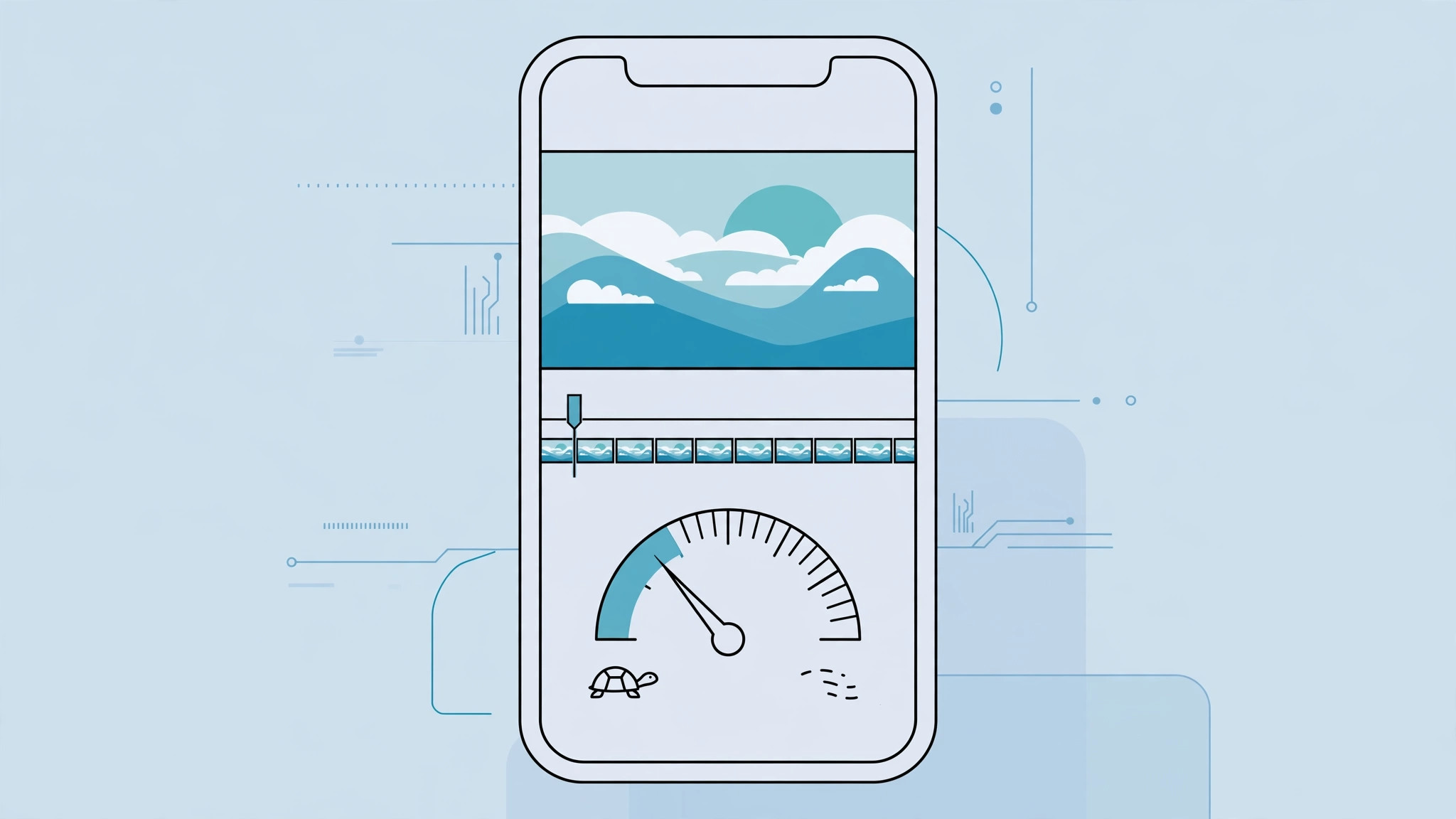
- Tap the clip in the timeline so it’s selected — it gets a yellow border — then tap the speedometer icon labeled Speed.
- Drag the speed slider all the way left to 1/8x. iMovie automatically blends frames to keep the motion smooth.
- Press play to preview. If 1/8x looks too choppy on your clip, try 1/4x instead — shorter time-lapses stretch less gracefully.
- Tap Done, then the Share button, and choose Save Video to export the slowed clip back to your Photos library.
If it still doesn’t work
If the Speed button is grayed out, you haven’t selected the clip — tap it in the timeline until the yellow border appears. If the slowed video looks jerky no matter what, the original clip may simply be too short; there’s a limit to how far a few seconds of footage can stretch. Third-party editors with optical-flow slow motion can sometimes do better — 9to5Mac regularly rounds up the best video editing apps for iPhone. And if you actually recorded in slo-mo by mistake and want normal speed instead, here’s how to convert a slow-motion video to normal speed on iPhone.
Frequently asked questions
Will slowing down a time-lapse reduce its quality?
A little. Stretching a clip forces iMovie to invent in-between frames, so extreme slowdowns can look soft. At 1/4x most clips still look great; reserve 1/8x for short clips where the dreamy effect matters more than sharpness. YouTube walkthroughs of iMovie’s speed controls show the difference side by side if you’d like a visual comparison.
Can I slow down a time-lapse without iMovie?
Yes. Editors like CapCut, VN, and InShot all offer speed controls, and some even let you ramp speed up and down within a single clip. But iMovie is free, made by Apple, and handles frame blending well — for a one-off slowdown, it’s the simplest option.
The bottom line
A time-lapse is compressed by design, but it doesn’t have to stay that way. iMovie’s speed slider stretches your clip down to 1/8x, turning a four-second blur into a lingering, cinematic moment. Pick your clip, drag the slider left, and save — that’s all there is to it.





