

You open the Music app and your favorite playlist is gone — albums, downloaded songs, entire playlists, vanished overnight. Before you panic, take a breath: your music is almost certainly not deleted. In most cases, tracks disappear because a setting got flipped or the Apple ID on the device changed, and the fix takes about two minutes.
Why tracks disappear from Apple Music
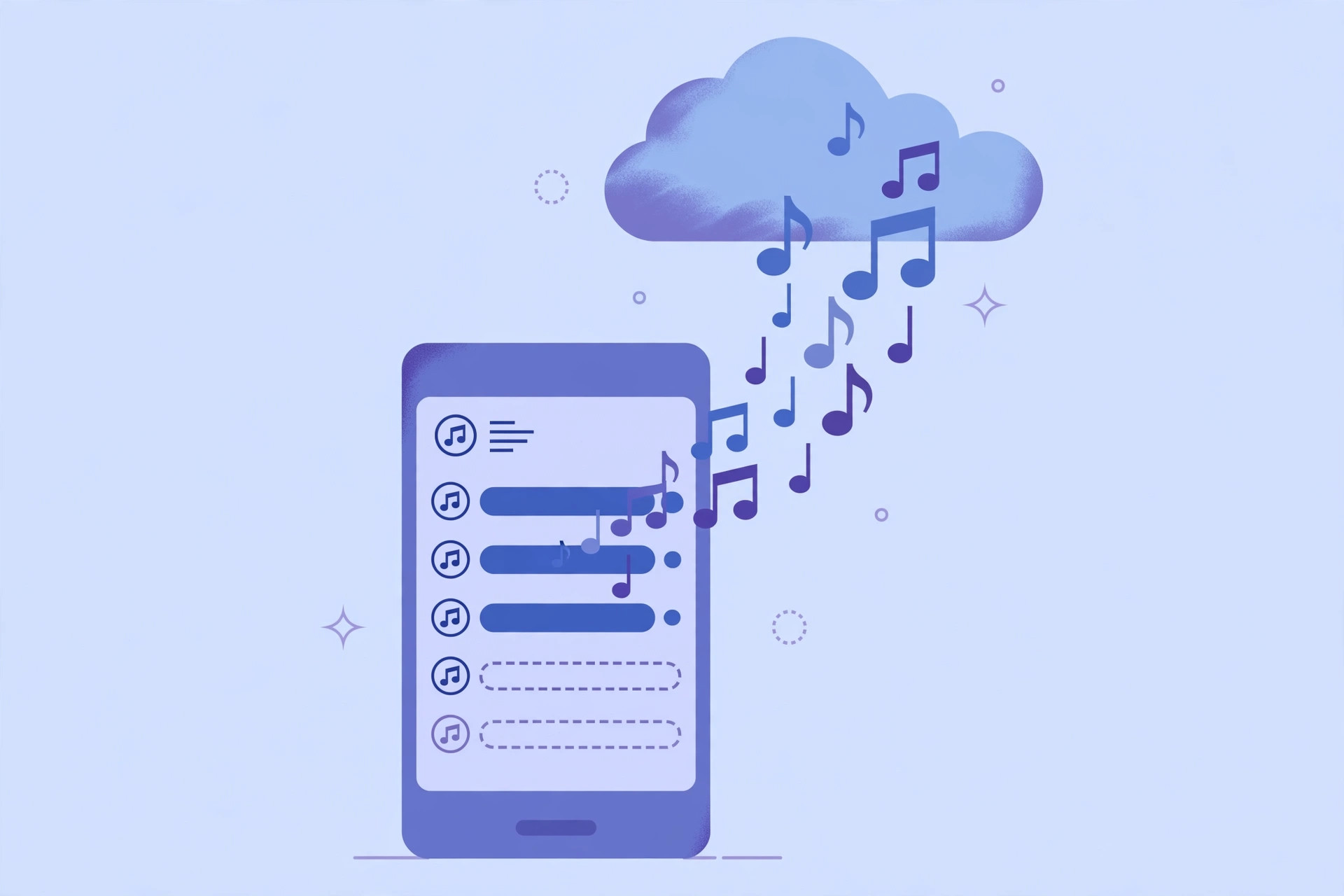
Apple Music ties your library to your Apple Account and to two key settings. Signing in with a different Apple ID — after a reset, say — shows that account’s library instead of yours. More commonly, an iOS update quietly turns off Show Apple Music or Sync Library, hiding your cloud library from the device. Apple Support documents both toggles in its Music troubleshooting guides. Your playlists still exist on Apple’s servers; the phone just stopped displaying them.
Step 1: Make sure Show Apple Music is turned on
Open the Settings app and go to Apps > Music (on older iOS versions the Music entry sits directly in the main Settings list). Find the Show Apple Music switch and turn it on. If it was off, this alone can bring your library straight back. While you are here, confirm you are signed in with the Apple ID that holds your subscription — a mismatch here is the number-one cause of “empty” libraries.
Step 2: Toggle Sync Library off and back on
On the same Settings > Apps > Music screen, look at Sync Library. This is the switch that keeps your library identical across iPhone, iPad, and Mac. If it is already on, turn it off, wait about ten seconds, and turn it back on. This forces the Music app to re-fetch your cloud library — give large libraries a minute or two to repopulate. MacRumors readers report this off-and-on cycle fixing the issue more often than any other step.
Step 3: Check the Library tab and re-download for offline
Open the Music app and tap the Library tab. Your playlists, artists, and albums should be reappearing. One caveat: songs you had downloaded for offline listening may need to be downloaded again, because the local copies were tied to the previous sync state. Tap the download icon next to a playlist or album to save it for offline playback. And if your listening keeps getting interrupted by audio jumping between devices, here is how to stop iPhone auto-switching audio to your headphones.
Step 4 (last resort): Sign out of your Apple ID and back in
If the toggles did not help, sign out completely: open Settings, tap your Apple Account banner, scroll down, and choose Sign Out. Restart the iPhone, then sign back in with the same Apple ID. This refreshes every Apple service on the device at once, including Music. You will need to wait for the library to sync again, so stay on Wi-Fi while it works.
If it still doesn’t work
Double-check that your Apple Music subscription is still active — an expired subscription hides the streaming catalog while leaving purchased music visible. Also confirm that no VPN or content restriction is interfering with Apple’s servers. If everything looks right, contact Apple Support; they can verify whether your library is intact on their end. Music lovers may also enjoy this trick: you can automatically identify songs playing nearby on iPhone and add them straight to your rebuilt library.
FAQ
Will toggling Sync Library delete my playlists?
No. Turning Sync Library off and on only changes what the device displays; your playlists, uploads, and favorites remain stored in your iCloud Music Library. They reappear once syncing completes.
Why did my library vanish after I changed my Apple ID?
Your Apple Music library belongs to the Apple ID that built it. Signing in with a different account shows that account’s library instead — which may be empty. Sign back in with the original ID and turn Sync Library on to restore everything.
Conclusion
Disappearing Apple Music tracks are scary but rarely serious. Check that you are on the right Apple ID, flip Show Apple Music and Sync Library on, and give the library a minute to re-sync. In nearly every case, your music comes right back — no re-buying, no rebuilding playlists from scratch.





