
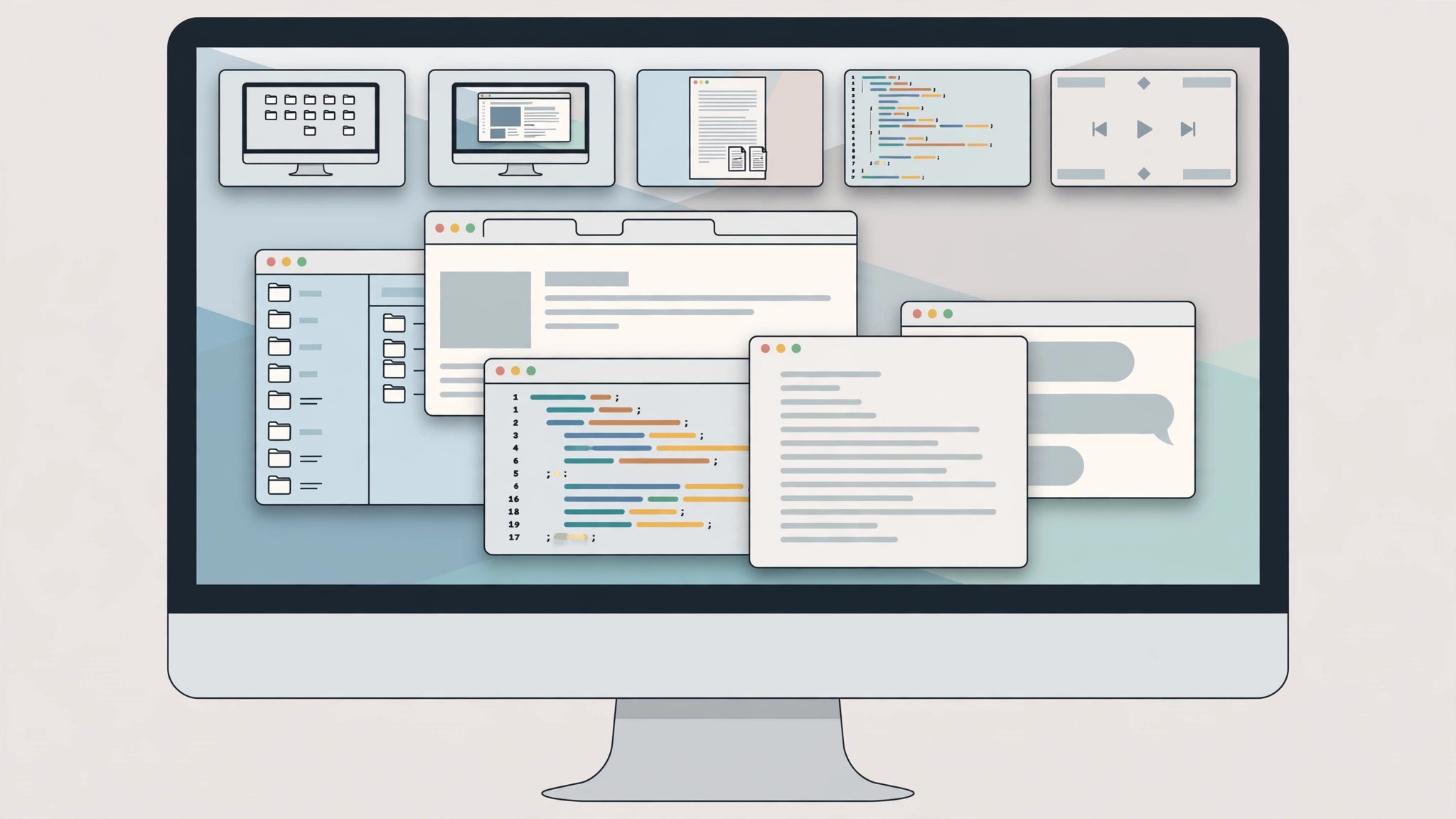
You had everything perfectly arranged: mail on Desktop 1, the browser on Desktop 2, your code editor on Desktop 3. Then you restart your Mac — and every app reopens in a jumbled pile on a single desktop. Nothing is broken. macOS decides where restored windows go, and unless you tell it otherwise, “restore everything” means “restore everything on the desktop you’re looking at.” Here’s how to get your Spaces back under control.

Stop the pile-up: control what reopens
- At restart time: when you choose Apple menu > Restart (or Shut Down), the confirmation dialog has a checkbox labeled “Reopen windows when logging back in.” Uncheck it if you want a clean start with no restored windows at all.
- For a permanent setting: open System Settings > Desktop & Dock, scroll to the bottom, and turn off “Close windows when quitting an app.” Reversing this changes how aggressively macOS tries to restore windows between sessions.
- Pin apps to their desktops: this is the real fix. Right-click (or Control-click) an app in the Dock, choose Options > Assign To > This Desktop. Now that app always opens on the current desktop, even after a restart.
- Repeat step 3 for each app you keep on a specific Space: browser on Desktop 2, chat on Desktop 3, and so on.
- Restart the Mac once with “Reopen windows” checked to verify: each pinned app should land on its assigned desktop instead of piling up.
How “Assign To” works
The Assign To menu has three choices. None is the default — the app opens wherever it feels like, usually the active desktop. This Desktop pins the app to the Space you’re currently viewing. All Desktops makes the app’s windows follow you to every Space, which is handy for utilities like a music player or a notes app you want everywhere. Pick per app, based on how you work.
9to5Mac has covered Spaces power-user tricks in depth, and YouTube walkthroughs show the Dock’s Assign To menu in action if you’d like a visual guide.
If it still doesn’t work
If apps still pile onto one desktop, double-check that “Assign To” is actually set — it’s easy to pin an app while viewing the wrong desktop, in which case it faithfully opens on the wrong one every time. Also note that some apps restore their own windows independently of macOS: check the app’s own preferences for a “restore windows” option. Login items (System Settings > General > Login Items) launch at startup but don’t remember desktops unless assigned. And if your Spaces themselves keep rearranging, our guide to fixing Mac desktops that swap places covers that separately — as does our piece on removing window gaps in macOS Sequoia if your tiled layouts look off after the restart.
Frequently asked questions
Why don’t apps remember which desktop they were on?
macOS’s Resume feature restores windows, but Spaces membership isn’t part of what it saves — unless you’ve used Assign To. Without an assignment, a restored window simply opens on the currently active desktop. That’s why everything lands in one pile: the system is doing exactly what it was told, just not what you meant.
Can I make every app reopen exactly where it was?
Mostly, yes. Pin each app with Assign To > This Desktop and leave “Reopen windows when logging back in” checked at restart. Your layout will be rebuilt app by app on its home desktop. A few apps with unusual window behavior may still need manual nudging, but the pile-up will be gone.
Conclusion
The post-restart pile-up comes down to two settings: the reopen-windows checkbox and per-app desktop assignments. Set Assign To once for your key apps, and your carefully arranged Spaces will survive every restart.





