
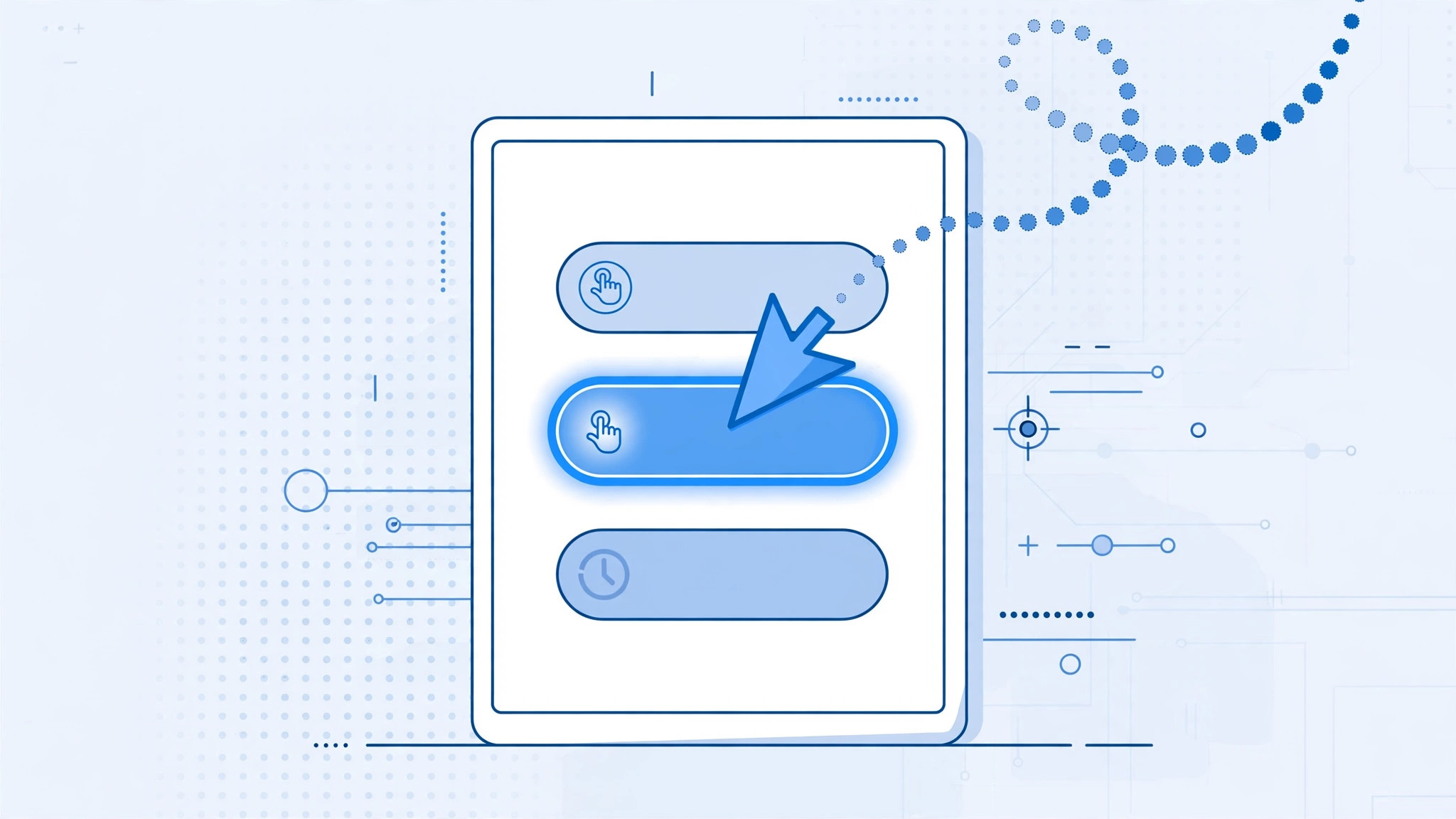
Plug a mouse into your iPhone and the cursor may behave in a way that feels broken: instead of gliding smoothly across the screen, it leaps onto buttons and icons like a magnet, swelling up as it sticks to each one. First-time users often assume the mouse is defective or incompatible. It isn’t — this is Pointer Animations, an accessibility feature that deliberately makes the cursor snap onto tappable targets. If you’d rather have a normal, free-moving pointer, you can switch the behavior off in seconds.
Apple’s pointer settings guide documents the same toggle for iPad, and it works identically on iPhone.

Why the cursor behaves this way
Full mouse support arrived on iPhone and iPad years ago, and Apple designed the pointer for touch-first interfaces. On a desktop computer, buttons are small and a precise arrow works fine. On iOS, tappable targets are large and spaced for fingers, so Apple gave the cursor a helper: when it nears a button, it jumps to it and morphs around it, visually confirming what you’re about to activate. The effect also smooths the transition when you scroll or switch apps, fading and reshaping the pointer as the interface changes underneath it.
For many people this is genuinely useful — the cursor never gets lost, and you always know exactly what’s clickable. But if you come from a Mac or PC and expect a plain arrow that goes wherever your hand sends it, the magnetic snapping feels laggy and wrong. Neither behavior is a fault; they’re just two philosophies of pointer design. You get to pick.
Turn off the magnetic cursor
- Open the Settings app on your iPhone.
- Go to Accessibility, then tap Pointer Control.
- Turn off Pointer Animations.
- Move the mouse — the cursor now glides freely without snapping onto buttons.
Tune the pointer to your liking
While you’re in Pointer Control, a few neighboring options are worth a look. Pointer Speed controls how fast the cursor travels across the screen — set it faster if you keep running out of desk space, slower for fine control. Use the scroll wheel or a two-finger swipe on a trackpad to scroll pages, and note that natural versus traditional scroll direction is configurable elsewhere in Accessibility. Pointer Contrast and Pointer Size change how visible the cursor is against busy backgrounds, which helps on bright web pages. And Automatically Hide Pointer sets how quickly the cursor fades when you stop moving the mouse, keeping it out of the way while you read.
9to5Mac has covered iPhone mouse support since it arrived, and YouTube demos show exactly what Pointer Animations does before and after the toggle.
If it still doesn’t work
If the cursor keeps sticking after the toggle is off, disconnect and reconnect the mouse (Settings > Bluetooth, tap the info icon, then Forget This Device and pair again) — a stale pairing can hold onto the old behavior. Make sure iOS is up to date, since pointer fixes have shipped in point releases, and restart the iPhone to clear any stuck accessibility state. Third-party Bluetooth mice occasionally misreport their capabilities; if the problem persists with one specific mouse, try another to rule out the hardware. If you use several Apple devices, our guide to transferring accessibility settings to a new iPhone explains how these pointer preferences carry over, and iPad owners can read about enabling 120Hz in Safari on iPad Pro for an even smoother scrolling experience.
Frequently asked questions
Why does the pointer grow when it touches a button?
That’s the Pointer Animations effect itself. The cursor swells and morphs around tappable elements so you can see exactly what you’re about to click — genuinely helpful for some users, but disorienting if you expect a traditional desktop-style pointer. Turning the toggle off restores the plain round cursor at all times.
Does this setting affect my iPad too?
Yes. Pointer Animations lives in the same place on iPad (Settings > Accessibility > Pointer Control), and turning it off changes mouse and trackpad behavior there as well. If you swap the same mouse between iPhone and iPad, check the setting on both devices, since each keeps its own preference.
Conclusion
The magnetic cursor is a feature, not a fault — and it’s one toggle away from normal. Flip off Pointer Animations in Accessibility and your iPhone’s mouse will behave exactly the way your hand expects.





