
Spam texts are the new robocalls: fake delivery alerts, bogus bank warnings, and “you won a prize” messages that never stop. iOS gives you three layers of defense — manual blocking, third-party spam filters, and the built-in Unknown & Spam screen. Used together, they cut junk texts down to almost nothing. Here is how to set them all up.
How to block SMS spam, step by step
1. Block and report senders manually
- Open the Messages app and tap the spam conversation.
- Tap the sender’s number or name at the top, then tap info.
- Tap Block this Caller to stop all future messages and calls from that number.
- For obvious spam, tap Report Junk (or Delete and Report Junk) instead — this blocks the sender and sends the message to Apple and your carrier to improve their filters.
Manual blocking is instant and free, and it pairs well with blocking calls from unknown numbers if the same spammers are ringing you too.
2. Install a spam-filtering app
The App Store hosts several SMS filters — popular options include Hiya, Truecaller, and RoboKiller — that compare incoming numbers against huge crowd-sourced spam databases. They can filter both junk texts and spam calls automatically. Download one, open it, and follow its setup walkthrough; iOS will ask you to enable it in Settings. 9to5Mac regularly rounds up the best spam blockers if you want comparisons.
3. Turn on SMS filtering in Settings
- Go to Settings → Messages → Unknown & Spam (on newer iOS versions, under Settings → Apps → Messages).
- Turn on Filter Unknown Senders.
- Under SMS Filtering, select the filter app you installed in step 2.
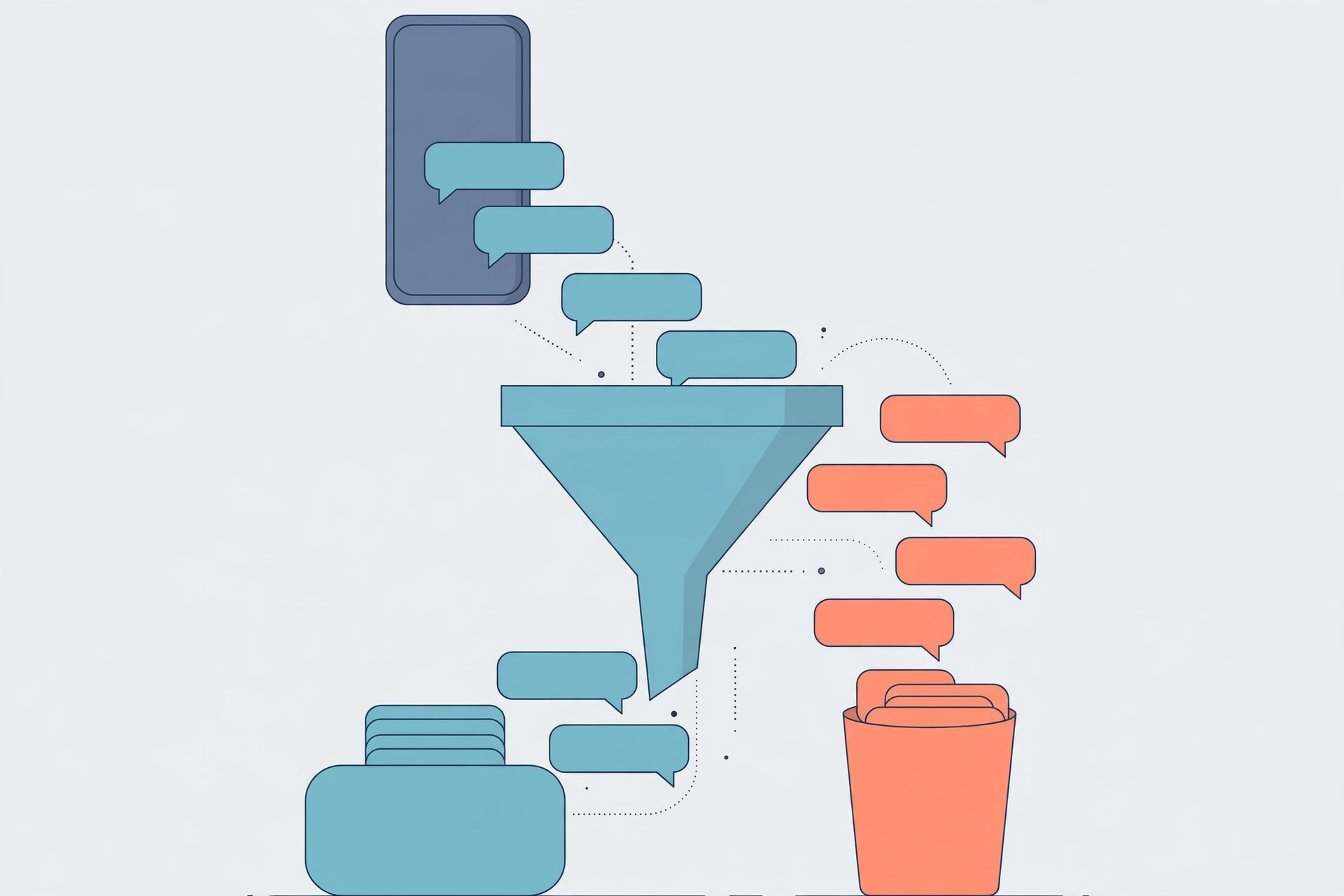
From now on, texts from numbers not in your contacts land in a separate Unknown Senders tab instead of your main inbox — you will still see them if you look, but they will never buzz your phone. Apple documents this in its guide to blocking messages.
If it still doesn’t work
Spam keeps coming from new numbers? Spammers rotate numbers constantly, which is why the filter app matters more than manual blocking — its database updates daily while your block list does not. Make sure the app is selected under SMS Filtering and that its database is up to date.
Legit texts landing in Unknown Senders? Add the sender to your contacts — contacts always bypass the filter. If you are not receiving SMS from Android phones at all, that is a different issue (usually iMessage deregistration) rather than spam filtering.
Messages not sending after you enabled a filter? Filters only sort incoming mail; they cannot break sending. If texts will not go out, see why SMS won’t send on iPhone.
Frequently asked questions
Does reporting junk actually do anything?
Yes. Reports feed Apple’s and your carrier’s spam detection, so the same campaign gets blocked faster for everyone. It takes two seconds and genuinely helps.
Will filtering hide two-factor codes from my bank?
It can, if the bank’s short code is not in your contacts. Save your bank’s number as a contact and its codes will always land in your main inbox.
Set up all three layers once — block, filter app, Unknown Senders — and your Messages app goes back to being a place for actual humans.





