
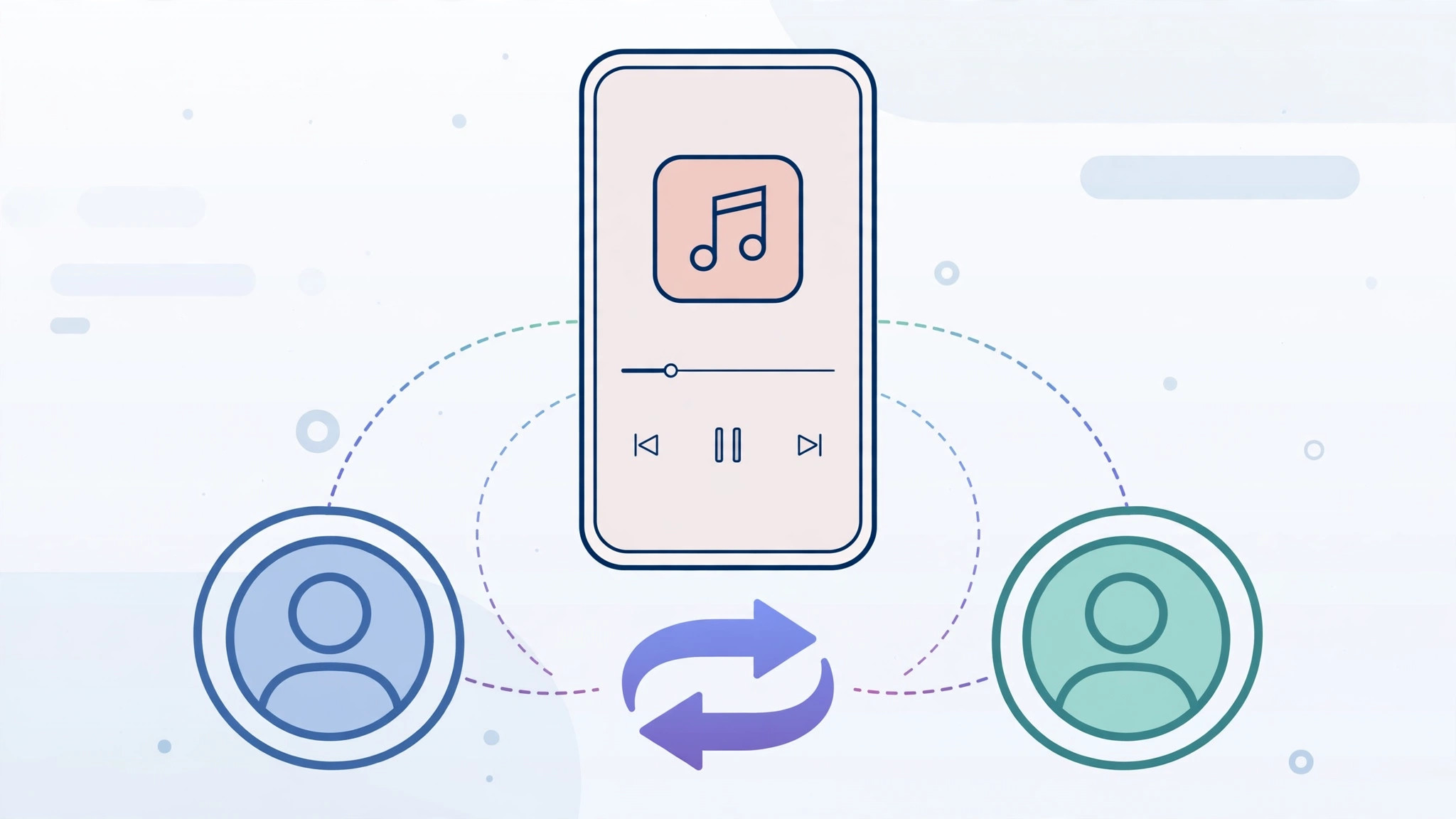
If you share an iPhone with a family member, or you simply have more than one Apple ID, you may want Apple Music to stream with a different account than the one currently signed in. Here is the catch: Apple Music has no “switch account” button anywhere in the app. Your streaming profile simply follows the Apple ID you are signed in with in the App Store, so switching accounts means signing out and back in there — not inside the Music app itself.
What not to touch: Home Sharing in Settings
Many people open Settings, then Music, and assume the “Home Sharing” option is the account switcher they are looking for. It is not. Home Sharing only changes which account supplies your iCloud Music Library — your uploaded songs and matched tracks. Your Apple Music streaming profile, recommendations, and subscription stay tied to the original account. Keep this distinction in mind: changing Home Sharing will not change the account Apple Music streams from.
How to switch the Apple Music account on your iPhone
Because Apple Music follows your App Store sign-in, the whole procedure happens in the App Store. It takes about a minute:
- Open the App Store on your iPhone.
- Tap the Today tab at the bottom of the screen — this is the store’s home tab.
- Scroll all the way to the bottom of the tab.
- Next to “Apple ID” you will see the account that is currently signed in. Tap it.
- Sign out of the current account and confirm.
- Sign back in with the Apple ID you want Apple Music to use.
- Open the Music app. The Apple Music profile switches automatically to the newly signed-in account — there is nothing else to press.
Things to know after switching
Downloads are tied to the account that fetched them, so music you downloaded under the old account may stop playing offline until you re-download it with the new one. Your playlists and library sync through iCloud Music Library, which is a separate setting — remember that the Home Sharing toggle in Settings, then Music only affects that library account, not streaming. If you are tidying up your phone anyway, check which built-in iPhone apps you can delete to free up space, and music lovers will appreciate our guide on how to automatically identify songs playing nearby on your iPhone. Apple’s own Apple Support pages for Apple Music confirm that the service follows your signed-in Apple ID, and MacRumors rounds up more tips for getting the most out of the app.
If it still doesn’t work
If Apple Music still shows the old account after you signed in with the new one, try these steps:
- Force-quit the Music app and reopen it — the profile usually refreshes on launch.
- Double-check that you signed out in the App Store, not just in iCloud settings. iCloud and the App Store can use different Apple IDs.
- Make sure the new Apple ID actually has an active Apple Music subscription or trial.
- Restart the iPhone if the account change does not seem to register.
FAQ
Will switching accounts delete my downloaded music?
Downloads belong to the account that downloaded them. After switching, previously downloaded tracks may no longer play offline; simply re-download them under the new account. Streaming access itself follows the new sign-in immediately.
Does changing Home Sharing switch my Apple Music account?
No. Home Sharing in Settings, then Music only changes the account behind your iCloud Music Library. Apple Music streaming follows the Apple ID signed in to the App Store, so use the sign-out and sign-in steps above.
Conclusion
There is no dedicated account switcher in Apple Music, but you do not need one: the app mirrors whatever Apple ID is signed in to the App Store. Sign out at the bottom of the Today tab, sign in with the account you want, and Apple Music switches over on its own. Just remember that the Home Sharing setting only affects your iCloud Music Library — it will not move your streaming profile.






[…] in with music added under a different Apple ID; if your library mixes accounts, here’s how to change your Apple Music account before […]