

Every Mac user has felt this sting: you copy an important link, then copy a phone number, and the link is gone forever. By design, macOS remembers only the very last thing you copied — press Command+C twice and the first item vanishes without a trace. If you juggle text, links, and snippets all day, that single-slot clipboard is a productivity killer. The fix is a clipboard manager: a tiny utility that quietly records everything you copy so you can recall any of it later.
Before you start
- A Mac running a recent version of macOS.
- CopyClip — free on the Mac App Store, lightweight and optimized for Apple Silicon.
- About five minutes for setup.
How to set up clipboard history with CopyClip
- Install CopyClip. Open the Mac App Store and search for “CopyClip”, then install the free app. (If you ever lose track of it, here’s how to quickly open the installed apps list in macOS 26.)
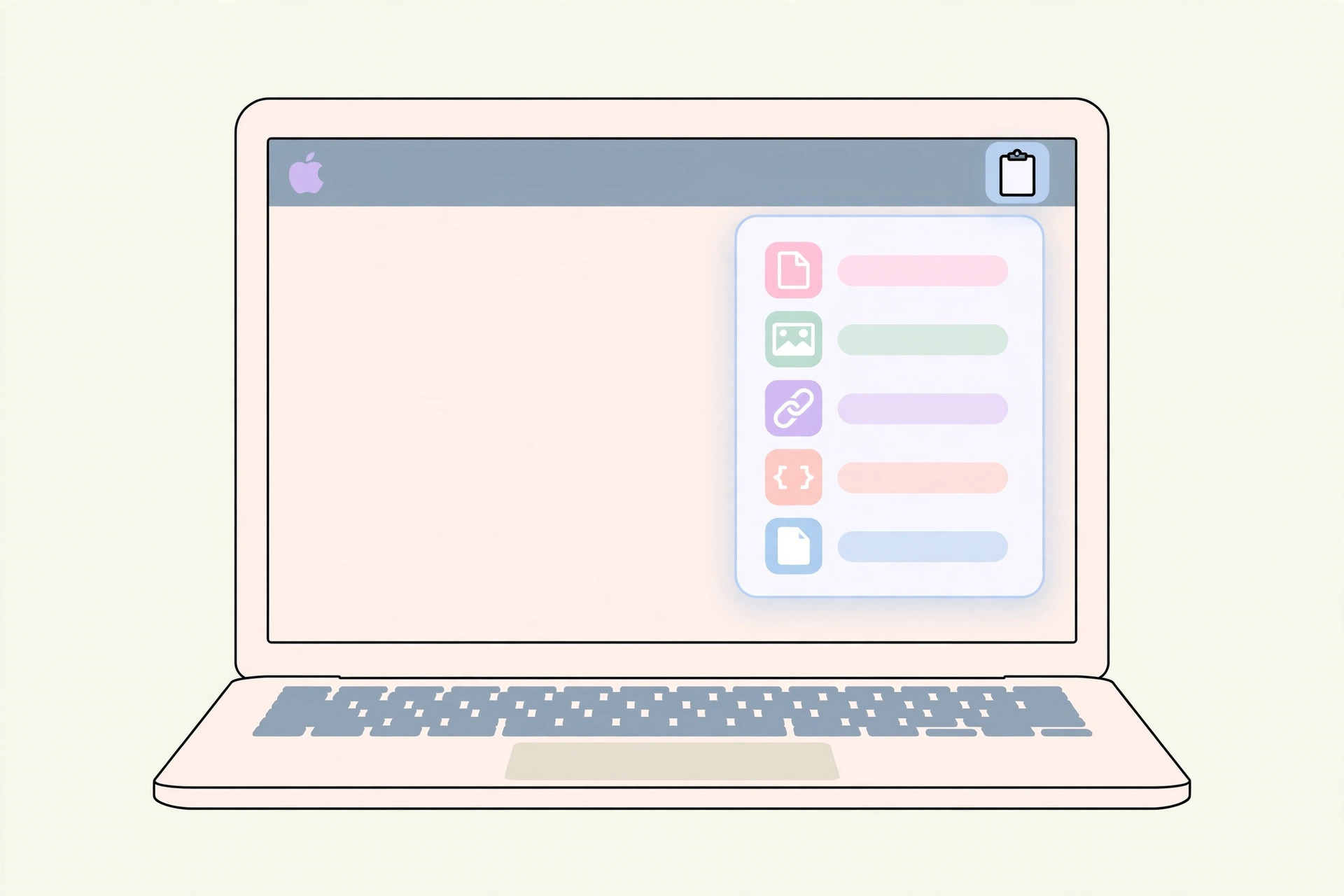
- Launch it and look at the menu bar. CopyClip lives as a small scissors icon in the menu bar — it starts recording your copies immediately, no account needed.
- Turn on “Launch at startup”. Open CopyClip’s preferences and enable launch at startup, so your history survives reboots and is always recording.
- Choose how many entries to keep. In preferences, set the number of remembered clippings — 30 is a sensible start; raise it to 50 or more if you copy heavily.
- Blacklist sensitive apps. This is the privacy step: in preferences, add your password manager to the excluded-apps list so secrets never land in your clipboard history.
- Use it. Copy things as you normally do. When you need an earlier item, click the menu-bar icon, pick the clipping, and paste — it jumps back onto the clipboard instantly.
One privacy heads-up: Apple’s Universal Clipboard syncs whatever you copy to nearby Apple devices signed into the same Apple ID (see Apple Support for details). Combined with a history manager, that means a copied password could travel further than you expect — another reason to blacklist your password manager.
If you outgrow CopyClip: alternatives worth knowing
- Paste — a polished, visual manager with iCloud sync across your Macs, great if you want search and pinning.
- Flycut — free and open-source, a long-time developer favorite with a minimal footprint.
- Alfred + Powerpack — a full launcher whose clipboard history handles images, files, and full-text search. 9to5Mac regularly covers these Mac productivity tools.
If it still doesn’t work
- History is empty after a restart — launch at startup isn’t enabled. Turn it on in CopyClip’s preferences.
- No icon in the menu bar — the app may have quit. Relaunch it and re-enable the login item in System Settings.
- Pasting from history does nothing — grant any Accessibility permission the app requests, then try again.
- Sensitive entries keep appearing — double-check the excluded-apps list and add the offending app.
Frequently asked questions
Does macOS have a built-in clipboard history?
No. macOS natively keeps only the most recent copied item — there is no built-in history viewer. That’s exactly the gap third-party clipboard managers fill.
Is it safe to keep passwords in clipboard history?
Better not to. Blacklist your password manager in the app’s preferences so secrets are never recorded, and clear the history periodically for good hygiene.
Conclusion
A clipboard manager is one of those small utilities that quietly changes how you work — no more re-copying lost links or retyping snippets. CopyClip gives you a full, searchable history for free, and the whole setup takes minutes. For more ways to make your Mac yours, see how to change folder color and add emoji in macOS 26.





