
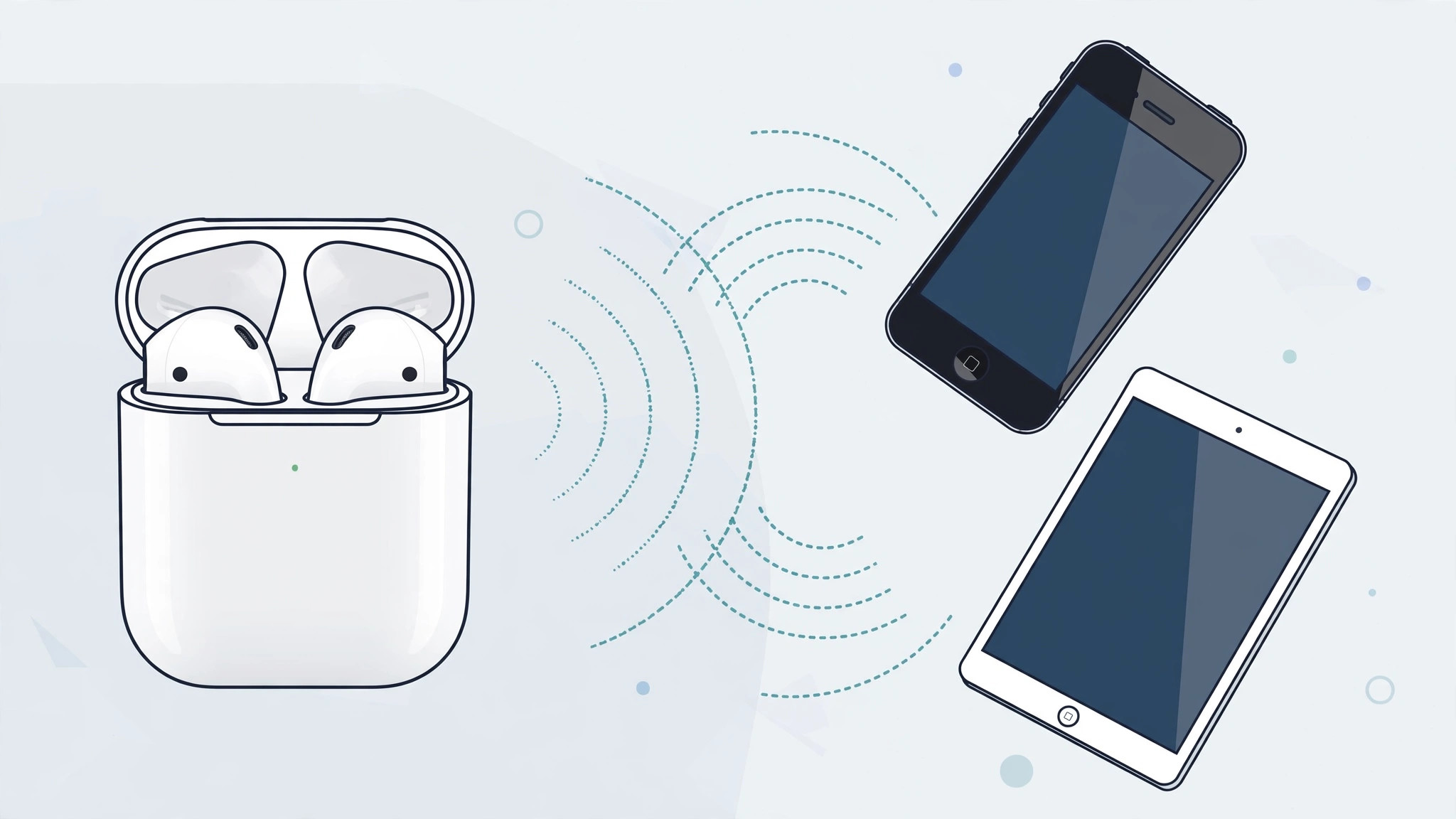
Digging an old iPhone or iPad out of a drawer and wondering whether your AirPods will still talk to it? The short answer is yes — AirPods are, at their core, Bluetooth earbuds, and any iPhone or iPad with Bluetooth can pair with them, no matter how old the device is. There are just a couple of quirks to know about, because the slick auto-pairing animation Apple shows on newer devices may not appear on older ones.
The short answer: yes, AirPods work with old iPhones and iPads
AirPods connect over standard Bluetooth, so compatibility is not gated by the age of your iPhone or iPad. If the device can pair a Bluetooth speaker or a third-party headset, it can pair AirPods. Apple documents the same Bluetooth pairing flow on its AirPods support pages, and tech outlets like MacRumors and 9to5Mac have long confirmed that even decade-old iOS hardware works fine with current AirPods for music and calls.
What you give up on very old hardware is the polish, not the function: the proximity-pairing pop-up, automatic device switching and features such as Spatial Audio depend on newer chips and newer iOS/iPadOS versions. Basic stereo audio and the microphone for calls work exactly as you would expect.
How to pair AirPods with an old iPhone or iPad manually
On older devices the automatic pairing card often never appears. Use the manual Bluetooth method instead — it takes about a minute:
- Put the AirPods in their charging case and open the lid. Keep the earbuds inside the case for the whole process.
- Press and hold the setup button on the back of the case until the status light starts flashing white. (On AirPods 4 and AirPods Pro 2, double-tap the front of the case instead of using a rear button.) This puts the AirPods into Bluetooth pairing mode.
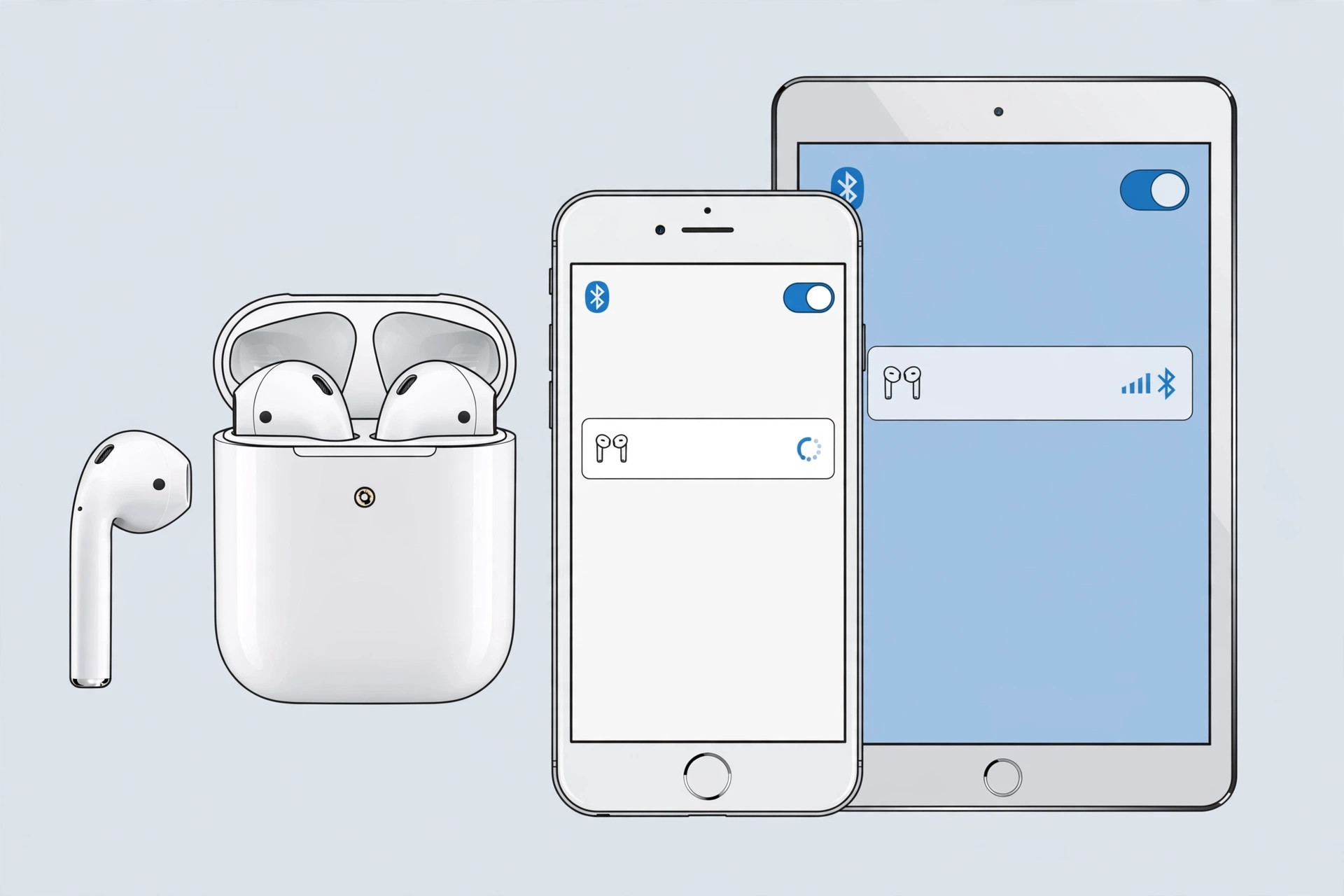
- On your iPhone or iPad, open Settings > Bluetooth and make sure Bluetooth is switched on.
- Tap your AirPods in the list of devices under “Other Devices.” After a few seconds they move to “My Devices” and show as Connected.
- Test the connection by playing a song or a video walkthrough on YouTube — audio should now route to the AirPods.
One pairing covers your other Apple devices too
Pairing is tied to your Apple ID, not just to the one device. If your newer iPhone, iPad or Mac signs in with the same Apple ID, the AirPods will also appear in their Bluetooth lists, ready to connect. On the old device itself, though, switching is manual: open Control Center, tap the audio output control, and choose the AirPods — or pick them again under Settings > Bluetooth. Automatic switching requires newer operating systems on both ends, so don’t be surprised if your old iPad doesn’t hand audio off by itself.
What works — and what stays limited — on older devices
Expect flawless basics: music, podcasts, videos and phone or FaceTime calls all sound fine. Features that may be missing or limited on old hardware and software include Spatial Audio with head tracking, Conversation Boost, Adaptive Transparency and seamless automatic switching. If your AirPods ever start hopping between your iPhone and another device on their own, our guide on how to stop iPhone from auto-switching audio from headphones to a speaker or car stereo walks through taming that behavior. And if the little chimes from the case get annoying, see how to turn off AirPods charging case sounds.
If it still doesn’t work
Reset the pairing: put the AirPods back in the case, hold the setup button for about 15 seconds until the light flashes amber and then white, then pair again from scratch. Also try toggling Bluetooth off and on, restarting the iPhone or iPad, and making sure the AirPods have some charge. If they pair with a different phone but not the old one, the old device’s Bluetooth radio may be failing — a network settings reset (Settings > General > Transfer or Reset iPhone > Reset Network Settings) often clears that up.
Frequently asked questions
Do AirPods need a minimum iOS version to work?
No. Any iOS or iPadOS version with Bluetooth audio support can pair AirPods manually. Newer iOS versions only add conveniences like the pairing animation and automatic switching — the core audio connection uses the same Bluetooth profiles as any wireless headset.
Will my AirPods Pro’s noise cancelling work on an old iPad?
Yes. Noise cancellation is processed on the AirPods themselves, so it works regardless of the connected device’s age. You just won’t be able to fine-tune newer extras like Adaptive Transparency from very old iOS versions.
Conclusion
Don’t let the age of your iPhone or iPad stop you: pop the AirPods into pairing mode with the setup button, connect from Settings > Bluetooth, and you’re listening in under a minute. The manual method bypasses the missing pairing animation entirely, and once connected, everyday listening and calls work just as well as on the newest hardware.





