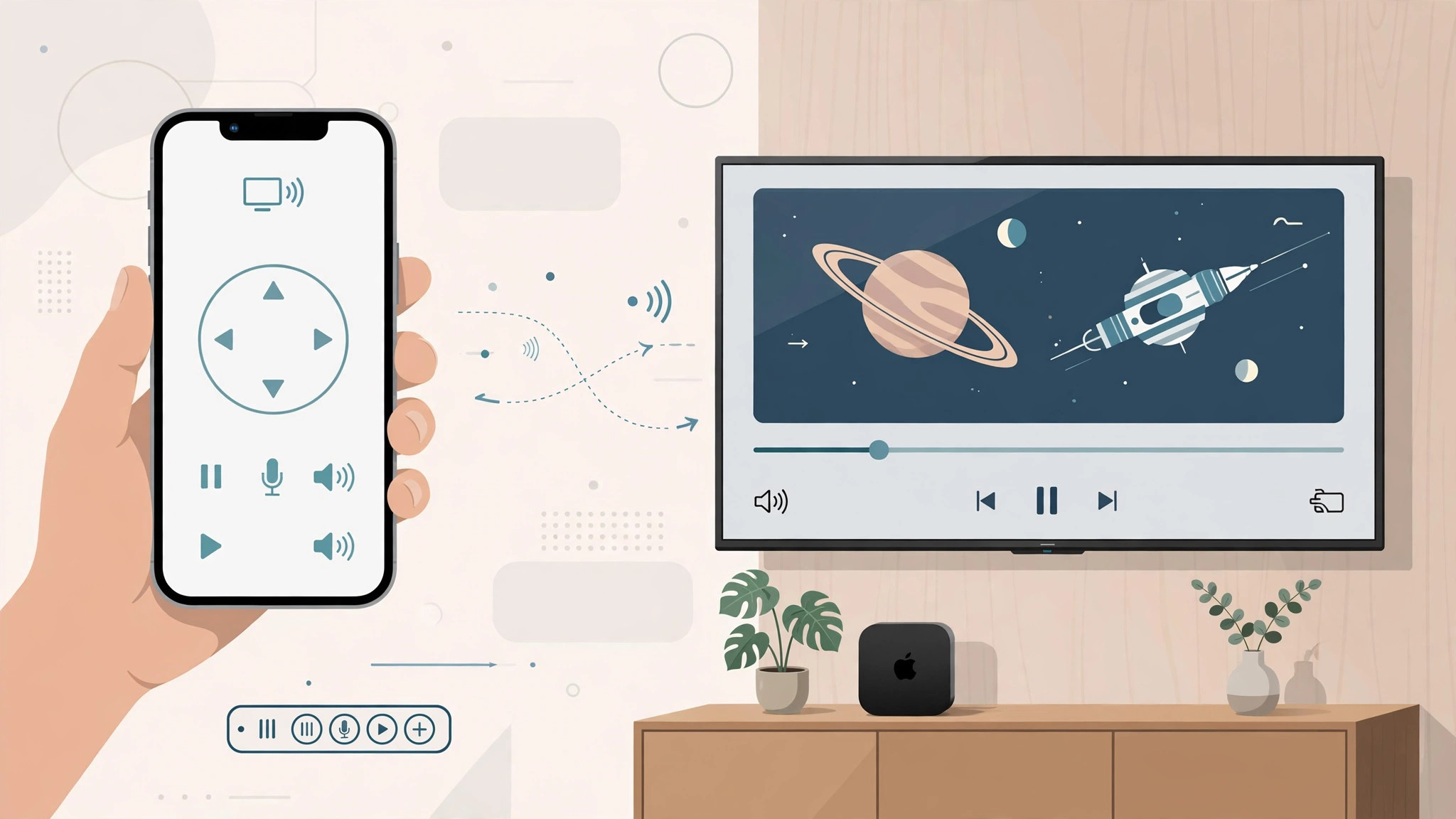
Lost your Apple TV remote down the side of the couch? Don’t panic — your iPhone or iPad can replace it. Apple builds an Apple TV remote right into Control Center, and it does everything the physical remote does (plus typing, which it does much better). Here’s how to control an Apple TV 4 with your iPhone or iPad.
What you need
Before you start, check two things: your iPhone or iPad and the Apple TV must be on the same Wi-Fi network, and they should be signed into the same Apple ID. If they are not on the same Apple ID, you can still pair them manually with a code shown on the TV screen.
How to add the Apple TV remote to Control Center
- Add the remote button to Control Center. On your iPhone or iPad, open Settings > Control Center and add Apple TV Remote to your included controls (on some iOS versions it appears there automatically).
- Open the remote. Swipe down from the top-right corner of the screen (or up from the bottom on older devices) to open Control Center, then tap the Apple TV Remote icon.
- Select your Apple TV. If more than one Apple TV appears, tap the one you want to control. If asked, enter the pairing code shown on the TV.
- Navigate with the touch area. Swipe on the touch area like a trackpad to move through menus, tap to select an item, and use the Menu, Play/Pause, and power buttons at the edges just like the physical remote.
- Use the on-screen keyboard for text. When you reach a search or login field, a full keyboard appears on your iPhone or iPad — far faster than pecking out letters with the Siri Remote. The remote also works for browsing the App Store and confirming purchases.
Apple’s guide to using your iPhone as an Apple TV remote covers setup and pairing in detail, and MacRumors tracks changes to tvOS remote features in each new release.
A small history note: years ago Apple offered a standalone Apple TV Remote app in the App Store. That app is long discontinued — the built-in Control Center remote is the modern replacement, so there’s nothing extra to install.
If it still doesn’t work
If the Apple TV does not appear in the remote, make sure both devices are on the same Wi-Fi network and that Wi-Fi is enabled on the Apple TV itself. Restarting both devices fixes most pairing glitches. For more Apple-device pairing know-how, see our guide to setting up automatic hotspot connection from iPhone on Mac, and for another ecosystem accessory, our guide to turning off AirPods charging case sounds.
Frequently asked questions
Can I control Apple TV 4 without the Siri Remote?
Yes. The built-in Control Center remote fully replaces the Siri Remote for navigation, playback, volume (with compatible TVs), and text entry — most people never touch the physical remote again.
Do my iPhone and Apple TV need the same Apple ID?
It’s easiest if they do, but it’s not strictly required. You can pair manually with the code shown on the TV, which is handy for controlling an Apple TV at a friend’s or family member’s house.
Conclusion
The Apple TV remote built into your iPhone or iPad is the fastest replacement for a lost physical remote. Add it to Control Center, connect over the same Wi-Fi, and you’ll be navigating, pausing, and typing searches in seconds.