
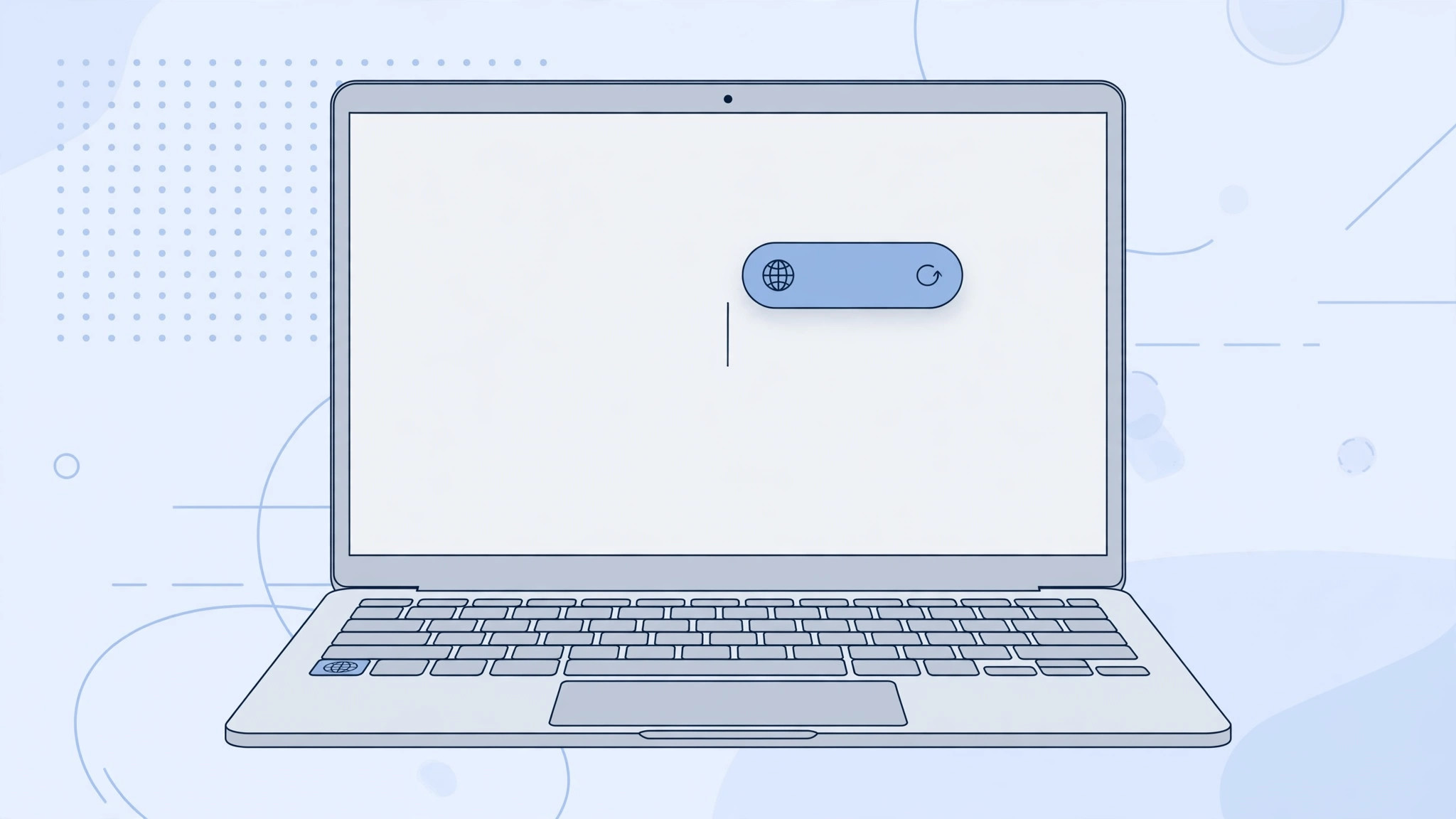
If you type in two or more languages on your Mac, macOS Sonoma introduced a small but persistent annoyance: every time you switch input sources, a floating bubble pops up near your cursor announcing the new language. Apple gave this indicator no off switch in System Settings — it just appears, every time, right where you’re looking. Fortunately, a single Terminal command disables it completely. Here’s how.
The bubble is part of Sonoma’s redesigned text cursor system, which MacRumors covered among the update’s smaller interface changes. For monolingual typists it’s invisible; for anyone juggling layouts, it’s a constant flicker.
How to turn off the language indicator
Because there’s no toggle in Settings, we’ll flip the underlying preference directly. Don’t worry — it’s one command, and it’s reversible.
- Open Terminal (Applications → Utilities → Terminal, or find it fast with our guide on quickly opening the installed apps list).
- Paste the following command and press Return:
sudo defaults write /Library/Preferences/FeatureFlags/Domain/UIKit.plist redesigned_text_cursor -dict-add Enabled -bool NO - Terminal will ask for your Mac password. Type it (the characters won’t show — that’s normal) and press Return.
- Restart your Mac. The floating language bubble will be gone.
The sudo prefix is needed because this preference lives in a system-wide file, not your user settings — which is also why Apple’s own documentation doesn’t mention a per-user toggle. Power users on 9to5Mac have confirmed the command survives minor updates, though major macOS upgrades occasionally reset it.
How to turn the indicator back on
Changed your mind? Run the exact same steps, but replace -bool NO with -bool YES:
sudo defaults write /Library/Preferences/FeatureFlags/Domain/UIKit.plist redesigned_text_cursor -dict-add Enabled -bool YES
Enter your password, restart, and the bubble returns. Nothing is permanently altered either way.
If it still doesn’t work
If the bubble persists after restarting, double-check the command for typos — especially the plist path and the -dict-add Enabled portion. Make sure you actually restarted (logging out isn’t enough). And confirm you’re on macOS Sonoma or later; this preference key doesn’t exist on Ventura and older, where the indicator never appeared in the first place. If Terminal reports permission errors, verify your user account has administrator rights.
Frequently asked questions
Is it safe to run this sudo command?
Yes — it only flips a feature flag for the redesigned cursor, a documented defaults mechanism. It doesn’t modify system files or disable security protections. And it’s fully reversible with the YES variant above.
Will this break my keyboard layouts?
No. Input sources keep working exactly as before; only the floating bubble disappears. You can still see the current layout in the menu bar. Speaking of taming macOS annoyances, our guide on muting Mail notifications for specific contacts fixes another common one.
Conclusion
Sonoma’s language-switch bubble is a textbook case of a well-meaning UI addition with no off switch — but the Terminal gives you one anyway. Paste the command, enter your password, restart, and enjoy a cursor area free of floating interruptions. If you ever miss it, the reverse command is right above.





