
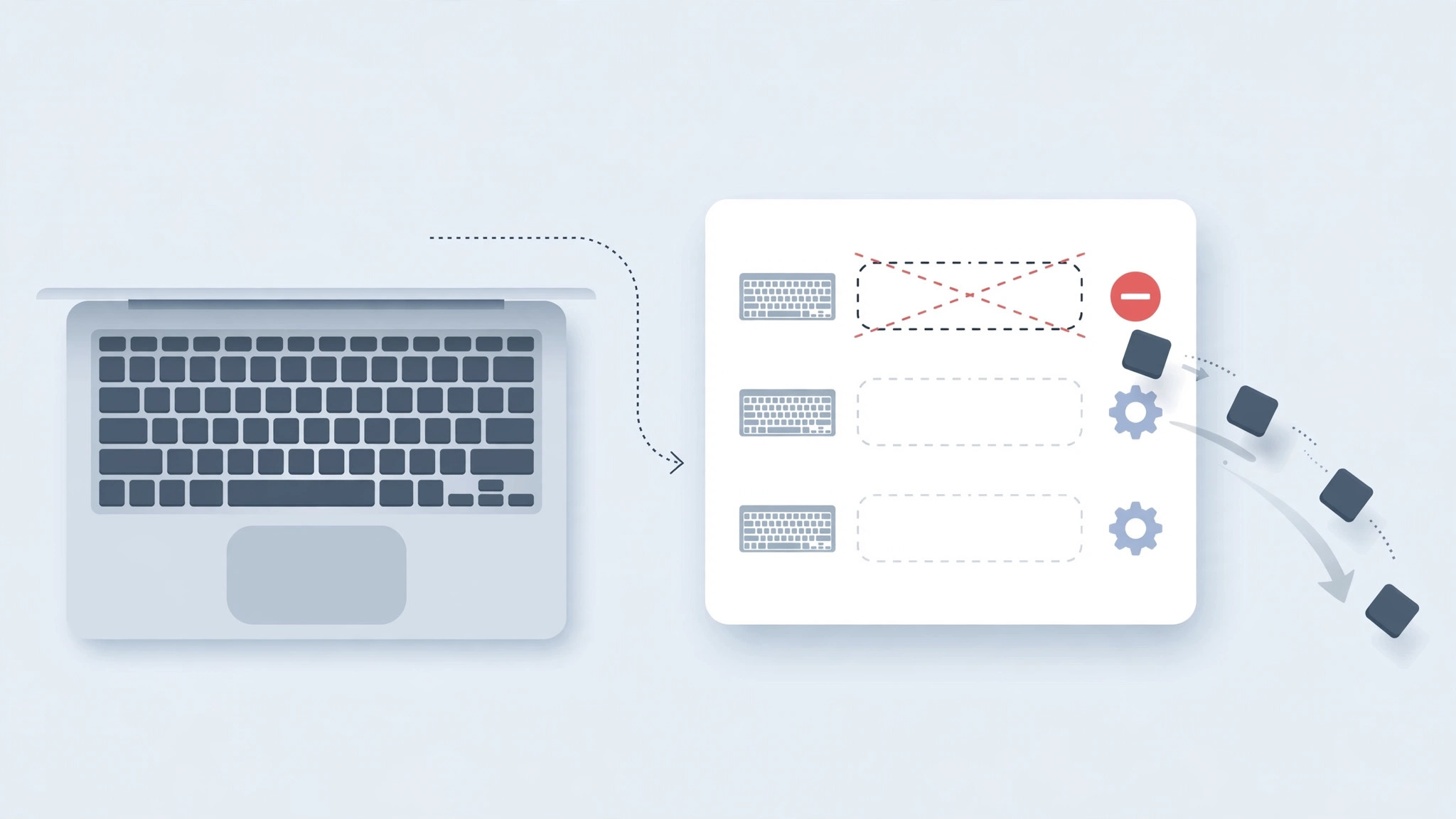
If you type in multiple languages on your Mac, you have probably tried to declutter the input menu — and hit a wall. In macOS Sonoma, the system simply refuses to delete the default English keyboard layout. Select it, click the minus button, and nothing happens. It is not a bug; Sonoma insists on keeping at least one layout capable of typing Latin characters. Fortunately, there is a clean workaround: give it another Latin-capable layout first, and the English one becomes deletable. Here is the trick that actually works.
This quirk has frustrated multilingual users since Sonoma’s release, with threads on MacRumors forums and 9to5Mac comment sections full of people bumping into the same refusal.
The workaround: add Japanese – Romaji first
The key insight is that Sonoma only requires a Latin-capable layout, not specifically the English one. The Japanese – Romaji layout types perfect Latin characters, so once it exists, the system lets the English layout go.
- Open System Settings → Keyboard, then click Edit next to Input Sources.
- Click the + button to add a new layout.
- Find and add Japanese — Romaji to your input sources.
- Open its settings and make sure the Romaji checkbox is enabled — this is what provides Latin typing.
- Now select the English layout (and Chinese, if present) and click the minus (–) button to remove them.
The English layout deletes without protest this time. Romaji covers all your Latin typing needs, so nothing breaks — you can still type English normally. Apple’s support documentation describes the input source system, though it understandably doesn’t advertise this particular loophole.
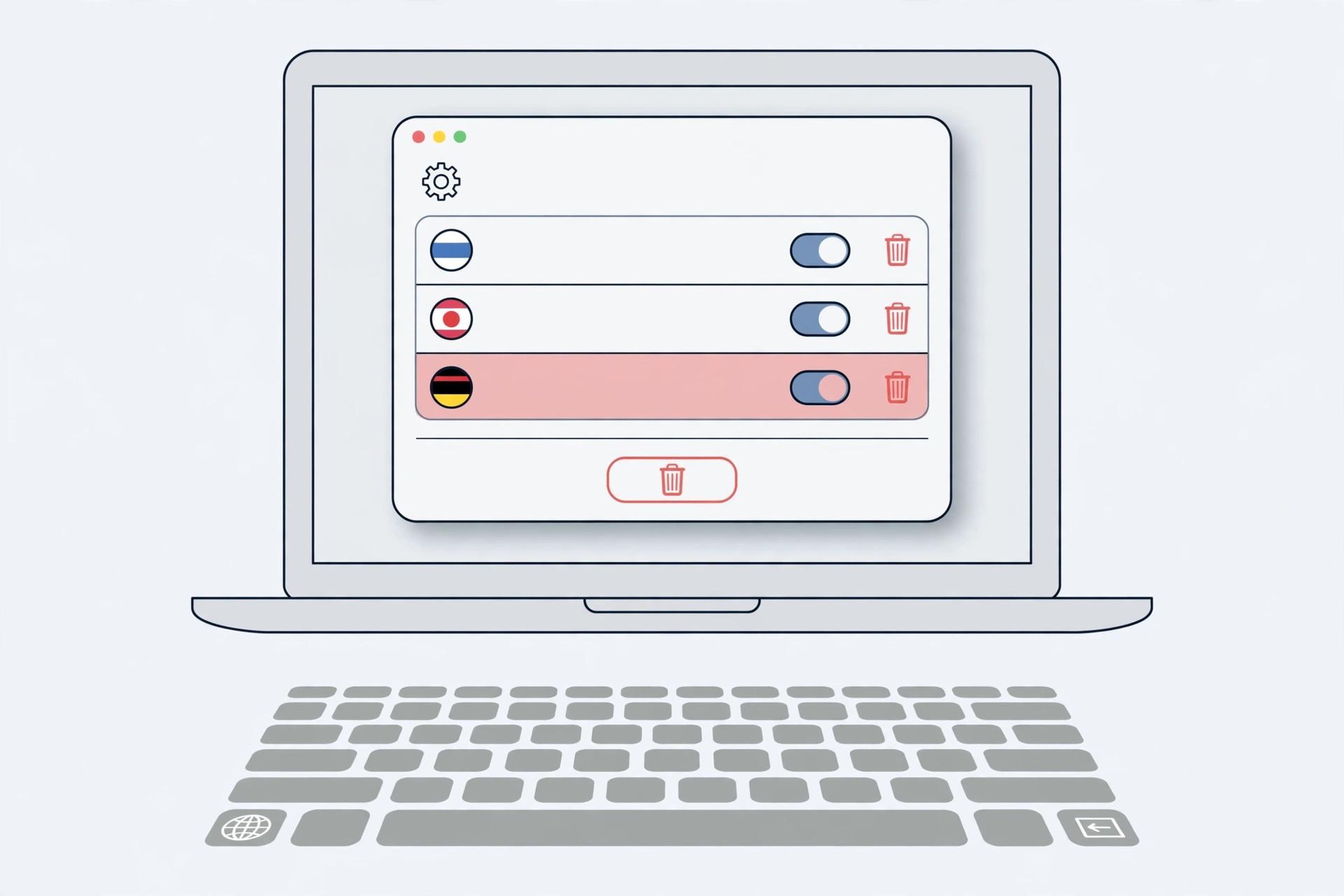
If it still doesn’t work
If the minus button is still grayed out, the Romaji option probably isn’t fully enabled — reopen the Japanese layout’s settings and confirm the Romaji checkbox is ticked. Also make sure you added Romaji specifically, not just the Japanese Kana layout. If you use a third-party input method, check it doesn’t depend on the English layout being present. And remember: you must keep at least one Latin-capable source, so don’t try to remove Romaji too.
Fans of macOS customization may also enjoy our guide on changing folder colors and adding emoji in macOS — another way to make the system yours.
Frequently asked questions
Why does Sonoma block deleting the English layout?
macOS wants to guarantee you can always type Latin characters — for passwords, URLs, Terminal commands, and recovery situations. Rather than risk leaving you with no Latin input, it blocks removal of the last Latin-capable layout. Romaji satisfies that requirement.
Will this affect my other keyboard shortcuts?
No. Input source switching shortcuts keep working, and your remaining layouts behave exactly as before. If notification overload is your bigger macOS gripe, see how to mute Mail notifications for specific contacts.
Conclusion
Sonoma’s refusal to delete the English layout feels arbitrary until you understand the Latin-input safety rule behind it. Add Japanese — Romaji, enable its Romaji mode, and the English layout becomes removable in seconds. Your input menu gets cleaner, and your Latin typing keeps working flawlessly.





