
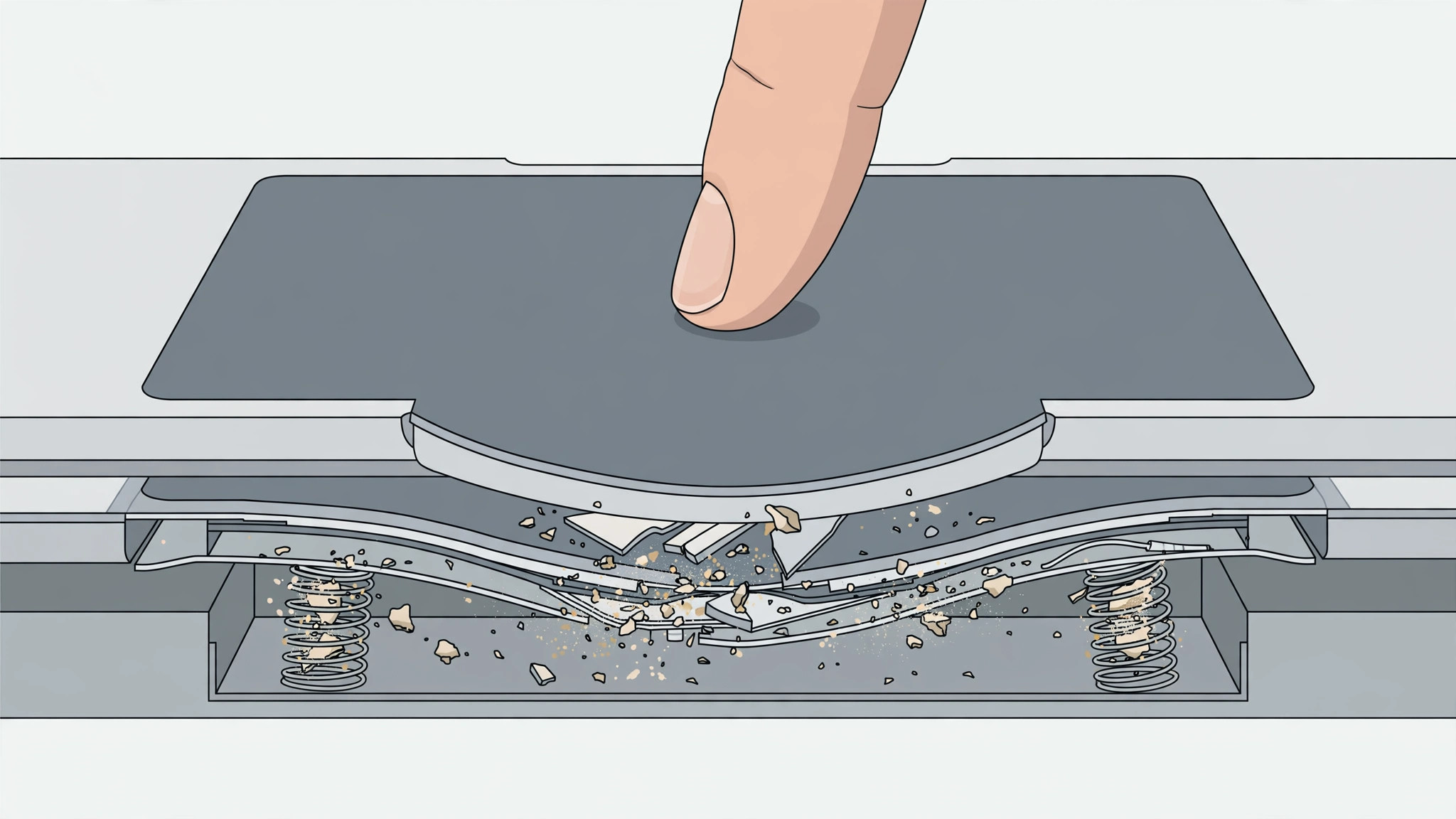
A trackpad that sticks, clicks unevenly, or stops responding can turn a great MacBook into a frustrating one. Most sticking trackpads are caused by simple software hiccups or dirt — but there is one cause you should rule out first, because it can be dangerous: a swollen battery. This guide starts with that safety check, then walks through the safe fixes in order.
First: rule out a swollen battery
On a MacBook, the battery sits almost directly beneath the trackpad with barely any gap between them. When a battery swells — a known failure mode of aging lithium-ion cells — it presses upward against the trackpad, making clicks feel stuck, stiff, or uneven. Warning signs include a bottom case that bulges, a lid that no longer closes evenly, or the Mac rocking on a flat table. If you see any of these, stop using the Mac and take it to an Apple Store or authorized service provider. Battery replacement restores the normal trackpad feel, and this is strictly a service-center job — never pry at a swollen battery yourself. Apple’s battery service pages cover replacement options, and iFixit has detailed teardown guides if you want to understand what the technician will do.
How to fix a sticking MacBook trackpad step by step
- Restart the Mac. A surprising number of trackpad glitches are temporary driver or input-service hiccups that a restart clears. On Apple Silicon Macs a normal restart also resets the system management controller. On Intel Macs, if the problem persists after a restart, also reset the SMC and NVRAM using the key combinations in Apple’s support documentation.
- Check your trackpad settings. Open System Settings > Trackpad and look at the basics first: adjust the tracking speed, then toggle Tap to click and Force Click and haptic feedback off and back on. A settings glitch — sometimes left behind by a macOS update — can make clicks feel wrong until the options are re-applied.
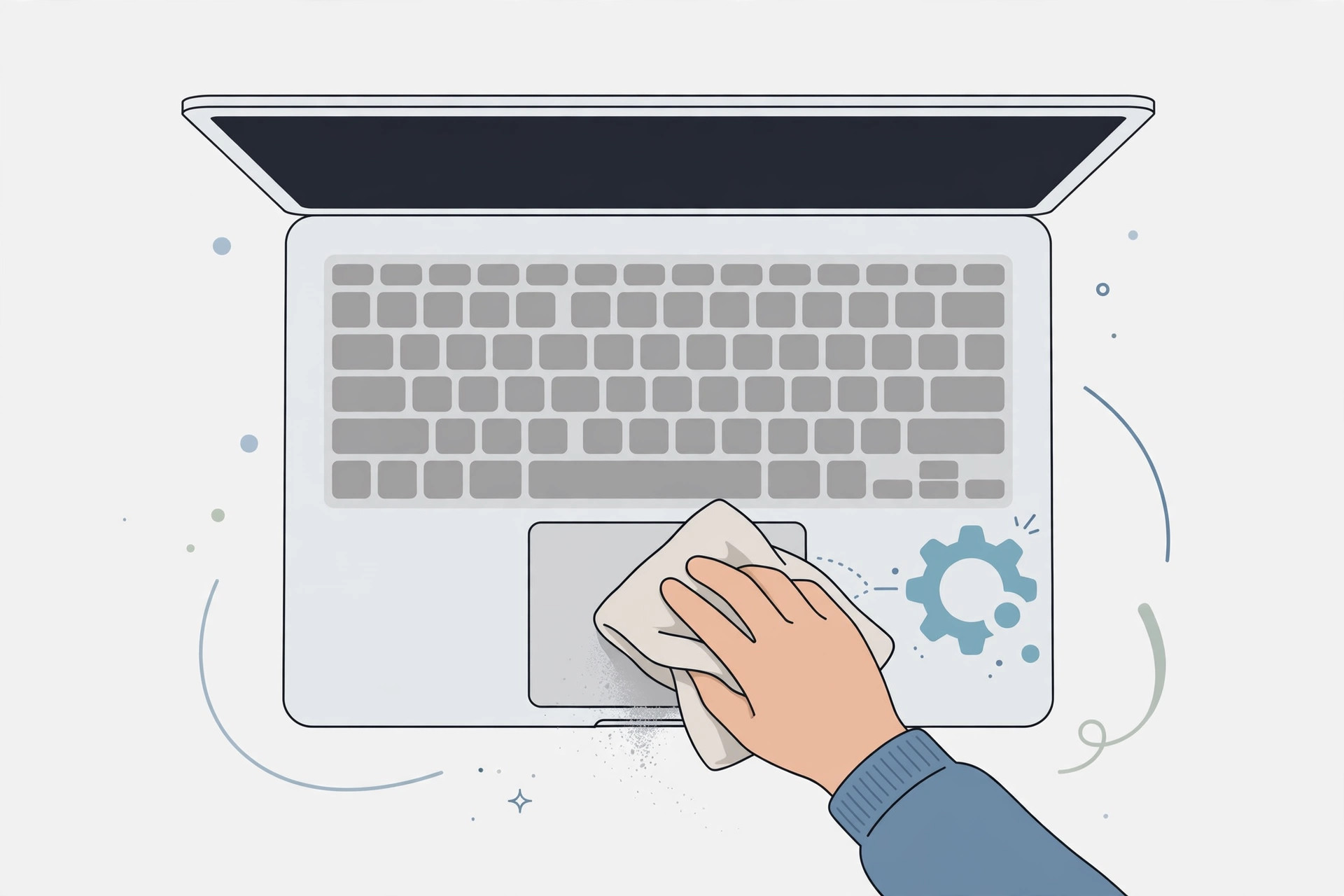
- Clean the trackpad and its edges. Power the Mac down, then wipe the trackpad surface with a dry, lint-free microfiber cloth. Pay special attention to the thin gap around the trackpad’s edges: dust, crumbs, and dried liquid residue collect there and physically resist the click mechanism.
- Boot into Safe Mode. Restart while holding the appropriate key for your Mac to enter Safe Mode, which loads only Apple’s own software. If the trackpad behaves normally there, a third-party app, driver, or input utility is interfering — remove recently installed software one by one until you find the culprit. For more macOS how-tos, see our guides on quickly opening the installed-apps list in macOS 26 and enabling face lighting during video calls on Mac.
If it still doesn’t work
If the trackpad still sticks after the software checks and a thorough cleaning — and you have ruled out battery swelling — the click mechanism itself may be worn or damaged, especially on older MacBooks with a physical click. At that point, book a hardware diagnostic with Apple or an authorized service provider rather than forcing the trackpad, which can crack the glass surface.
FAQ
Can a swollen battery really make the trackpad stick?
Yes. The battery sits almost flush under the trackpad, so even slight swelling presses the trackpad upward and changes how clicks feel. Uneven or stiff clicking combined with a bulging case is the classic signature — treat it as a battery problem, not a trackpad problem.
Is it safe to keep using a MacBook with a sticking trackpad?
If the cause is software or dirt, yes. But if you suspect a swollen battery — bulging case, uneven lid, rocking on a table — stop using it and get it serviced. A swollen lithium-ion battery is a fire risk and should only be handled by professionals.
Conclusion
Work through the list in order: rule out the swollen battery first, then restart, check settings, clean the edges, and test in Safe Mode. Most sticking trackpads are fixed long before the service appointment — but when the battery is the culprit, the service appointment is exactly the right move.





