
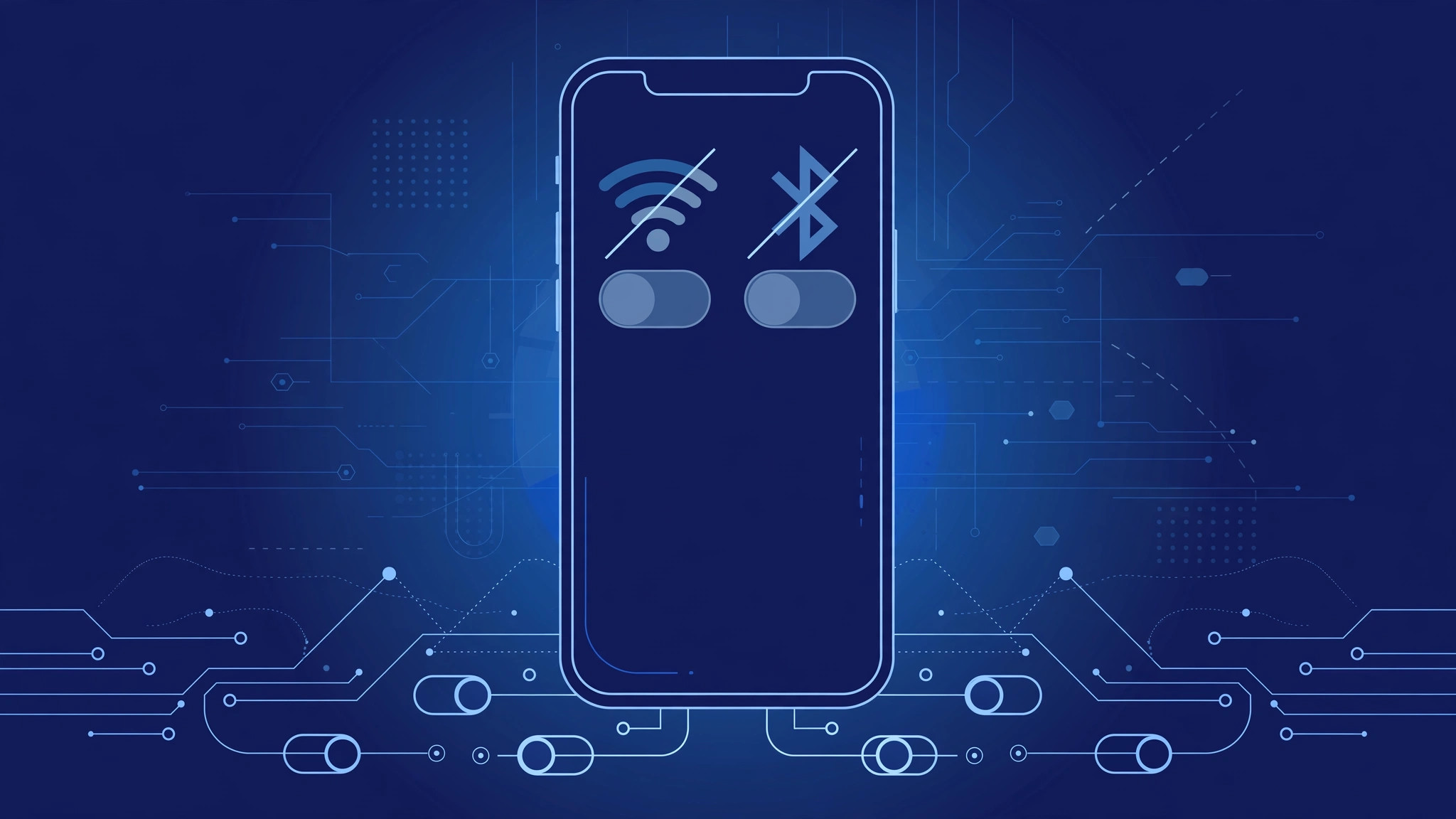
With iOS 11, Apple quietly changed what the Wi-Fi and Bluetooth buttons in Control Center do: instead of switching the radios off, they merely disconnect your iPhone from the current network or accessory while the radios themselves stay powered on. The change confused countless users — and Apple has kept the behavior in every iOS release since, so this guide is as relevant today as it was in 2017.
What the Control Center buttons actually do
Tapping the Wi-Fi icon in Control Center disconnects your iPhone from its current Wi-Fi network; tapping the Bluetooth icon disconnects paired accessories such as headphones. In both cases the underlying radio stays on, because AirDrop, AirPlay, Handoff, Instant Hotspot, location services, and the links to your Apple Watch and Apple Pencil all depend on those radios. The disconnect lasts until 5 AM the next morning, until you restart the phone, or until you move to a new location — then the iPhone reconnects on its own. Apple Support documents this behavior, and AppleInsider and ZDNet covered the uproar when users discovered it. If your goal is to genuinely power the radios down — to save battery or go dark — Control Center is the wrong tool.
Turn Wi-Fi off completely
To truly disable Wi-Fi, flip the master switch in Settings:
- Open Settings and tap Wi-Fi.
- Tap the Wi-Fi toggle at the very top so it slides off and turns grey.
- Check the status bar. When Wi-Fi is fully off, its icon disappears from the top of the screen.
With the radio off, your iPhone will not scan for or join any network until you turn it back on. One caveat: features that lean on Wi-Fi, such as automatic Instant Hotspot connections from your iPhone to your Mac, stop working until you re-enable it.
Turn Bluetooth off completely
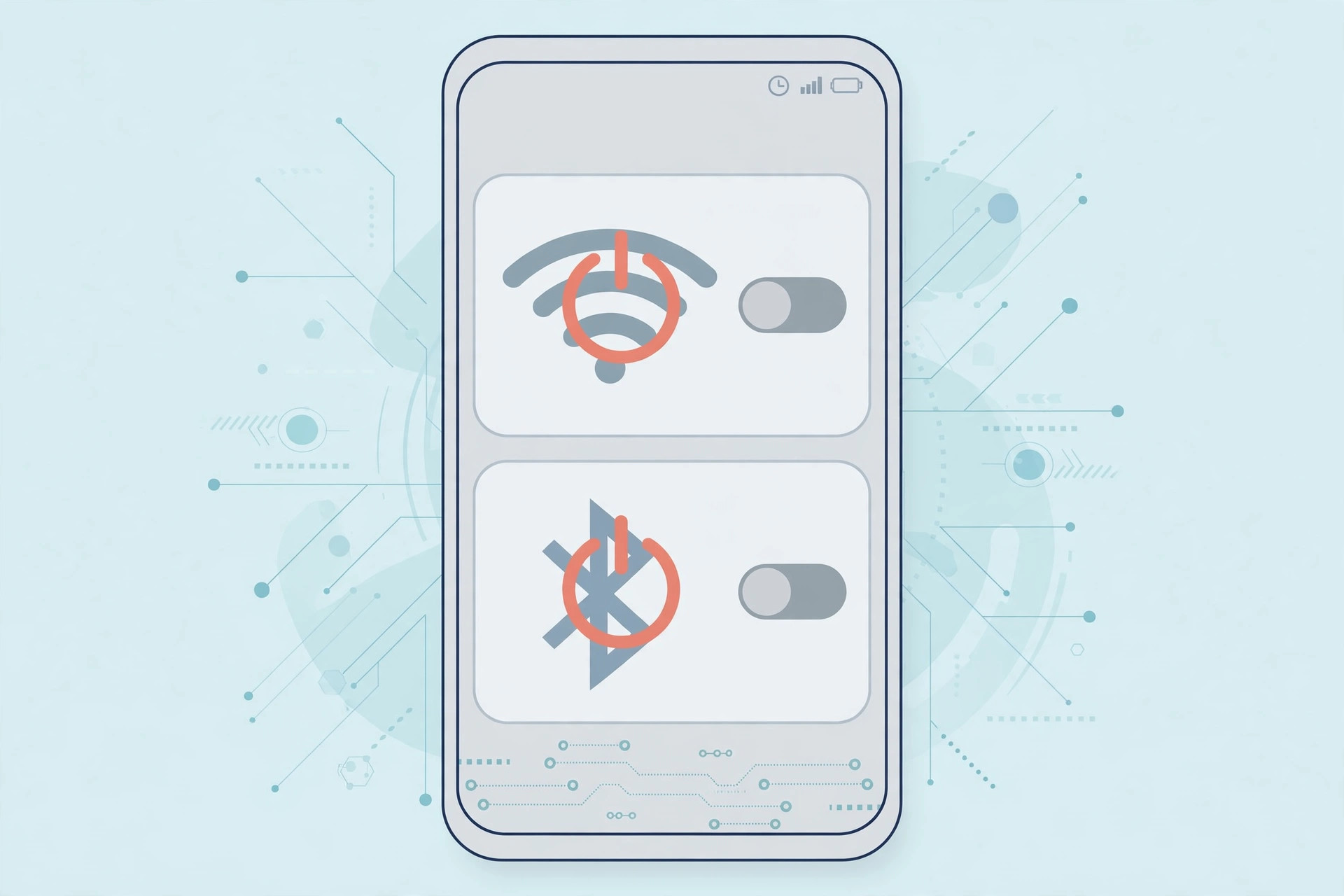
- Open Settings and tap Bluetooth.
- Tap the Bluetooth toggle at the top so it turns grey.
- Confirm your accessories disconnect. Headphones, speakers, and wearables drop their connections and stay dropped.
Switching Bluetooth off also severs the link to an Apple Watch, pausing notifications and health syncing. If your only annoyance is an accessory making noise rather than the radio itself, a narrower fix may suit you — see our guide on how to turn off AirPods charging case sounds.
Ask Siri to do it for you
Saying “Turn off Wi-Fi” or “Turn off Bluetooth” to Siri flips the actual master switches in Settings — not the Control Center disconnects. It is the fastest hands-free way to power both radios down, and “Turn on Wi-Fi” reverses it just as quickly.
The nuclear option: Airplane Mode
When you want every radio dark at once, tap the airplane icon in Control Center. Airplane Mode disables Wi-Fi, Bluetooth, and cellular together. You can then re-enable just Wi-Fi or just Bluetooth individually while the others stay off.
If it still doesn’t work
If Wi-Fi seems to switch itself back on overnight, that is the automatic 5 AM reconnection — it only follows a Control Center disconnect, never a Settings toggle-off. If the Settings toggle appears greyed out or will not stay off, restart the iPhone and try again. And if Bluetooth accessories reconnect the moment you walk back into range, double-check that you used the Settings switch rather than the Control Center button.
Frequently asked questions
Does fully turning off Wi-Fi and Bluetooth save battery?
Yes, though the gain is modest on modern iPhones. Even idle radios periodically scan for networks and devices, so powering them down removes that background activity. Lowering screen brightness and limiting background app refresh save considerably more.
Why did Apple design Control Center this way?
Continuity features are the reason. AirDrop, Handoff, Apple Watch connectivity, and location services all assume the radios are available. Most people tap those toggles expecting a quick disconnect, so Apple optimized for the common case — at the cost of confusing power users.
Conclusion
The rule is simple: Control Center only disconnects; Settings — or Siri — actually switches off. Use the Settings toggles when you want a radio genuinely powered down, and reserve Airplane Mode for when you want everything silent at once. Since Apple kept this behavior long after iOS 11, it is one of those small pieces of iPhone knowledge that keeps paying off.





