
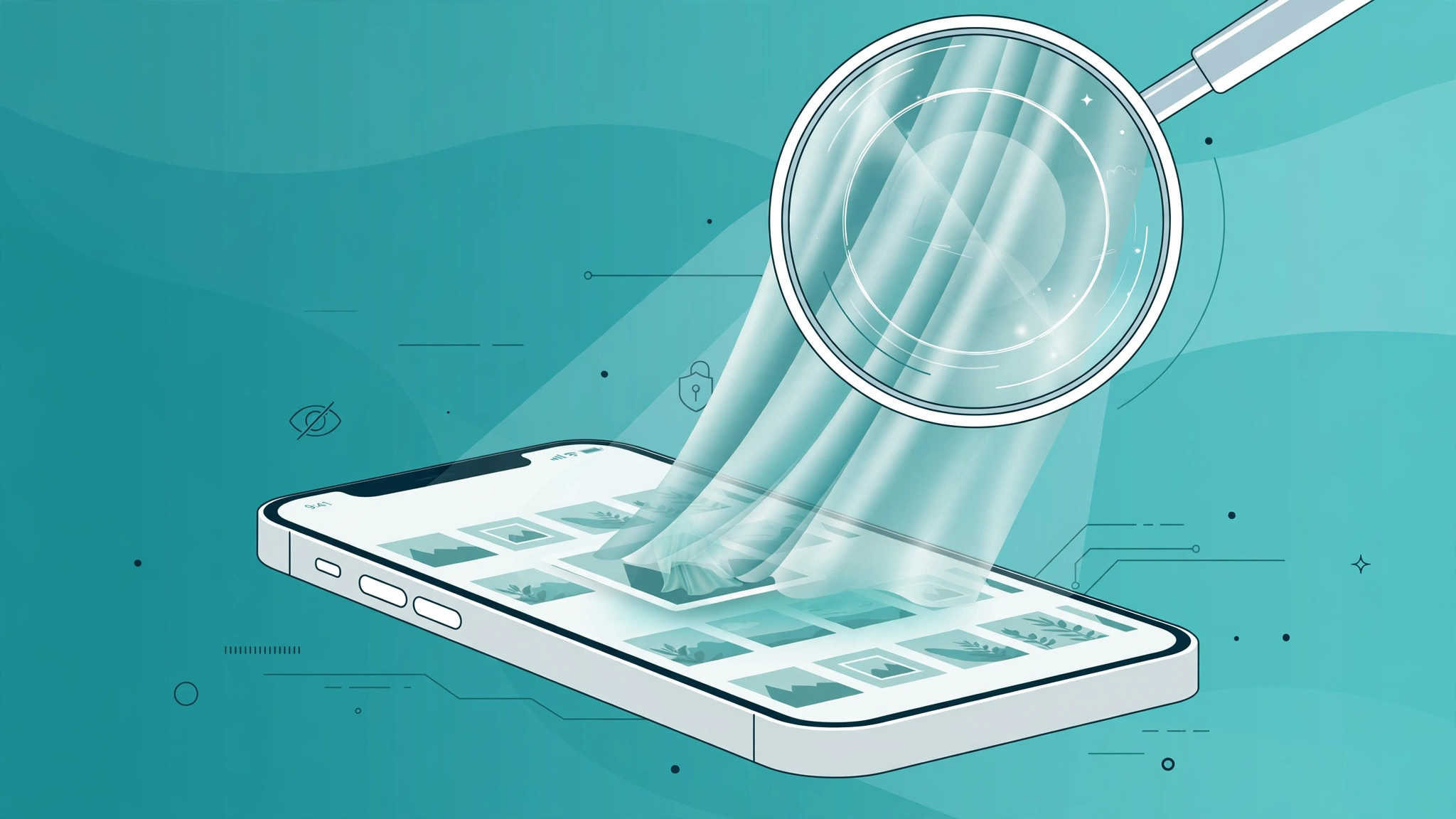
Hand your iPhone to a friend to look up a restaurant, and Spotlight might betray you: swipe down, type a word, and suddenly your recent photos are on display in the search results. Apple’s system-wide search indexes your photo library so you can find pictures fast — but that convenience becomes a privacy headache when other people use your phone. Fortunately, you can keep photos out of Spotlight two ways: hide individual shots in the Hidden album, or cut the Photos app out of search results entirely.
Method 1: Hide specific photos in the Hidden album
If only a handful of pictures need protection, this is the quickest route. Hidden photos leave your main library and — crucially — stop appearing in Spotlight results.
- Open the Photos app and select the photos you want to hide (tap Select, then tap each one).
- Tap the Share button (the square with the arrow pointing up).
- Scroll down in the share sheet and tap Hide, then confirm.
- The photos move to Albums > Hidden at the bottom of your Albums tab, and vanish from both the main library and Spotlight search.
To bring a photo back, open the Hidden album, select it, tap Share, and choose Unhide. Note that the Hidden album itself is visible to anyone browsing your Albums tab — for an extra layer, you can require Face ID to open it under Settings > Photos. Apple explains the Hidden album in detail on Apple’s official iPhone support pages.

Method 2: Exclude all Photos content from Spotlight
Prefer a blanket rule instead of hiding pictures one by one? iOS lets you control exactly what Spotlight is allowed to index from the Photos app:
- Open Settings and tap Siri & Search (on newer iOS versions, look under Apple Intelligence & Siri).
- Scroll down to Photos and tap it.
- Turn off Show Content in Search — your photos and videos will no longer appear in Spotlight results, though the Photos app itself remains searchable.
- For maximum privacy, also turn off Show App in Search — now neither the app nor its contents surface when someone searches your phone.
Both toggles are reversible: flip them back on and Spotlight re-indexes your library within minutes. This pairs well with other privacy cleanups — for instance, you can remove built-in iPhone apps you never use to shrink your phone’s searchable surface even further.
If it still doesn’t work
If a hidden photo still appears in Spotlight, give the search index a few minutes to update — changes are not always instant. A restart forces Spotlight to re-index and usually clears stragglers. Also check that you are not seeing the image via a different app: screenshots saved to Files, for example, are indexed separately. And if you use iCloud Photos, remember that hiding a photo on your iPhone syncs the Hidden state to your other Apple devices too, as MacRumors and 9to5Mac have both noted in their iOS privacy guides.
Frequently asked questions
Do hidden photos still show up in Memories or widgets?
No. Once in the Hidden album, photos are excluded from Memories, Featured Photos, and photo widgets as well as from Spotlight — that is the whole point of the Hidden album.
Can someone unhide my photos if they borrow my phone?
Yes, unless you lock the Hidden album. Anyone with your unlocked phone can open Albums > Hidden and unhide pictures. Turn on the Face ID lock for the Hidden album in Settings > Photos for real protection.
The bottom line
Spotlight is a little too helpful with your photo library by default, but two quick fixes restore your privacy: tuck sensitive shots into the Hidden album, or switch off Siri & Search for Photos to take the entire library out of search results. Either way, the next person who borrows your iPhone will see only what you want them to see. For more ways to lock down your device, learn how to completely block iOS 26 updates or turn off all SharePlay features when you want your iPhone to stop volunteering information.





