
Getting calls from numbers you don’t recognize is stressful. Sometimes it’s a delivery driver, sometimes a bank, and sometimes a scammer. The good news is that your iPhone can tell you who is calling even if the number isn’t in your contacts — but you have to set it up first. Here’s how to set up caller ID on iPhone using a third-party number database.
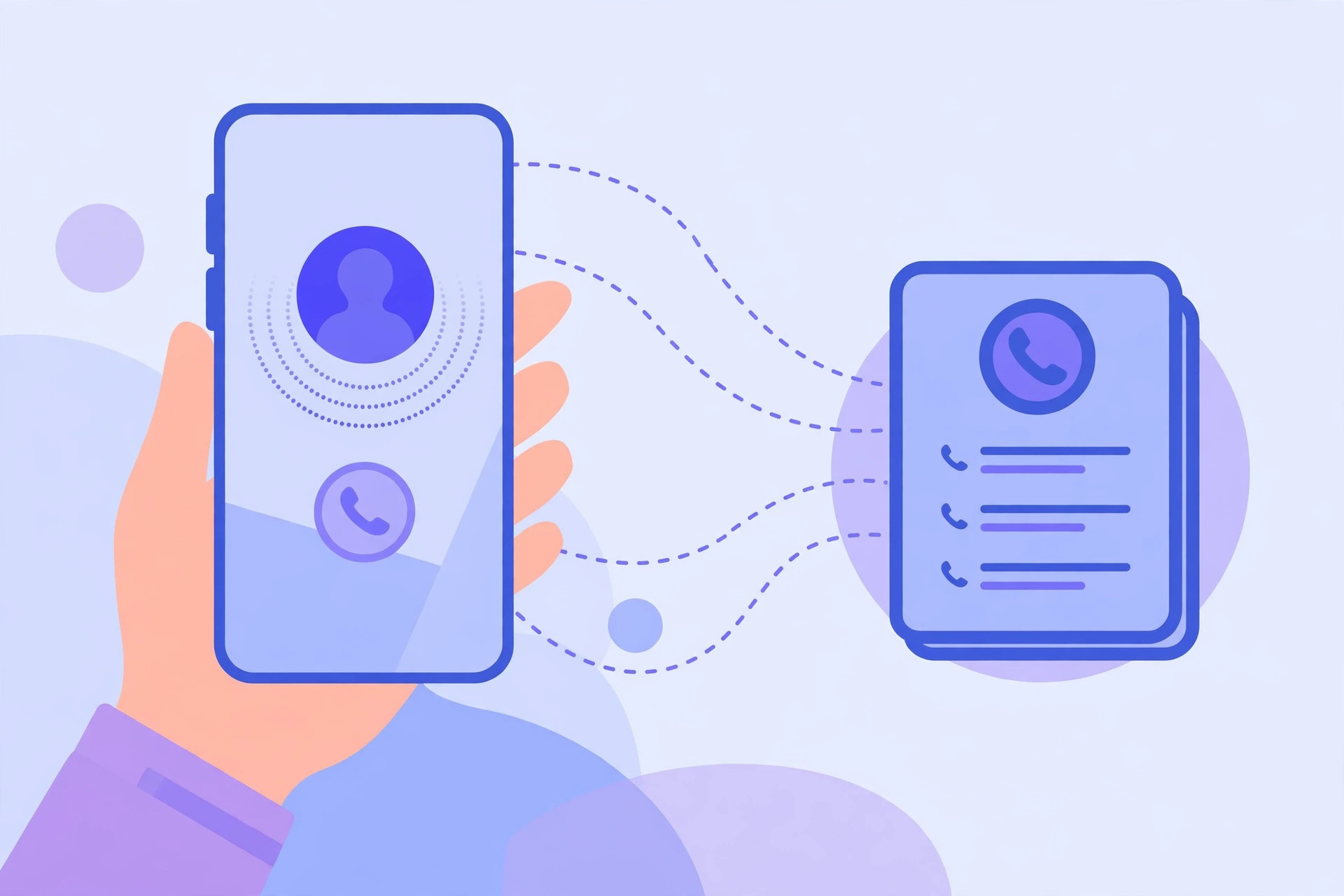
Step 1: Install a caller ID app
Apple’s own caller identification is limited, so iPhones rely on apps that maintain huge databases of phone numbers. Two of the most popular English-language options are Truecaller and Hiya. Both are available free in the App Store (with optional paid upgrades). Download one of them and open it once to complete its first-time setup — it will ask you to create an account and grant it access to your contacts so it can build the identification service.
Step 2: Open Call Blocking & Identification
On your iPhone, go to Settings → Phone → Call Blocking & Identification. This is the central screen where iOS manages every app that can identify or block calls. You will see a list labeled “Allow these apps to block calls and provide caller ID.” Apple’s own documentation explains how this screen works — see the Apple Support guide on managing unknown callers for the official steps.
Step 3: Enable your caller ID app
Turn on the toggle next to the app you installed in Step 1. That’s it — there is no further setup inside the app’s own interface that matters for the call screen. From now on, when a call comes in from a number that exists in the app’s database, your iPhone shows a name or label on the incoming-call screen, something like “Possible scam,” “Delivery service,” or the actual business name. Truecaller’s identification got even more powerful with real-time spam and scam identification introduced with iOS 18.2, which flags suspicious calls as they arrive.
What you can do with it
Once caller ID is active, you can answer confidently when a courier or clinic calls, and safely ignore numbers labeled as spam. If you want to go further and stop unknown numbers from ringing at all, you might also want to set up call filtering per SIM in Focus mode so only selected contacts can reach you.
Important limitations
No caller ID database is perfect. Some numbers will still show up as “Unknown” simply because nobody has reported them, and occasionally a legitimate business will be mislabeled if it changed numbers recently. Keep your caller ID app updated so its database stays fresh, and remember that no app catches every scam — stay cautious with any unexpected call asking for money or personal data. And if you recently swapped SIM cards, make sure to verify your SIM correctly so calls and caller ID behave as expected.
If it still doesn’t work
If unknown callers keep showing without a name, double-check that the toggle is still on in Settings → Phone → Call Blocking & Identification — iOS sometimes disables app extensions after an app update or a full reinstall. Also confirm the app is up to date, and make sure you are not running a restrictive content blocker or VPN that interferes with the app’s lookups. If nothing helps, try removing the app and reinstalling it, then re-enabling the toggle.
FAQ
Does caller ID on iPhone cost anything?
The apps themselves are free to download with free tiers that include basic caller identification. Paid subscriptions unlock extras like removing ads or enhanced spam filtering, but the core “who is calling” feature usually works on the free plan.
Will the caller ID app see my personal calls?
The app only needs to look up incoming unknown numbers against its database. If you are uncomfortable sharing contacts, you can decline that permission — identification of unknown numbers will still work, just with fewer features like contact-based spam reports.
Conclusion
Setting up caller ID on iPhone takes three steps: install a caller identification app like Truecaller or Hiya, open Settings → Phone → Call Blocking & Identification, and flip the toggle on. After that, incoming calls from businesses, delivery services, and known spammers carry a label — and you get to decide whether picking up is worth your time.





