
Animated wallpapers look fantastic, so it’s tempting to set your favorite looping GIF as an iPhone wallpaper. Here is the honest answer up front: iOS cannot use a looping GIF directly as wallpaper — and it wouldn’t be a great idea anyway, since a constantly animating background would drain the battery. The official workaround is converting the GIF into a Live Photo, Apple’s format that pairs a still image with a few seconds of motion and sound. On the lock screen, you press and hold to play the animation. This guide walks you through the whole process.
Step 1: Install the Giphy app
Apple’s Photos app can’t convert GIFs by itself, so you need a helper app. Giphy is free on the App Store and does the job neatly. Install it and open it on your iPhone. You can either pick an animation from Giphy’s huge catalog or upload one of your own GIFs from the camera roll.
Step 2: Convert the GIF to a Live Photo
Find the animation you want and open it in Giphy. Tap the three dots (the options menu) on the GIF, then choose Convert to Live Photo. The app renders the animation into a Live Photo and saves it to your camera roll. Open the Photos app afterward to confirm it’s there — Live Photos carry a small concentric-circle badge.
Step 3: Set the Live Photo as your wallpaper
Go to Settings → Wallpaper and tap Add New Wallpaper. Choose the Live Photo you just saved from your photos. On the preview screen, make sure the Live Photo option is enabled, then tap Set and pick Set Lock Screen. This is also a good moment to check how your lock screen looks overall — for example, our guide on the iOS 26 liquid glass lock screen clock explains the new clock styles, and we also covered how to move lock screen widgets down in iOS 26 if they overlap your wallpaper.
Step 4: Play the animation on the lock screen
Lock your iPhone and wake the screen. Press and hold anywhere on the wallpaper (Haptic Touch or 3D Touch, depending on your model) and the animation will play for a few seconds, then freeze on the still frame again. Lift your finger and the lock screen goes back to the static image.
Limitations to know before you start
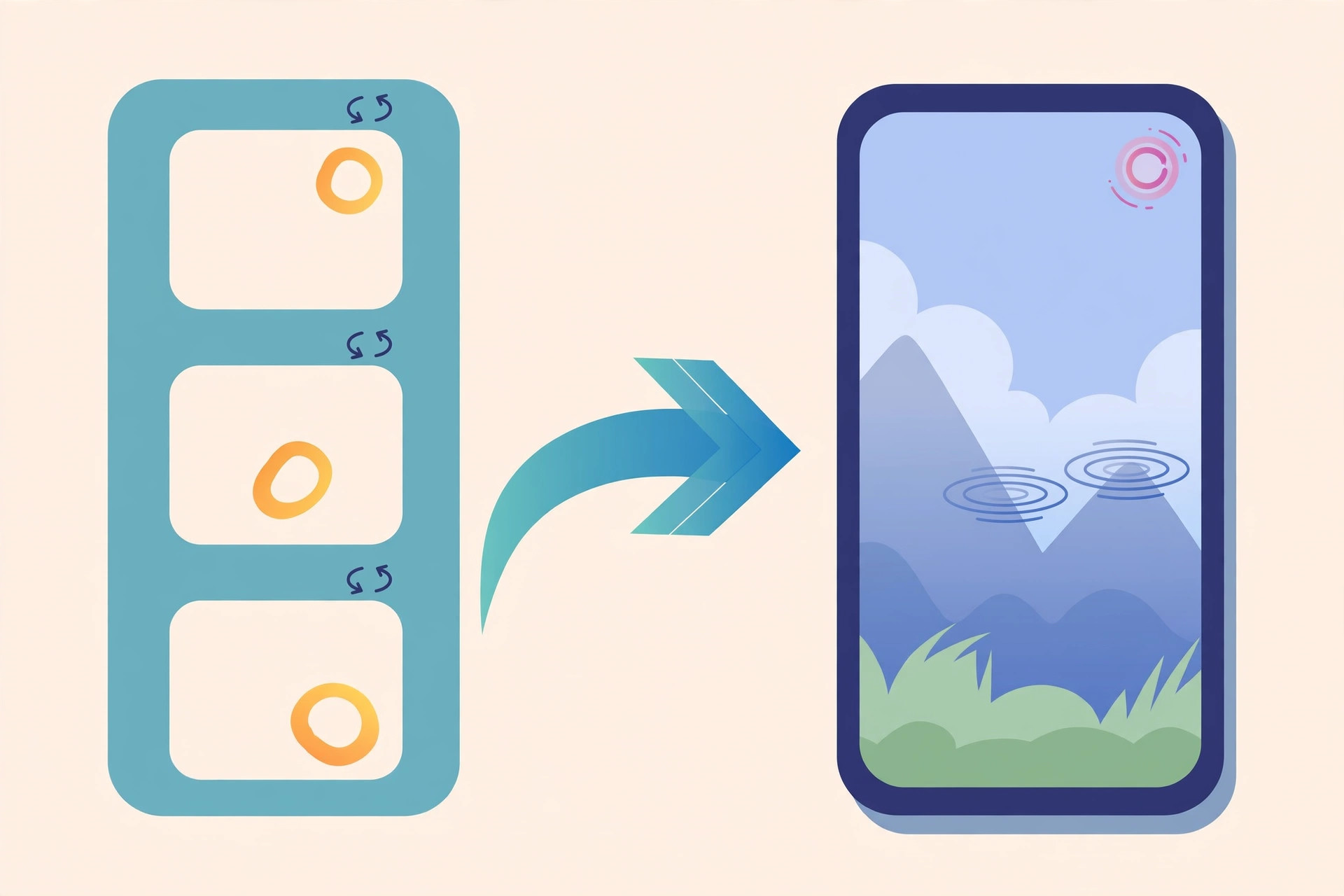
This trick only works on iPhones that support Live Photos — that’s iPhone 6s and later. Older models like the iPhone 6, 5s, first-generation SE, and the iPhone XR can’t shoot or display Live Photos, so the animation won’t play. Also, set your expectations correctly: the animation is not a continuous loop. It plays only while you press and hold, and only on the lock screen — the home screen stays static. If you expected a constantly moving background, you’ll be disappointed, but the press-to-play effect still looks great.
If it still doesn’t work
If the animation won’t play on the lock screen, first check that the wallpaper is genuinely a Live Photo: open it in Photos and look for the Live badge. If Giphy saved it as a still image, redo the conversion. Also confirm you’re pressing firmly and holding — a quick tap won’t trigger it. As 9to5Mac’s explanation of how Live Photos work notes, the format records motion around the still frame, so a GIF that converts to a still has nothing to play.
FAQ
Can I use a GIF as my home screen wallpaper?
No. Even converted to a Live Photo, the animation only plays on the lock screen via press-and-hold. The home screen shows the static frame.
Can I convert any GIF I have saved?
Yes — Giphy lets you upload your own GIFs from the camera roll and convert them the same way. Keep the animation short and portrait-oriented for the best lock-screen fit.
Conclusion
A true looping GIF wallpaper isn’t possible on iOS, but the Live Photo workaround gets you very close: pick a GIF in Giphy, convert it, set it as your lock screen wallpaper, and press and hold to watch it come alive. Just remember it only works on iPhone 6s and newer, and only on the lock screen.





